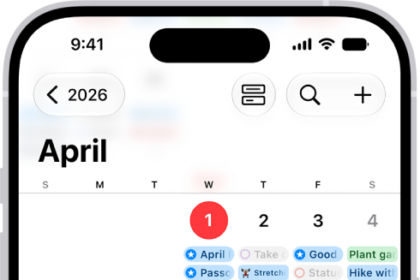
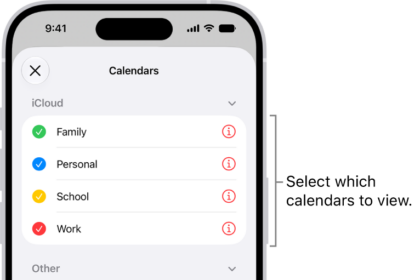
Occasionally while using your iPhone you may notice that the Calendar app shows the wrong information. You may notice several unexpected Calendar behaviors, for example, you may see wrong week numbers, different time zones, or wrong day and date. To give a more specific example, you may see your calendar weeks one week ahead than expected. In this article, you will learn how you can troubleshoot these Calendar issues on your iPhone 18 Pro or iPhone 18 Pro Max.
Restart
It is simple but it can be very effective. Simply restart your iPhone 18 Pro then open the Calendar app and see if you have fixed the problem.
Software Update
Make sure that you have the latest version of iOS. If not, update your iPhone 18 Pro to the latest version of the software. Here is how you can update:
- iPhone: Go to Settings > General > Software Update
Wrong week numbers?
Are you experiencing the wrong week numbers issue with the Calendar app? The Calendar app will display the week numbers based on your region and settings. There are a few different week numbering systems currently in use in the world. For example, the most common International Standard is called ISO 8601. In ISO 8601, Monday is the first day of the week. However, a lot of countries, such as the United States, Canada, Australia, and New Zealand, use a different week numbering system that puts Sunday as the first day.
If you think that Calendar is showing the wrong week numbers, ensure that your region is correctly selected in Settings. Here are the settings you should check:
- Ensure that the correct region is selected on your device:
- iPhone: Settings > General > Language & Region and tap Region.
- Ensure that your Calendar type used to display dates and times is correctly selected.
- iPhone: Settings > General > Language & Region and tap Calendar and select the type of calendar.
- Ensure that the Start Week On (first day of the week) is correctly selected. This is the day on which a calendar week starts. And depending on what you choose, your calendar week numbers will differ.
- iPhone: Settings > Apps > Calendar > Start Week On.
Date & Time settings
Check your Date and Time settings. Ensure that you turn on Set Time Automatically. Here is how:
- iPhone: Settings > General > Date & Time and turn on Set Time Automatically. And tap Time Zone and ensure that your settings are correct.
Delete and reinstall
If you are still having this issue, you may want to try deleting and installing the Calendar app again. Calendar is one of the built-in apps you can delete from your device:
- iPhone: Touch and hold the app on the Home Screen or in App Library. Tap Remove App, then tap Delete App. Tap Delete to confirm. And then open the App Store app, search for the Calendar app and install it again.
If the issue persists after trying the tips above, contact Apple for support and service options.