Several users have said that they are unable to view, edit, or share their photos on their iPhone devices. See Edit Button Grayed Out in Photos on iPhone 18 Pro. It appears that some or all of the photos do not seem to download. When the users attempt to use the Photos app to open photos or videos, they get the following error message:
Cannot Load Photo. There was an error loading this photo.
These problematic photos may also display a circled exclamation point in the lower right-hand corner.
Are you also having this problem? If you’re unable to load certain photos in iCloud Photos then this article is for you. This article explains how you can resolve this problem. Please try these troubleshooting steps in order. Test Photos to see if you’ve fixed your issue, after trying each tip below.
This issue may occur if the Optimize iPhone Storage option is enabled on your device (Settings > [your name] > iCloud > Photos > iPhone Storage). Turning this on will save you space on your device. When you turn this on, the full resolution of your photos and videos will be saved in iCloud. However, sometimes your photos or videos may not be downloaded from iCloud, causing this problem.
Furthermore, your iPhone 18 Pro will automatically optimize your library. This optimization will occur more if you do not have enough space. And this sometimes causes issues like this.
1. iCloud servers
If you’re experiencing difficulties with the Photos app, then it could be that Photos is having issues with its servers or systems. If this is the case, there is little you can do; the only thing you can do is wait. You can check if the Photos service is down by visiting the Apple System Status page. Here is how:
- Visit the System Status website.
- You will see a list of services.
- Find Photos.
- If the Photos service experiences issues or outages, you will see a note explaining the issue.
2. Update your iPhone 18 Pro
Update to the latest version of iOS. You can update wirelessly. Go to Settings > General and Software Update. And if there is an update available, follow the onscreen instructions. You can also update your device using your computer. Simply, connect your device to your computer with your USB cable, then open iTunes or Finder (if you are using macOS Catalina or later) and go to General or Settings, then click Check for Update. Then follow the onscreen instructions.
3. Restart your iPhone 18 Pro
Simply restart your device. This may fix your problem:
- Press and hold the volume up (or down) and the side buttons until the power off slider appears. Then drag the slider. Wait for your device to turn off. Then press and hold the side button until you see the Apple logo.

4. Internet
Please ensure that your iPhone 18 Pro is connected to the Internet. You can test to see if you have a Wi-Fi connection to the Internet or a cellular-data connection. Open Safari and try to visit a website (yahoo, google, or apple.com). If the site loads, then you have an Internet connection, if not, you can try the following to troubleshoot:
- Restart your device.
- Turn on Airplane Mode and wait 10 seconds and then turn it off (Settings > Airplane Mode).
- Restart your router. Unplug it from its power outlet, wait 30 seconds and then replug it.
- If you’re trying to use the Photos app over cellular, make sure that Use Cellular Data is enabled for Photos. On your device, tap Settings and Cellular or tap Mobile Data, then turn on Photos.
5. Check the storage
You may be having this photo downloading error because you do not have enough free storage on your iPhone 18 Pro. You may also get “out of storage” errors. On your device, go to Settings > General > iPhone Storage. You may see a list of recommendations that you may want to follow for optimizing the storage. Make sure that you have at least 1GB of free space.
Furthermore, go to Settings > [your name] > iCloud and check to see if you have enough available iCloud storage.
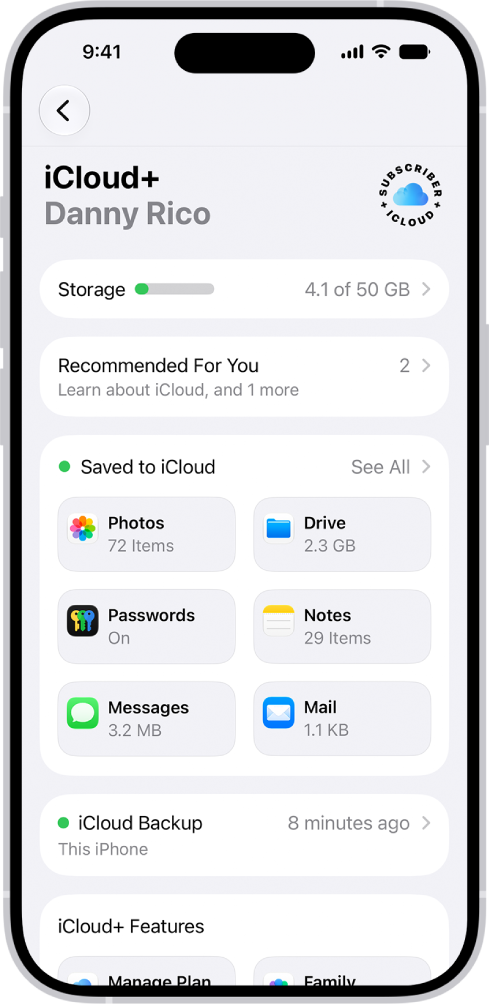
As explained above, if you do not have enough space, this error may occur. You may want to delete some of your apps and other content from your device.
6. Delete and recover
If you are having this problem with only some of your photos, you can try to delete then recover to see if this fixes your problem. Here is how:
- Open Photos.
- Find the photo or video that gives this error message.
- Delete this photo.
- This deleted photo will go into your Recently Deleted album.
- Again open Photos, tap Collections, then tap the Recently Deleted collection (below Utilities), tap View Album, then unlock your iPhone.
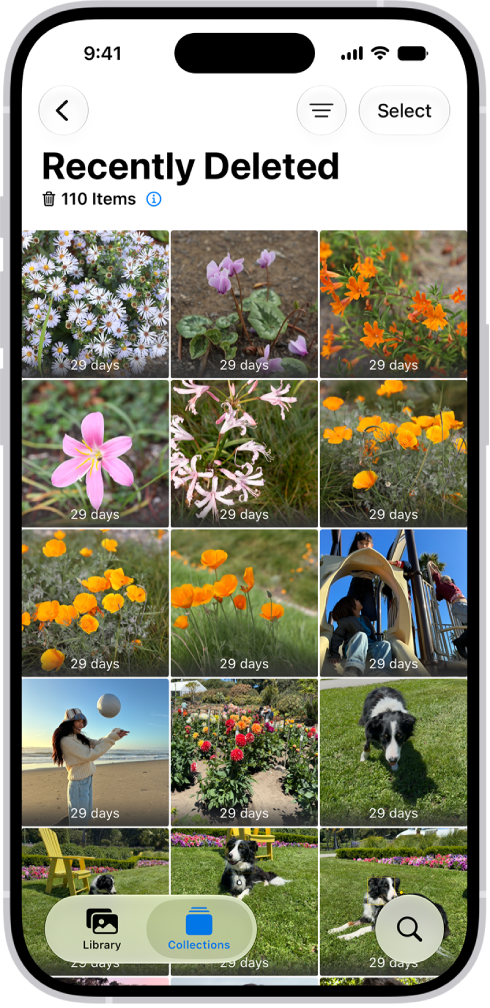
- Find this photo you just deleted.
- Tap Select, choose the photo, tap the More button, then tap Recover.
- Now open Photos again to see if you can load the photo.
7. Other fixes
Likewise, you can also try the following tips:
- Are you having compatibility issues? It is possible that you are having this issue because the photo or video format is not compatible with your iPhone 18 Pro. You can convert them.
- Try sending the photos or videos that you are unable to open to yourself via Messages. Then save these photos or videos again. Then try to open them.