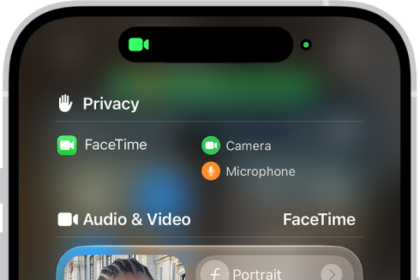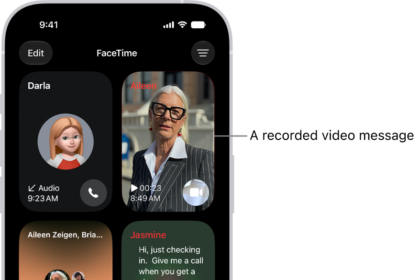
FaceTime is a great way to connect with your friends and family. But what happens when FaceTime is not connecting on iPad? In this article, I’ll explain why FaceTime is not working on your iPad and how to fix FaceTime when it’s giving you trouble.
FaceTime: The Basics
FaceTime is Apple’s native video chat app. iPhones, iPads, and Macs all come with the FaceTime app built-in. When FaceTime is working normally, anyone with an internet connection and one of these devices should be able to FaceTime other people with an Apple product of their own.
FaceTime is easy to use when it’s working properly. Before we go on, let’s go over how to use it, just to make sure you’re doing everything right.
How Do I Use FaceTime On My iPad?
- First, open Contacts.
- Once you are inside the app, tap on the name of the person you want to call. This will take you into that person’s entry in Contacts. You should see a FaceTime option under that person’s name.
- Tap on FaceTime.
- If you want an audio-only call, tap on the Audio Call button. If you want to use video, tap on the Video Call button.
Does FaceTime Work On iPad?
Yes. FaceTime is built into iPad and works over Wi-Fi or a cellular connection. To run the latest version of FaceTime, your iPad needs to be running iPadOS 26, which supports the iPad (8th generation or later), iPad mini (5th generation or later), iPad Air (3rd generation or later), iPad Pro 11-inch (1st generation or later), iPad Pro 12.9-inch (3rd generation or later), and iPad Pro 13-inch (all models). If you have an older iPad that can’t run a supported version of iPadOS, you won’t be able to make or receive FaceTime calls.
Can Androids Or PCs Use FaceTime?
Until recently, FaceTime was only compatible with Apple Products. However, when Apple announced iOS 15, they also announced FaceTime Links. With FaceTime links, iPad users can generate and share meeting links over FaceTime.
Anyone with access to these links, including Android and PC users, can now join FaceTime calls from their web browser! So, while the FaceTime app remains exclusive to Apple products, FaceTime calls are available to everyone with an internet connection!
How To Fix Problems With FaceTime on iPad
Make Sure You’re Signed In With Your Apple Account
In order to use FaceTime, you have to be signed into your Apple Account, and so does the person you want to contact. Let’s begin by making sure that you are signed in with your Apple Account.
Go to Settings > Apps > FaceTime and make sure the switch labelled FaceTime is turned on. Under this switch, you should see a heading that says You Can Be Reached By FaceTime At. If you’re signed in, you should see your Apple Account. If you don’t, turn FaceTime off and then back on — if a sign-in screen appears, sign in to your Apple Account and follow the prompts.
If you are signed in, great! If not, then sign in and try the call again. If the call works, then you are good to go. If it still does not work, keep reading for some troubleshooting tips!
Question: Does FaceTime Not Work With Anyone Or Just One Person?
Here’s a helpful rule of thumb: If FaceTime is not working with anyone, it’s probably a problem with your iPad. If it doesn’t work with just one person, it’s probably a problem on the other person’s device.
Why Doesn’t FaceTime Work With Only One Person?
The other person may not have FaceTime turned on, or there may be a software problem with their device. It’s also possible the network they are trying to connect to may be causing the error. If you’re not sure, try making a FaceTime call with someone else. If the call goes through, you know your device is OK — it’s the other person who needs to be reading this article.
Are You Trying To Contact A Person Without Service?
Even if both you and the person you’re trying to contact have a FaceTime account, that may not be all of the story. Apple does not have FaceTime service everywhere, and not all cellular providers support FaceTime.
Apple’s support website can help you figure out which countries and carriers do and do not support FaceTime. Unfortunately, If you’re trying to use FaceTime in an unsupported area, there’s nothing you can do to make it work.
Is A Firewall Or Security Software Getting In The Way?
If you have a firewall or other form of internet protection in place, then it may be blocking ports that prevent FaceTime from working. You can view a list of the ports that need to be open for FaceTime to work on Apple’s website. The way to disable security software varies widely, so you’ll need to visit the software manufacturer’s website for help with the specifics.
Troubleshooting FaceTime on Your iPad
If you are still having issues with FaceTime after attempting the fixes above, here are some more fixes you can try to get FaceTime working on your iPad.
One quick fix that sometimes works when FaceTime is not working is to completely restart your iPad. The way to turn off your iPad depends on which model you have:
- iPad with a Home button: Press and hold the top button until the power off slider appears. Drag the slider to shut down your iPad. Once your iPad turns off, wait 30 seconds, then press and hold the top button until you see the Apple logo.
- iPad without a Home button: Press and hold the top button and either volume button until the power off slider appears. Drag the slider until your iPad shuts down. After 30 seconds, press and hold the top button until you see the Apple logo.
We recommend checking your iPad’s Date & Time Settings. A lot of things can go wrong when the date and time are incorrect, especially if your iPad thinks it is in the future.
Open Settings and tap General > Date & Time. Then, turn on the switch next to Set Automatically if it’s not on already.
FaceTime is a native iPadOS app, so it’s also important to make sure that the iPad you’re using is running smoothly. The best way to do this is to install the latest iPadOS software.
Keeping your iPad up to date is especially important if you’re trying to FaceTime someone with an Android or PC. To create and use FaceTime links, you need an iPad running iPadOS 15 or later. If you’re trying to connect an Android to a FaceTime call on an iPad running any earlier software, it won’t work.
To update iPadOS, open Settings and tap General. Then, tap Software Update. Here, you can see whether or not there’s a software update currently available for your iPad. If you see that there is a new update available, tap Download and Install to install the new update on your device.
Check Your Cell Phone Plan
If you don’t want to use your cellular data plan, you’re out of range from your cellular coverage, or if you’re having trouble with your cellular service, you will need to connect to Wi-Fi.
To check if your iPad is currently using Wi-Fi or cellular data, look near the top of your screen. You will either see the Wi-Fi icon or words like 3G/4G or LTE. If you have low signal strength, FaceTime may not be able to connect.
If you can’t connect to the internet with your iPad when you’re not on Wi-Fi and you are paying for a data plan, you’ll need to contact your cell phone service provider to make sure there isn’t a service outage or a problem with your bill.
Try Ejecting Your iPad’s SIM Card
A SIM card connects your iPad to your wireless carrier’s cellular network. This step applies to cellular iPad models with a physical SIM tray. If you’re having trouble using FaceTime using cellular data, or if FaceTime says Waiting For Activation, this step could fix the problem.
Grab a SIM card ejector tool or straighten out a paperclip. Insert the tool into the hole in the SIM card tray. You’ll have to apply some force to open the tray. Push the tray back in the reseat the SIM card.
I’ve Done Everything And FaceTime Still Doesn’t Work! What Do I Do?
If FaceTime still won’t work, check out the Apple System Status page. It rarely ever happens, but it’s possible FaceTime is down for many iPad users. Scroll down and look at the dot next to FaceTime. If it’s green, FaceTime is fine. If it’s any other color, there’s an error with FaceTime, and Apple is working towards a solution.
Reach out to Apple support if FaceTime isn’t down. There could be an issue with your account only a customer support representative can resolve.
FaceTime Problems Solved: Wrapping It Up
There you have it! Hopefully, FaceTime is now working on your iPad, and you’re chatting happily with your family and friends. Next time FaceTime is not working on your iPad, you’ll know how to fix the problem. Feel free to ask us any other questions down below in the comments section!