FaceTime is Apple’s videotelephony service. You can use FaceTime to make audio or video calls from your iPhone 18 Pro.
A lot of users use FaceTime frequently. It appears that some users are experiencing problems with the quality of their FaceTime calls. Users are saying that they have blurry streaming videos, heavily pixelated content, frozen videos, delays, and overall poor video quality. It is common to see the “Poor Connection” error. The full error message says:
- Poor Connection. The video will resume automatically when the connection improves.
When you see this message, the video will disappear and your video call will switch from a FaceTime Video call to a FaceTime audio call. FaceTime will automatically turn video back on once the internet connection recovers. However, sometimes the FaceTime video never resumes. And lastly, sometimes, you may receive the “Connection Lost” message. This issue may affect both you and your friend (your recipient).
Are you having this issue too? This article explains what’s causing it and how you can fix the problem on your iPhone 18 Pro.
What is causing the FaceTime Poor Connection error on iPhone 18 Pro
This problem on your iPhone 18 Pro is almost always caused by some sort of Internet connection. A slow or busy Wi-Fi network might cause issues with your FaceTime call. Make sure that you and your recipient have a fast Wi-Fi or cellular connection. FaceTime calls over Wi-Fi require a broadband connection.
How to fix FaceTime Poor Connection Error on iPhone 18 Pro
1. First, check the Apple System Status page. This will tell you if there are any issues with Apple’s servers. Here is how you can check:
- Open a web browser, such as Safari, on your iPhone.
- Visit the Apple System Status page. If you want more detail on reading that page, we have a guide to checking Apple System Status.
- This is the page that Apple lets users know if there are any issues. Apple will here confirm if any app or services are not working as expected. If this is the case, you may experience slower than normal performance with the service(s).
- Look for “FaceTime”.
- If the FaceTime dot is green, then everything is fine. If not, there is a problem on Apple’s end. Just be patient and Apple will fix the issue.
2. Apple’s Wi-Fi troubleshooting advice includes making sure Connectivity Assist is off. Open the Settings app, tap Wi-Fi, then make sure Connectivity Assist is off.
3. On your device, disable FaceTime, restart your device and then turn on FaceTime. Here is how you can disable and re-enable FaceTime:
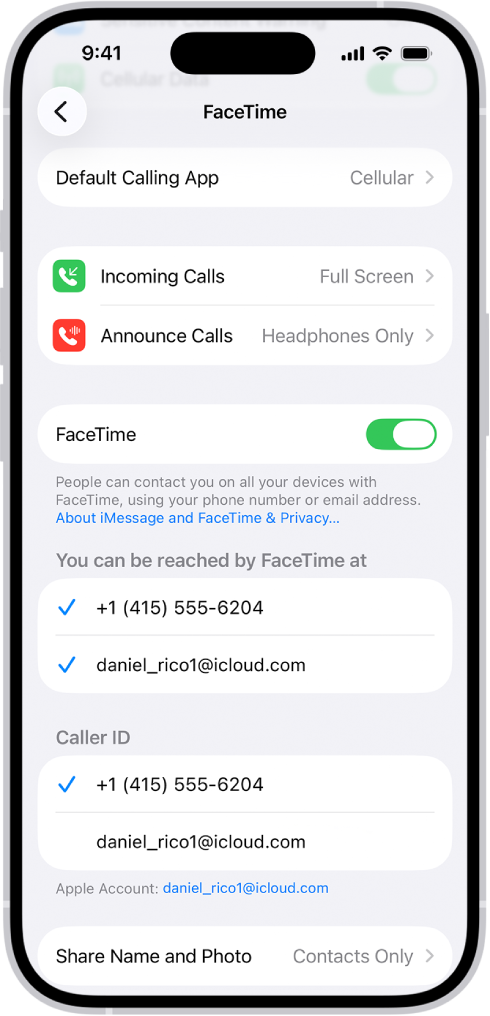
Open Settings, tap Apps, then tap FaceTime and turn off FaceTime. Restart your iPhone, then go back to Settings > Apps > FaceTime and turn it back on.
4. Update your device. Apple regularly releases iOS updates to improve performance, add features, and enhance security. Make sure that your device is running the latest software. Here is how you can check and update:
Go to Settings > General > Software Update. This will check for updates. If there is an update available, tap Download and Install and follow the onscreen instructions.
5. Close other apps that are using Internet bandwidth. Check for issues that might be slowing down your connection, such as someone streaming content over your network. For example, watching a YouTube video while using FaceTime could interfere with your call. Here is how to close an app:
- From the Home Screen, swipe up from the bottom of the screen and pause in the middle of the screen.
- Swipe right or left to find the app that you want to close.
- Swipe up on the app’s preview to close the app.
6. Restart your device. Here is how you can restart your device:
Go to Settings > General > Shut Down, drag the power-off slider, then wait 30 seconds. To turn it back on, press and hold the side button until you see the Apple logo.
7. If you’re trying to use FaceTime over Wi-Fi on your iPhone 18 Pro, please try the tips below:
- Disable Wi-Fi and then re-enable it. Go to Settings > Wi-Fi.
- Please note that FaceTime requires a fast Wi-Fi connection. If possible, try a different Wi-Fi connection to rule out Wi-Fi as a cause. If you again experience the “Poor Connection” problem, it is likely that your Wi-Fi is the culprit.
- It is possible that your iPhone 18 Pro is receiving poor Wi-Fi signal strength from your router. Make sure that you have a strong Wi-Fi signal:
- Try bringing your iPhone close to your router.
- Try restarting your router and cable modem by unplugging the devices and then plugging them back in.
- Try updating your router’s firmware. For this, check your router’s manual.
- On your device, go to Settings and turn on Airplane Mode. Wait at least 15 seconds, then turn it back off.
8. If you’re trying to FaceTime over cellular on your iPhone 18 Pro, please try the following tips:
- Turn Cellular Data off and then on again (Settings > Cellular > Cellular Data).
- Check for a carrier settings update. Make sure that you connect your device to Wi-Fi or a cellular network. Open the Settings app, tap General, tap About, then follow the onscreen instructions to install your carrier update.
- Make sure that your account with your wireless carrier is active. Furthermore, ensure that there are no outages in your area. You may want to contact your carrier.
9. Reset network settings. This tip should be one of the last ones you try. Doing so will erase your network settings, including your saved Wi-Fi passwords.
- On your iPhone, go to Settings > General > Transfer or Reset iPhone > Reset, then tap Reset Network Settings.