FaceTime is a great app that you can use to make audio or video calls. It has a lot of useful features. For example, you can make a group FaceTime call, or you can share your screen during calls. Typically FaceTime works smoothly. However, sometimes, you may run into problems. Some users have told us that they are unable to use FaceTime with their iPhone 18 Pro or iPhone 18 Pro Max when their device is connected to a cellular-data connection instead of a Wi-Fi connection. More specifically, FaceTime only works over Wi-Fi. In this article, I will explain how you can troubleshoot this particular FaceTime problem on your iPhone 18 Pro.
Turn on Cellular for FaceTime
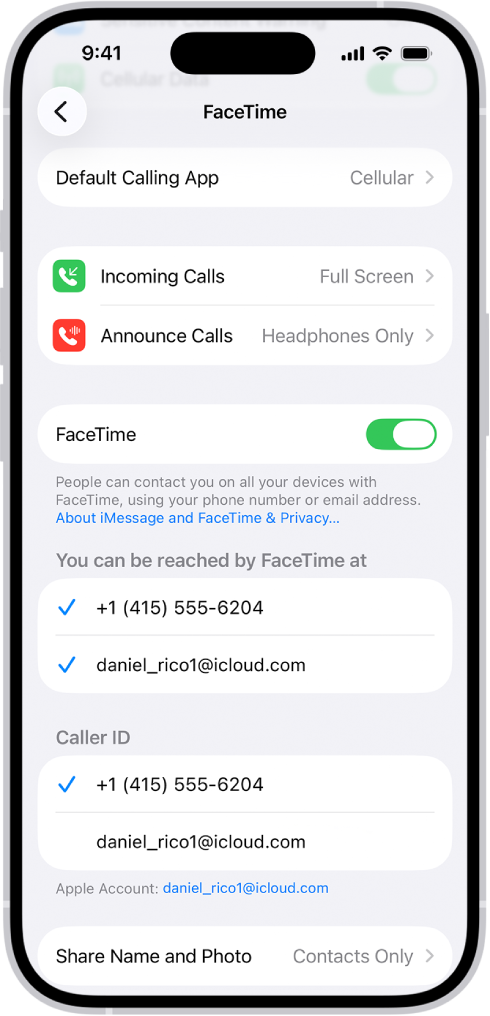
This is the likely cause of the problem. FaceTime may not be allowed to use your cellular data. Thus, when there is no Wi-Fi, FaceTime won’t work. You may already know that you can turn cellular data on or off for all apps or for individual apps like FaceTime. This is a convenient feature, especially if your cellular carrier offers a limited data plan. Or, you might be traveling internationally and want to avoid or reduce roaming fees, then you may want some apps to not use your cellular data. Let’s check to see if FaceTime is enabled to use cellular data. Here is how:
- On your iPhone, go to Settings, then tap Cellular or Mobile Data (this depends on where you are).
- Scroll down to your list of apps, then tap Show All. You will find a list of apps for which you can turn off or on cellular data. You will also see how much data they have used for the current period.
- Now find FaceTime in the list. Is it enabled or disabled? If it is disabled, turn it on and try to make a FaceTime call over cellular. You will see that FaceTime is now working. However, if this was already on, something else is causing your problem. If this is the case, keep reading.
Still can’t connect to FaceTime on your iPhone 18 Pro?
If you are still having this issue, try the following:
- Restart your iPhone. This is simple but fixes many problems. Here is how:
- Go to Settings > General, scroll down, then tap Shut Down. You can also press and hold either volume button and the side button until the power-off slider appears.
- Drag the slider, then wait 30 seconds for your iPhone to turn off.
- To turn it back on, press and hold the side button until you see the Apple logo.
- Ensure that your device has the latest version of iOS. Go to Settings > General > Software Update and check if there is an update; if there is, tap Download and Install.
- Go to Settings and turn on Airplane Mode. Wait at least 15 seconds, then turn it off again. You can also do this from Control Center.
- Are you getting poor cellular signals? Ensure that you are somewhere with strong cellular coverage.
- Turn off cellular data and then on again. Go to Settings > Cellular or Mobile Data. Toggle the switch off. Wait a few seconds and then turn it on.
- There may be a carrier settings update. Check this by going to Settings > General > About. A popup will appear if there is an update.
- Contact your carrier like AT&T, T-Mobile, etc. There may be an outage. Likewise, check to see if there is a FaceTime outage at Apple’s end by going to the System Status page.
- If your issue still continues, you may want to reset your network settings. Note that this will erase all of your Wi-Fi passwords, VPN settings, etc. Go to Settings > General > Transfer or Reset iPhone > Reset > Reset Network Settings and then follow the onscreen instructions.