Your iPad sound is not working and you’re not sure why. You’re trying to listen to music or watch your favorite TV show, but no sound is coming through the speaker. In this article, I’ll explain why your iPad sound is not working and show you how to fix the problem for good!
Why is the sound on my iPad not working?
There are a number of reasons that could lead to the sound not working on your iPad. Here are some of the most common ones:
- Your iPad volume is all the way down.
- Your iPad is on silent mode.
- Your iPad has a software bug.
- A Bluetooth® device is connected.
- Your iPad is on Do Not Disturb mode.
- There’s a problem with the app your using.
- Your iPad is stuck on headphones mode.
- Your iPad speakers are clogged.
- Your speaker might need service.
- The hardware on your iPad is damaged.
How to fix no sound on an iPad
Try these steps one by one until your problem is fixed. Make sure to test out your iPad’s sound after each step:
Turn up the volume on your iPad
The first thing you should do when your iPad has no sound is to make sure that the volume on your device is all the way up. You or someone else may have just accidentally muted your iPad!
You can increase the volume of media, alerts, and sound effects on your iPad using the volume buttons, Siri, or Control Center.
Use the volume buttons on iPad to adjust the volume of alerts, sound effects. songs and other media. (The volume buttons are either on the side or the top of your device, depending on your model.)
You can also use Siri to turn the volume up. Activate Siri and say something like: “Turn up the volume.”
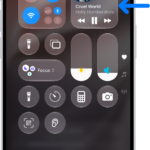
You can also increase your iPad’s volume in Control Center. Simply open Control Center on your iPad by swiping down from the top-right corner of the screen, then drag the volume slider.
To increase your iPad’s ringer and alerts volume, go to Settings > Sounds, then drag the slider. If you don’t hear any sound or if the speaker icon is dimmed, your speakers may be damaged. If this is the case, visit your nearest Apple store to get your iPad’s speakers serviced.
Lock the ringer and alert volumes
- Go to Settings .
- Tap Sounds.
- Turn off Change with Buttons.
Make sure you are not limiting the speaker volume
With iPadOS 18.2 or later, you can limit the maximum volume of sound that plays through your iPad’s built-in speaker. Check to make sure you are not limiting your iPad’s speaker volume. Here’s how:
- Go to Settings .
- Tap Sounds.
- Tap Volume Limit.
- Turn off Limit Maximum Volume if it’s turned on.
Make sure silent mode is turned off
- Open Control Center by swiping down from the top-right corner of the screen.
- Tap the Silent Mode Off button to turn off Silent mode.
Turn off Do Not Disturb
When Do Not Disturb is enabled on your iPad, you won’t hear ringtones or text tones for incoming calls, texts, or notifications. Also the Do Not Disturb icon appears in the status bar at the top of the screen. To turn off Do Not Disturb, follow these steps:
- Open Control Center by swiping down from the top-right corner of the screen.
- Tap Focus, then tap Do Not Disturb to turn it off.
Disconnect any Bluetooth devices
It’s possible your iPad is connected to a Bluetooth device, such as headphones, a speaker, or car. If your iPad is currently connected to a Bluetooth device, it’s possible that device is playing the sound, rather than your iPad speakers. To fix this, open Control Center, then tap the Bluetooth button to turn it off.
Close applications with no sound
If your iPad has sound problems only while using a certain app, you can quit it and then reopen it to try and resolve the issue. Here’s how:
- open the App Switcher by swiping up from the bottom edge and pausing in the center of the screen (on an iPad without a home button). Double-click the Home button (on an iPad with a Home button).
- Swipe up on the app you want to close.
Reopen the app and test out sound. If the problem persists, move on to the next step.
Clean your speakers
If your iPad has no sound at all, clean the speakers. My favorite way to clean iPad speakers is by using a dry, un-used toothbrush to clean the speaker grills at the bottom of the iPad. Simply slide the toothbrush over the speakers to dislodge any stuck dirt or dust.
You can also use compressed air to clean your iPad’s speakers. If you take this route, however, make sure to spray gently and far away from the speakers themselves. Compressed air can damage speakers if sprayed at too close of a proximity — so start by spraying from a distance and move closer if you need to.
Make sure to test your iPad’s sound after cleaning the speakers. If you find that your iPad sound still is not working, move onto the next solution.
Restart your device
Performing a simple restart will help reset any software issues that are causing your iPad to have no sound. Here’s how:
- For an iPad without a Home button: press and hold either volume button and the top button until the power off slider appears. Drag the slider, then wait 30 seconds for your device to turn off. To turn your device back on, press and hold the top button until you see the Apple logo.
- For an iPad with a Home button: press and hold the top button until the power off slider appears. Drag the slider, then wait for 30 seconds for your device to turn off. To turn your device back on, press and hold the top button until you see the Apple logo.
Update iPadOS
Updating iPadOS is a great way to fix minor software bugs that might be preventing sound from working. Apple releases updates to patch up small problems and introduce new iPad features. Here’s how to check for updates:
- Go to Settings.
- Tap General.
- Tap Software Update.
- If an update is available, tap Update Now.
- Follow the onscreen instructions.
Make Sure Your iPad Isn’t Stuck In Headphones Mode
It’s also possible that your iPad is stuck in headphones mode, so audio isn’t being played through the inbuilt speakers.
“But I don’t have headphones plugged into my iPad!” you exclaim.
That’s true — the problem is that your iPad thinks headphones are plugged in. This occasionally happens when lint, dirt, liquid, or other debris gets stuck inside the headphone jack.
You can quickly check to see if your iPad is stuck in headphones by pressing the volume buttons again. If the pop-up that appears says “Headphones” rather than “Volume” or “Sounds Effects”, your iPad is in headphones mode. To fix this glitch, push in your headphones, then quickly pull them out again.
Factory reset your iPad
The next step is to restore your iPad to factory settings. This will clear everything, including any bugs that may be causing your iPad to have no sound.
- Go to Settings.
- Tap General.
- Tap Transfer or Reset iPad.
- Tap Erase All Content and Settings.
- Follow the on screen instructions.
Repair your iPad speakers
If your iPad still has no sound after the factory restore, your speakers might need service. Take your iPad into the nearest Apple Store and have someone at the Genius Bar take a look at it. Just make sure to set up an appointment first!</p>