Nothing disrupts your workflow quite like a browser error message. Apple’s Safari browser is arguably the best browser for MAC users, but even the best is not immune to problems.
One common Safari problem is the "Safari Can’t Find Server" error. This error can lead to a lot of frustration and annoyance for both users and site owners.
In this article, I’ll walk you through seven tried and tested methods to fix this Safari error for good!
What Does The ‘Safari Can’t Find Server’ Error Mean?
Before we start to troubleshoot, it’s important to understand what Safari can’t find the server mean.
When Safari says that it ‘can’t find the server,’ it means your browser could not locate the IP address of the website you’re attempting to visit.
This could happen due to a number of reasons including corrupted browser cache, problem with your network or the site itself.
Have you also been facing the Safari can’t find the server error on your Mac? Do not worry. We’ll help you fix this problem step-by-step. All the troubleshooting methods discussed in this article have been tried and tested since I have had the same issue multiple times with Safari.
How To Fix Safari Can’t Find The Server on macOS
Please note, the purpose of this article is not just to fix this error but to understand why it happened and, more importantly, how you can prevent it from happening in the future.
Ensure The Site Is Live / Works On Other Browsers
The first thing you should do is to verify whether the problem lies with the website or Safari browser. To rule out this, try accessing the site from another browser, like Google Chrome.
If it loads for other browsers, there might be compatibility issues between Safari and the site; contact the website owner and inform them of this problem.
If the site you are trying to visit doesn’t load on any other browser, the website might be down, meaning the problem is on their end. You can check if this is the case by visiting a site checker such as DownDetector.com and know the website’s status. If the site is down, there is nothing you can do. Just wait for the site owners to fix the problem.
Check Your Internet Connection
Sometimes, a problem with your internet connection can lead to server errors like the one you’re experiencing. Here’s what you can do:
- Turn Wi-Fi off and back on, then refresh the site.
- Restart your router by unplugging it from power for 30-60 seconds and then plug it back in. .
- if possible, try using a different Wi-Fi network.
If you don’t have access to a different Wi-Fi network, you can create a mobile hotspot on your phone and connect your Mac to it. Re-access the site you want. If it loads, contact your ISP provider and ask them to resolve the issue.
Disable The ‘Cross Website Tracking’ Feature
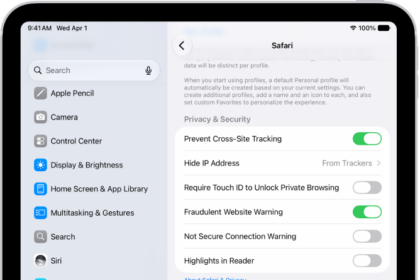
While the “Prevent cross-site tracking” feature is pretty useful, it can sometimes interfere with certain websites and prevent them from loading, causing the Safari can’t find the server error. Here’s how to disable it:
- Go to the Safari app on your Mac.
- Choose Safari > Settings, then click Privacy.
- Disable “Prevent cross-site tracking.”
If the website loads without errors, I suggest you add this site as an exception in your tracking protection settings.
Clear Cache And Cookies
Sometimes, browser data such as cache and cookies can become outdated or corrupted. Clearing your browser’s cache and cookies can refresh this data, possibly resolving the server error in Safari.
To clear cache and cookies in Safari, follow these steps:
- Go to the Safari app on your Mac.
- Choose Safari > Settings, then click Privacy.
- Click Manage Website Data.
- Select one or more websites, then click Remove or Remove All.
Once you’ve deleted all browser data, refresh to re-access the site. If it loads, congratulations! You’ve fixed the problem. If it still doesn’t work, move on to the next solution.
Update Your MacOS
make sure that your Mac is running the latest version of macOS. Apple may have already released an update containing bug fixes, including those that may address server-related issues. Here’s how:
- From the Apple menu in the corner of your screen, choose System Settings. In the window that opens, click General in the sidebar, then click Software Update on the right.
- If new software is available for your Mac, click the update or upgrade button, then follow the onscreen instructions.
Check Time & Date Settings
Believe it or not, incorrect time and date settings can sometimes wreak havoc on your browsing experience in Safari. If your Mac’s clock is even slightly off, SSL certificates–the backbone of secure browsing–are declared invalid, causing a ‘server not found’ error.
- On your Mac, choose Apple menu > System Settings, click General in the sidebar, then click Date & Time on the right. (You may need to scroll down.)
- Turn on “Set time and date automatically.”
- If “Set time and date automatically” is already turned on, turn it off, then turn it back on again.
This should keep your system clock in sync with the internet, preventing certificate hiccups.
Change DNS Settings
Your Domain Name System (DNS) is like a phonebook, translating domain names into IP addresses your computer can understand. If your DNS is misconfigured or your ISP’s DNS servers are experiencing issues, you might face server errors.
Consider switching to a public DNS service like Google DNS or OpenDNS to see if that resolves the issue. Here’s how you can do this:
- Choose Apple menu > System Settings, click Network in the sidebar, click your Wi-Fi network, click Details, then click DNS. (You may need to scroll down.
- Click the Add button at the bottom of the DNS servers list, then enter Google’s Public DNS — ‘8.8.8.8’
- When you’re finished, click OK to make changes.
Now refresh the site to see if it loads. If the problem persists, move onto the next solution.
Conclusion
The ‘Safari Can’t Find Server’ error is a very common error experienced by most Mac users. With some Safari troubleshooting methods in your disposal, such as deleting browser data and changing DNS settings, I hope this guide helps you fix the problem for good.
If you’ve tried every solution in this guide and are still getting the error, I suggest reaching out to the website’s administrator. Let them know that their site is not compatible with Safari, and list all the solutions you tried above.