If you’ve left your iPhone plugged in overnight, only to find it at 80% in the morning instead of 100%, you were probably left frustrated and wondering why.
Well, there are a few potential reasons.
High Temperature
If your iPhone overheats, it can not only slow down performance and reduce screen brightness, but it can also stop charging completely in an attempt to cool down the device.
If these precautions fail, the phone will simply shut down.
If you’ve left your iPhone charging in direct sunlight or under a pillow where air can’t circulate, it may overheat and pause charging. This is even more likely to happen if you’re charging wirelessly, since it generates more heat than a traditional cable. Either way, you’ll know if your device became too hot to charge if you see a message that says that charging was put on hold due to high temperature. But when this happens, your iPhone will typically end up at a random charge level, like 74% or 87%, rather than 80% exactly.
Optimized Battery Charging
An iPhone that always stops charging at 80% likely has a battery protection feature enabled that can be turned off. It’s called optimized battery charging, which pauses your phone’s charge level at 80% until you’re likely to begin using it. That means iPhone will try to learn your daily charge routine and finish charging the battery past 80% right before you’re scheduled to take it off the charger. This feature was initially added to extend the battery’s limited lifespan, but in many cases it just annoyed users who wanted their phone to be fully charged as quickly as possible.
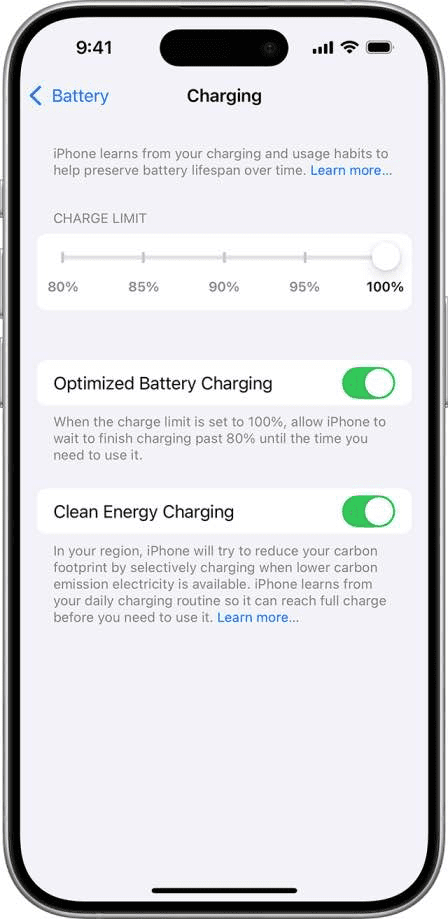
Optimized Battery Charging is on by default when you set up your iPhone. On iPhone 15 and newer, Optimized Battery Charging is available when Charge Limit is set to 100 percent.
When Optimized Battery Charging is active, a notification on the Lock Screen says when your iPhone will be fully charged. If you need to have your iPhone fully charged sooner, touch and hold the notification and then tap Charge Now. Optimized Battery Charging can be turned off completely in settings.
To change Optimized Battery Charging setting on iPhone 15 models and later:
- Open the Settings app, then go into Battery.
- Tap Charging.
- Set charge limit to 100 percent. When the charge limit is 100 percent, Optimized Battery Charging is available.
- Turn Optimized Battery Charging on or off.
To change Optimized Battery Charging setting on iPhone 14 models and earlier:
- Open the Settings app, then tap Battery.
- Tap Battery Health & Charging.
- Turn Optimized Battery Charging on or off.
Note: Turning off charging optimizations can increase wear on your battery and reduce its lifespan.
Charge Limit
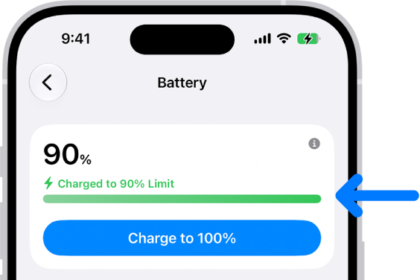
The iPhone 15 and newer models have their own charge battery limit that other models don’t. The feature is called Charge Limit. Depending on your settings, Charge Limit may prevent your iPhone from charging past 80%. This should help extend the battery’s lifespan even further.
Your iPhone will charge to within a few percentage points of your chosen limit and then stop charging. If the battery charge level drops more than 5 percent while connected to power, charging will resume, again charging to within a few points of your chosen limit.
If iOS determines that a charge limit will help preserve your battery’s lifespan, you’ll see a recommendation. For example, you might see "Based on your iPhone habits, a charge limit of 95% is recommended to help preserve your battery."
If you have Charge Limit set to less than 100 percent, your iPhone will occasionally charge to 100 percent to maintain accurate battery state-of-charge estimates.
To change Charge Limit setting on iPhone 15 models and later:
- Open the Settings app, then go into Battery.
- Tap Charging.
- Choose an option. You can choose a charge limit between 80 percent and 100 percent in 5 percent increments. When the charge limit is 100 percent, the feature is turned off.
See also: iPhone: Optimized Battery Charging Vs Charge Limit (Which Is Better for your battery?)
While you can force your iPhone to charge to 100%, you’d be better off long term leaving it at 80% if it’s enough to get you through the day. I suggest that you check out this iPhoneArena article to learn if you are charging your iPhone correctly.