If you check your Battery settings on your iPhone, you may notice two different options: Charge Limit and Optimized Battery Charging. You may try to figure out whether to use Charge Limit or Optimized Battery Charging on your iPhone. Both features aim to protect your battery–but they work differently, and it’s not always obvious which one is better. In this article, I’ll break it down simply and help you decide what makes the most sense for your daily use.
What is Charge Limit?
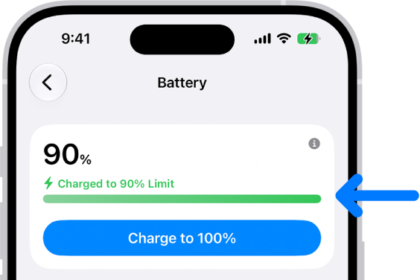
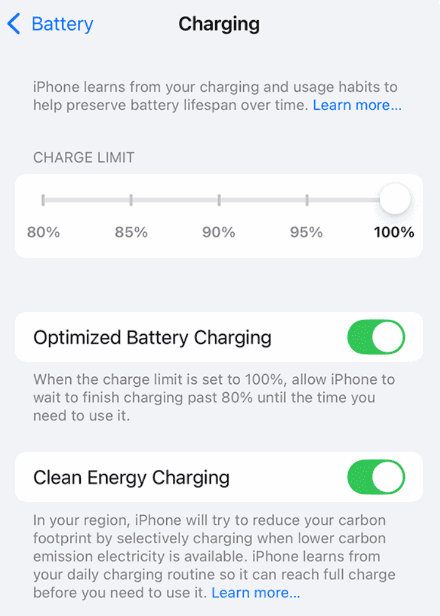
Charge Limit is a newer feature introduced in iOS 18, and it’s only available on the iPhone 15 and later. It allows you to choose a maximum battery charge–like 80%, 85%, 90%, or 95%. Once your iPhone hits that percentage, charging stops. If the battery charge level drops more than 5 percent while connected to power, charging will resume, again charging to within a few points of your chosen limit.
If iOS determines that a charge limit will help preserve your battery’s lifespan, you’ll see a recommendation. For example, you might see "Based on your iPhone habits, a charge limit of 95% is recommended to help preserve your battery."
If you have Charge Limit set to less than 100 percent, your iPhone will occasionally charge to 100 percent to maintain accurate battery state-of-charge estimates.
The idea is simple: avoid charging all the way to 100% to reduce battery wear over time.
What is Optimized Battery Charging?
Optimized Battery Charging is designed to reduce the wear on your battery and improve its lifespan by reducing the time your iPhone spends fully charged. It is available when Charge Limit is set to 100 percent. When the feature is enabled, your iPhone will delay charging past 80 percent in certain situations. Your iPhone uses on-device machine learning to learn your daily charging routine so that Optimized Battery Charging activates only when your iPhone predicts it will be connected to a charger for an extended period of time. The algorithm aims to ensure that your iPhone is still fully charged when unplugged.
When Optimized Battery Charging is active, a notification on the Lock Screen says when your iPhone will be fully charged. If you need to have your iPhone fully charged sooner, touch and hold the notification and then tap Charge Now.
iPhone lock screen with Optimized Battery Charging notification
Optimized Battery Charging is on by default when you set up your iPhone. Once it learns your habits, you’ll start seeing notifications like "Charging on Hold" or "Will Finish Charging by 7 AM."
Requirements for Optimized Battery Charging to Work
Optimized Battery Charging needs a bit of setup in the background to work properly. Here’s what to check:
- Charge Limit must be set to 100%.
- You need to charge your iPhone in the same location regularly–usually overnight.
- These location settings must be turned on:
- Location Services: Go to Settings > Privacy & Security > Location Services and turn on Location Services.
- System Customization: Go to Settings > Privacy & Security > Location Services > System Services and turn on System Customization.
- Significant Locations: Go to Settings > Privacy & Security > Location Services > System Services > Significant Locations and turn on Significant Locations.
Optimized Battery Charging needs at least 14 days to learn your charging habits, so it won’t engage before then. Also, your iPhone needs to experience at least 9 charges of 5 hours or more in a given location for Optimized Battery Charging to engage.
Which One Should You Use?
This is the big question–and the answer depends on your priorities.
Use Optimized Battery Charging if:
- You charge your iPhone overnight in the same place most days
- You prefer a hassle-free solution that just works
- You want your phone to be fully charged when you wake up
Try Charge Limit if:
- You’re a power user or tech enthusiast
- You don’t mind managing your battery manually
- You’re okay with your phone not always reaching 100%
That said, in real-world use, the difference in battery health over time is pretty small. Limiting charge to 80% might extend battery life slightly over several years, but the gain is usually marginal–and you’ll have to charge more frequently, which may cancel out the benefit.
What Actually Hurts Your Battery?
If you care about battery health, these are the things that matter most:
- Don’t let your battery drop below 20% regularly
- Avoid letting your iPhone die completely
- Don’t leave a dead iPhone uncharged for a long time
- Avoid extreme ambient temperatures.
- Remove certain cases during charging
Deep discharges and long periods of inactivity while the battery is empty can cause permanent damage. If you’re storing your iPhone or not using it for a while, power it off at around 50% charge. That’s the same reason new iPhones ship with about 50% battery–it’s best for long-term storage.
Your iPhone’s battery life depends on how you use it, and if the battery eventually dies, you’ll need to get it replaced. How much that costs depends on your iPhone model. There are a lot of ways to extent your battery life, you can try.