iPhone multimedia effects — tapbacks, bubble and screen effects, handwriting, annotation, Digital Touch, emoji suggestions, and the built-in App Store for third-party add-ons — enhance your iMessages. Here’s the lowdown on these features:
Comment on a message with a tapback
On your iPhone messages, long-press (or double-tap) the message until the tapback picker appears. If the tapback you want appears, tap it; if not, you can reveal another row of tapbacks by scrolling the tapback picker left. If you still haven’t found what you’re looking for, tap the add custom emoji reaction icon (the smiley) to display the pane showing the full range of emoji.
Replace text with an emoji
On your iPhone Messages, type your message and then tap the emoji keyboard icon. As soon as you do, words that have associated emoji turn orange; tap an orange word to replace it with an emoji. If the word is associated with more than one emoji, you’ll see multiple emojis in a bubble; tap the one you want, and it replaces the word.
Add bubble or screen effects
Prepare your message as usual but rather than tapping the little up-arrow-in-a-circle to send it, long-press it until the Send with Effect screen appears. Tap the Bubble tab at the top to select Slam, Loud, Gentle, or Invisible Ink as the bubble effect for your message. Or tap the Screen tab and swipe left or right to select Send with Echo, Send with Spotlight, Send with Balloons, Send with Confetti, Send with Love, Send with Lasers, Send with Fireworks, or Send with Celebration as the screen effect for this message.
If you change your mind and don’t want to add an effect, tap the x -in-a-circle to dismiss the Send with Effect screen.
Send a handwritten message
Sometimes nothing but a handwritten note will do. To send a handwritten message on your iPhone, first rotate your iPhone 90 degrees to landscape orientation. If the handwriting interface doesn’t appear when you rotate the iPhone, tap the handwriting icon in the lower-right corner of the keyboard.
Either tap a preset message at the bottom of the screen to use it or just start writing in the big white area. If you fill the message area with text and want to add more white space, tap > on the right side of the screen; you can then tap < on the left side to go back if you need to.
Send Digital Touch effects
In a message conversation on your iPhone, tap the add icon (+) to display the menu, and then tap Digital Touch to reveal the Digital Touch interface. Then:
- To expand the Digital Touch interface to full-screen: Tap the gray horizontal bar between the App bar and the Digital Touch panel.
- To sketch: Draw with one finger.
- To send a pulsing circle: Tap with one finger.
- To send a fireball: Press with one finger.
- To send a kiss: Tap with two fingers.
- To send a heartbeat: Long-press with two fingers.
- To send a broken heart: Long-press with two fingers, and then drag down.
- To switch ink colors: Tap the big blue circle on the left to reveal additional colors.
- To add a picture or video to your Digital Touch effect: Tap the camera icon.
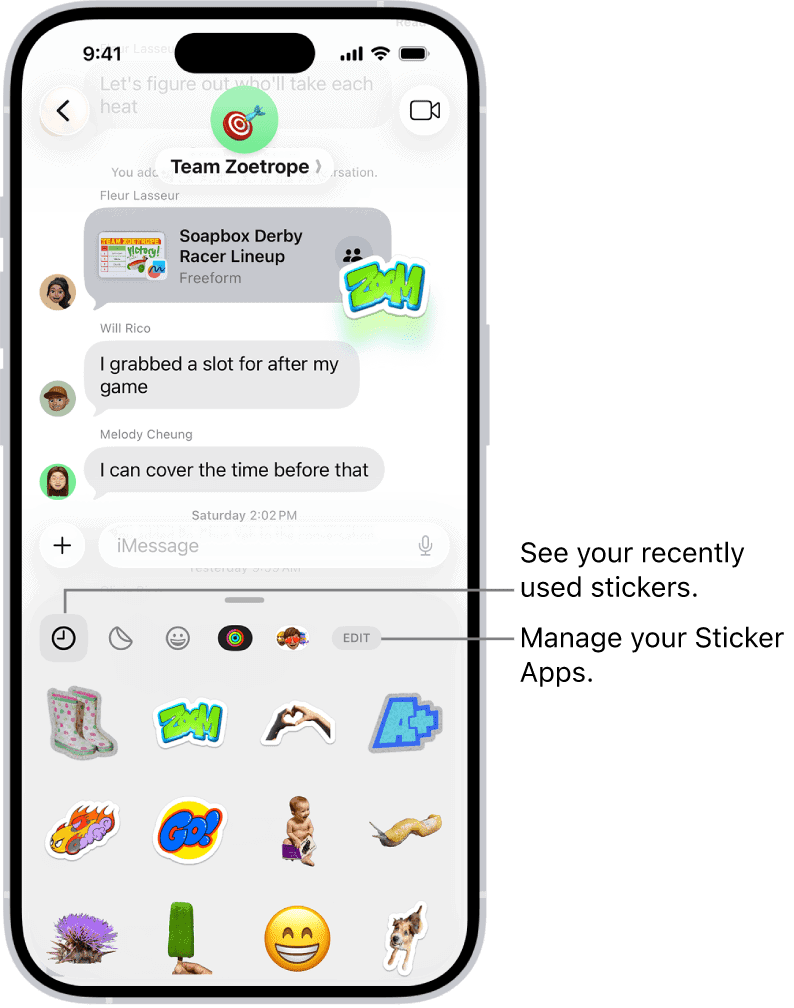
See also: How to add stickers to Messages on your iPhone
Note: Digital Touch messages are sent automatically, so don’t tap or press the screen in Digital Touch mode unless you mean it.
See also: How to make and send memoji on iPhone