Want to set a vibrating alarm on iPhone? You can easily setup an iPhone vibrating alarm clock with the built-in Clock app that comes preinstalled in iOS. With a few configuration settings, you can quickly create a simple vibrate-only alarm on iPhone that will not play any sound or audio with it. This is basically a silent alarm, which can be very useful for many situations where you need an alarm to go off to wake you up or to alert you to something, but when you need that alarm to be as quiet as possible.
So, let’s look at how you can set a vibrate-only alarm on your iPhone.
How to Set an iPhone Alarm That Vibrates Only
Setting a vibrate-only alarm is pretty straightforward in the native Clock app for iOS. So, follow these steps to set up an iPhone alarm that vibrates silently without a ringtone:
- Open the Clock app, then tap the Alarms tab.
- Tap the plus button to add a new alarm (you can also edit an existing alarm)
- Set a time for the alarm, then tap on “Sound”
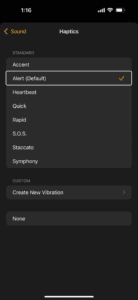
- At the top of the Sound section, tap on “Haptics”
- Choose a Haptic that you want to use as the vibrating alarm, then tap back to Sound
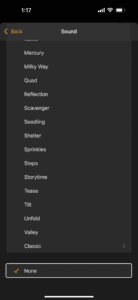
- In the Sound section, scroll all the way to the bottom and choose “None” as the sound
- Tap the Back button, then tap on “Save” to save the vibrating alarm as specified
- Exit the Clock app, and your iPhone vibrating alarm is now setup and ready to go.
To make an iPhone alarm vibrate without sound, go to iOS Settings > Sounds & Haptics > Haptics > choose Always. If you do not have ‘Always’ selected and the iPhone is not on mute/silent mode, the alarm clock will not vibrate and the alarm will therefore not work.
The iPhone vibrator alarm clock will work even if the iPhone is using Focus like Do Not Disturb mode, which means you can use the Do Not Disturb scheduling feature to give yourself quiet hours in the night and morning without worrying about the alarm not going off – it will, as long as the aforementioned vibrate alarm is configured properly and “Haptics” is set to “Always.”
Like most alarm clocks, it’s a good idea to test out the vibration and the alarm before relying on it for something important, like waking up on the morning in time. An easy way to test that the vibrating alarm works to your satisfaction is to set the vibrating alarm up for a time just a minute or two into the future, wait for it to go off to make sure it works fine, and then adjust settings as necessary so that it’s for the appropriate time.
For example, vibrating alarms can be helpful if you want to wake yourself up, but not someone else in the same bed, or in nearby bed, by the the sound of a regular alarm clock. Instead, the vibration buzzes and wakes you up but hopefully not the other person.
It’s worth mentioning that the iPhone vibration does make some noise but it largely depends on what surface the iPhone is placed on, if you put it on a mattress or pillow next to your head, it will almost entirely be felt with minimal sound. To minimize the sound of the iPhone vibrating alarm, put it on a soft surface, or put it next to you on the bed. If you place the vibrating iPhone alarm on a table top or nightstand with a hard surface, the vibration against the hard surface may be somewhat noisy but still more quiet than a traditionally loud volume blaring alarm clock sounds, so try out a few different scenarios and see what works best for you.
Of course another option, which wouldn’t be a simply vibrating only alarm and would have sound, is to change the alarm clock sound effect on iPhone to something software or quieter, and than use the volume adjustment capabilities on iPhone to set the alarm clock sound to be much more quiet. That may work for you as well, and that can be helpful as a backup alarm clock with or without the vibrate alarm too.
Your iPhone alarm volume is the same as any incoming call alert volume. Since almost all default tones in an iPhone are pretty loud, fast, or upbeat, the alarm sound can sometimes feel quite jarring. However, by making your iPhone alarm vibrate only, it can serve as a gentler alert for any task you want to carry out.
Have any tips, tricks, suggestions, or advice about creating silent alarms and using the vibrating alarm clock on iPhone? Share with us in the comments!
See also: How to Mute iPhone & Turn Off All Sound: Complete Guide