Learn how to enable pop-ups in Safari on iOS and Mac to see a pop-up offered by a site you trust and access all essential website features with ease.
It seems like we put so much effort into blocking things like pop-ups and ads when we’re browsing the web that we forget about sites that actually use pop-ups for good reasons. It could be a shopping site where you get a confirmation, a CMS where you can use tools, or a social site where you log in.
In Safari on iPhone or iPad, you can allow pop-ups globally, and on Mac, you can even allow them just for the specific sites you want.
Allow pop-ups in Safari on iPhone and iPad
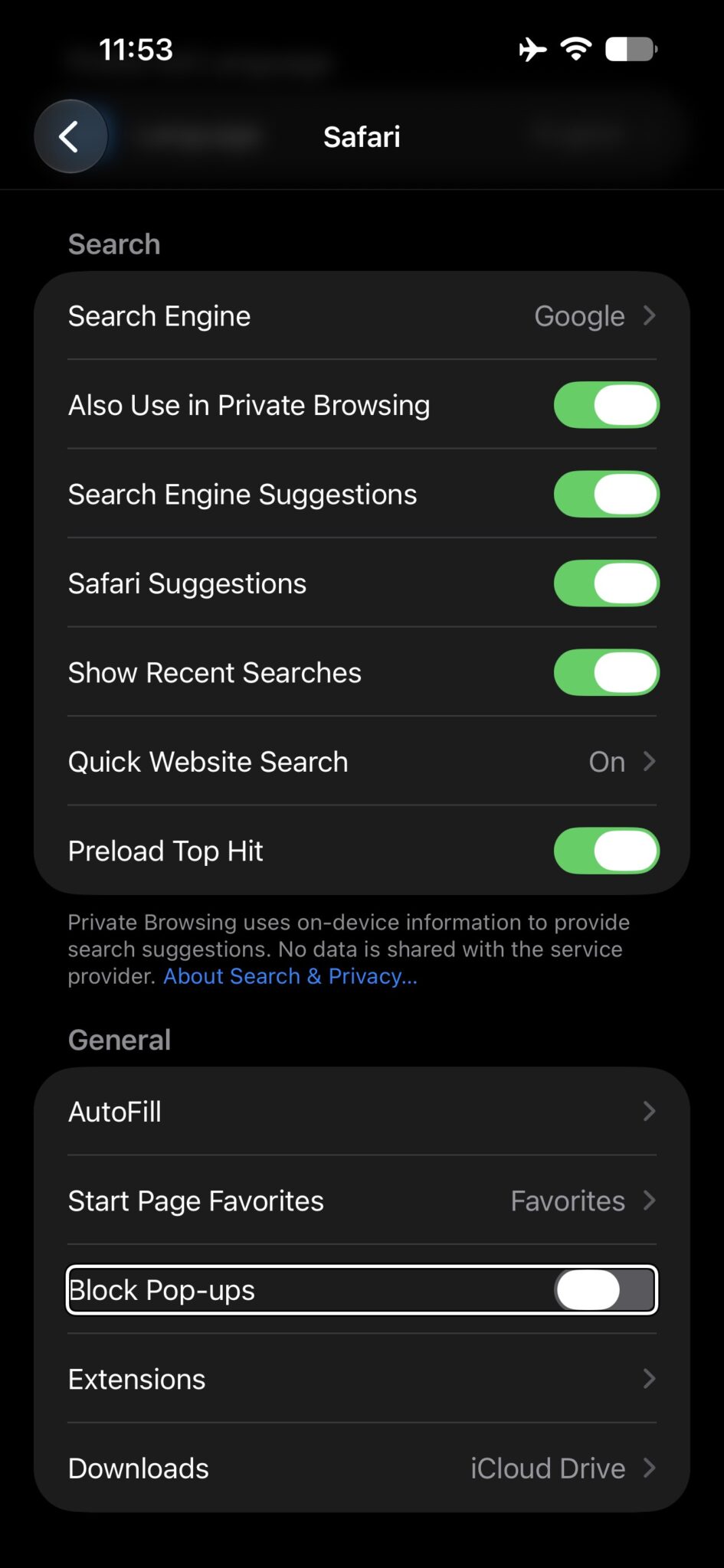
On iPhone and iPad, you cannot currently specify which sites you want to allow pop-ups for. It’s a global setting that you can enable or disable. The best option to allow pop-ups for a particular site is to turn off the setting, visit the website you want to see the pop-ups for, and then turn the setting back on.
- Open the Settings app.
- Tap Apps, then tap Safari.
- Turn off Block Pop-ups.
When you finish visiting the site whose pop-ups you want to see, you should strongly consider turning the Block Pop-ups setting back on. Otherwise, you could end up inundated with ads or even unsafe pop-ups on your device.
Allow pop-ups in Safari on Mac
You have a couple of ways to allow pop-ups in Safari on Mac for the sites you trust. You can do this in the browser settings or with the site active in Safari. By taking a few moments to configure certain sites, you’ll save some aggravation later, waiting for that pop-up that never comes.
Allow when on the website
Let’s assume you clicked a link that triggered a new pop-up window. If that site is set to Block and Notify, the pop-up window won’t open, and instead a Show button appears in the Smart Search field. Simply click that button to display the blocked pop-up window. Note that this only works with Block and Notify: if the site is set to plain Block, the pop-up is suppressed silently and you get no button to show it.
When starting a live chat with Apple Support or downloading booked train tickets, I always use this method to allow the website to open the requested pop-up window.
Allow pop-ups in Safari settings
- Open Safari and choose Safari > Settings from the menu bar.
- Click Websites.
- On the left, scroll down to and click Pop-up Windows. If you don’t see it, be sure to scroll to the bottom of the list.
- To the right, you have your Currently Open Websites at the top with any Configured Websites at the bottom. In the pop-up menu next to each, choose Allow for those you want to allow pop-ups.
For sites that you don’t want to allow or that you want to be notified about, choose either Block or Block and Notify in that pop-up menu.
At the bottom, next to When visiting other websites, you have a pop-up menu with those three options as well. This is a global setting that covers all other sites you visit that you have not yet configured.
Allow pop-ups in the Safari window
- Click the Page menu button on the left side of the Smart Search field for the site you’re viewing, then choose Website Settings.
- In the small window that appears, use the Pop-up Windows pop-up menu to choose Allow to see pop-ups for that website. Obviously, you can choose Block or Block and Notify for those you don’t want to see pop-ups.
When you use this method to adjust pop-ups for particular websites, these sites will then be added to the Configured Websites list in your Safari settings, as explained above.
Hopefully, Apple will offer the ability to configure pop-ups for specific sites in Safari on iPhone and iPad at some point, just like on Mac. But in the meantime, you do have a way to allow pop-ups for the sites you want on all your devices.
Which types of websites do you want or need to see pop-ups for? And will you take the time to make sure you can? Let us know!
See also: All the New Safari Features in iOS 27