It’s possible to pair and use AirPods Max with non-Apple devices. All you need is a Bluetooth connection. The setup process is slightly different, but not too difficult. Whether you are using AirPods Max or AirPods Max 2, we’ll show you all you need to know in this quick guide.
How to connect AirPods Max to non-Apple devices
AirPods Max work just like any other wireless headphones with Android, Windows, and other third-party devices. Some features get lost, like Siri and Spatial Audio, but you can still enjoy your music.
When you pair AirPods Max with a non-Apple device, however, you will need to follow a different pairing process.
Use AirPods Max with third-party devices
These are the steps you need to follow to connect AirPods Max to non-Apple gear:
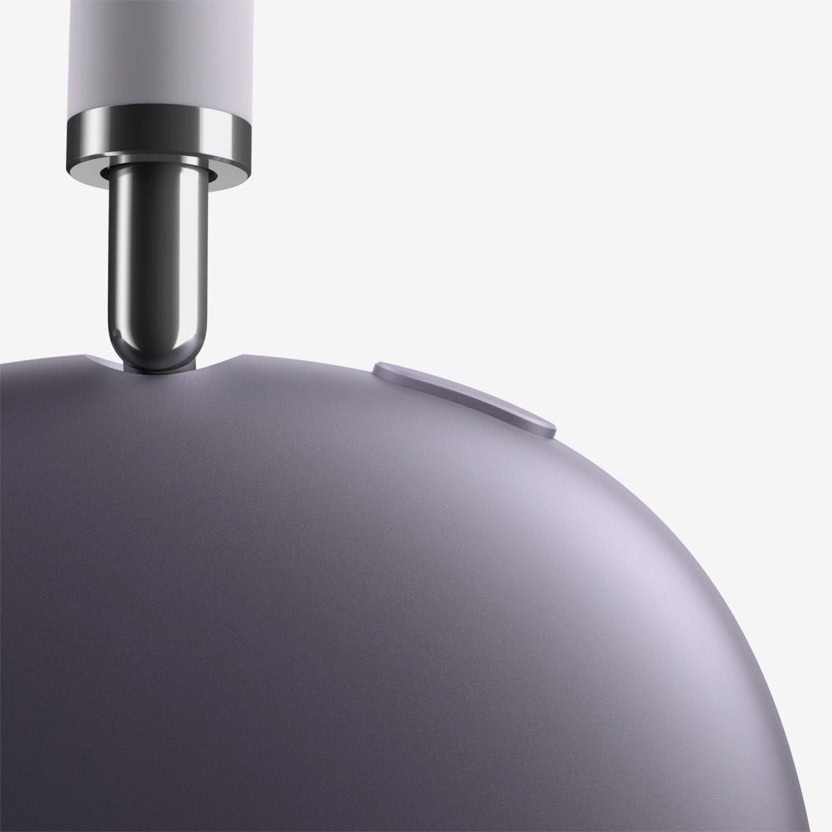
- Put your AirPods Max into pairing mode by pressing and holding down the noise control button (on the right ear cup) until their status light begins flashing white.
- Go to the Bluetooth settings on your non-Apple device. Ensure that Bluetooth is enabled and wait for AirPods Max to appear in the list of available devices.
- Select AirPods Max to pair the two devices.
That’s pretty much it. You can now start listening to music, movies, and more with your AirPods Max. If for any reason your two devices become disconnected later, simply repeat the above steps to reconnect them.
Some features won’t work with third-party devices
Features you’ll lose when using AirPods Max with a non-Apple device include Siri, Spatial Audio with head tracking, and automatic device switching. Active Noise Cancellation and Transparency mode still work. However, aside from these things, they’ll function just like any other wireless headphones. And they’ll sound great!
You can also use the same process to connect AirPods and AirPods Pro to third-party devices.