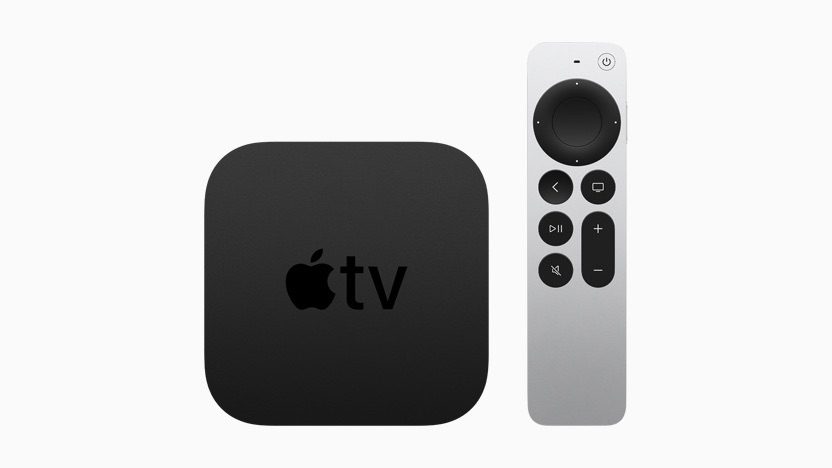
You may want to take your Apple TV 4K with you when traveling. When you are away from home, you can use your Apple TV to access Netflix, Hulu, Amazon Prime, and stream your favorite movies and TV shows using the Wi-Fi internet connection at your hotel. Most hotels offer free Wi-Fi.
If you are trying to get your Apple TV to work with your hotel’s Wi-Fi connection, then this article is for you.
Method 1: Use Your iPhone or iPad to Sign In (Recommended)
This is the easiest method to connect your Apple TV to hotel Wi-Fi. This method works with all Apple TV models running tvOS 15.4 or later. Since tvOS 15.4 (released March 14, 2022), Apple TV has built-in support for captive networks like those found in hotels and dorms. This eliminates the need for complicated workarounds.
Requirements
- Apple TV running tvOS 15.4 or later (all current models support this)
- iPhone or iPad
- Both devices do not need to use the same Apple Account
Steps to Connect Your Apple TV to Hotel Wi-Fi
On your Apple TV:
- Go to Settings
- Select Network
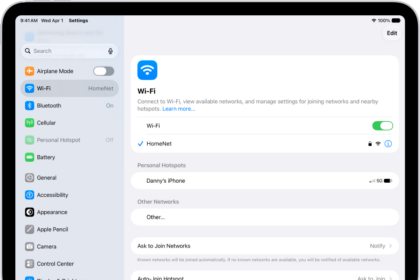
- Select Wi-Fi
- Choose your hotel’s Wi-Fi network from the list
- Enter the Wi-Fi password if prompted
- When Apple TV detects a captive network, a screen appears with options
- Select "Continue on iPhone or iPad"
On your iPhone or iPad:
- Follow the onscreen instructions to enter the required information, such as username and password
- Complete the hotel’s sign-in process (this may include accepting terms and conditions, entering a room number, or providing other credentials)
Connection complete:
Once authenticated on your iPhone or iPad, your Apple TV automatically gains internet access
Note: Some captive networks have time limits for staying connected. If your connection expires, follow the steps above again to reconnect.
That’s it! Your Apple TV should now be connected to the hotel Wi-Fi without any additional configuration.
Method 2: MAC Address Spoofing (Alternative Method)
Important: This method is outdated and no longer necessary for most users. With tvOS 15.4 and later, the built-in captive portal support (Method 1 above) is the officially supported approach. However, this legacy method is included for edge cases where the modern method doesn’t work or for users with older systems.
Compatibility Warnings:
- MAC address spoofing has become increasingly unreliable on macOS Monterey (12.0) and later
- Some users report "Can’t assign requested address" errors when attempting to spoof MAC addresses
- This method requires a Mac computer and may not work on all current macOS versions
Requirements
- Mac computer (MacBook, MacBook Pro, MacBook Air, iMac, etc.)
- Access to Terminal application
- Administrative privileges on your Mac
Step 1: Find the MAC Address of Your Apple TV
- Connect your Apple TV to the hotel TV and turn it on
- Navigate to Settings > General > Network
- The MAC address is listed as "Wi-Fi Address" (for wireless connections) or "Ethernet Address" (for wired connections)
- It will be a set of six pairs of characters, separated by colons, looking like:
ab:12:cd:34:ef:56 - Write down this address (it is not case sensitive)
- If your Apple TV is already connected to the Wi-Fi network, disconnect it
- Turn off your Apple TV by unplugging it from power
Step 2: Authorize the MAC Address Using Your Mac
Find Your Mac’s Wi-Fi Interface Name:
- On your Mac, hold down the Option key and click the Wi-Fi icon in the menu bar
- Note your Interface Name (typically "en0" or "en1")
- Note your Address (this is your Mac’s current MAC address—you’ll need to restore it later)
Alternative method to find interface name:
- Open Terminal (Applications > Utilities > Terminal)
- Type:
networksetup -listallhardwareports - Look for the entry labeled "Hardware Port: Wi-Fi" and note the Device name
Verify Your Mac’s Current MAC Address:
- In Terminal, enter this command (replace "en0" with your interface name if different):
ifconfig en0 | grep ether
- This displays your Mac’s current MAC address. Write down this original address—you’ll need to restore it later
Disconnect Your Mac from the Wi-Fi Network:
- From the Apple menu, choose System Settings
- Click Wi-Fi in the sidebar
- Click Details next to the network you’re using
- Click "Forget This Network," then click Remove to confirm
Your Mac’s Wi-Fi should now be on but not connected to any network.
Spoof Your Mac’s MAC Address:
- In Terminal, enter this command, replacing "en0" with your interface name and the MAC address with your Apple TV’s Wi-Fi Address:
sudo ifconfig en0 ether ab:12:cd:34:ef:56
(Use your actual Apple TV MAC address instead of the example shown)
- Press Enter and type your Mac’s administrator password when prompted
- There will be no output if the command succeeds
Note: If you receive an error message such as "ifconfig: ioctl (SIOCAIFADDR): Can’t assign requested address," this method may not work on your macOS version. In this case, use Method 1 instead, or try this alternative command sequence:
networksetup -setairportpower en0 on
ifconfig en0 ether ab:12:cd:34:ef:56
networksetup -detectnewhardware
Authenticate on the Hotel Network:
- Now that your Mac appears to the network as your Apple TV, connect to the hotel’s Wi-Fi network
- Your Mac will be redirected to the hotel’s captive portal sign-in page
- Complete the authentication process (accept terms, enter room number, etc.)
- Verify you have internet access on your Mac
Restore Your Mac’s Original MAC Address:
- Once authenticated, return to Terminal
- Enter this command using your Mac’s original MAC address (the one you noted in step 5):
sudo ifconfig en0 ether 46:cf:fd:1c:78:3f
(Use your actual Mac’s original MAC address instead of the example shown)
- Press Enter and provide your administrator password if prompted
Step 3: Connect Your Apple TV to Wi-Fi
- Plug in and turn on your Apple TV
- Navigate to Settings > Network > Wi-Fi
- Select the hotel’s Wi-Fi network
- Enter the password if required
Since the MAC address of your Apple TV has already been authorized during the authentication process in Step 2, your Apple TV should connect to the internet without being redirected to the captive portal.
Troubleshooting
Method 1 (iPhone/iPad Sign-In) Not Working:
- Verify your Apple TV is running tvOS 15.4 or later (Settings > System > Software Update)
- Try restarting both your Apple TV and iPhone/iPad
- Make sure your iPhone/iPad is already connected to the hotel Wi-Fi before attempting to connect Apple TV
- Ensure your iPhone or iPad can successfully complete the captive portal sign-in process
Method 2 (MAC Spoofing) Not Working:
- The MAC address spoofing method may not work reliably on macOS Monterey (12.0) and later
- Try the alternative command sequence provided in Step 2
- Ensure you’ve properly disconnected from Wi-Fi before spoofing the MAC address
- Verify you’re using the correct interface name (en0, en1, etc.)
General Connection Issues:
- Some hotel networks may have additional security restrictions that prevent streaming devices
- Contact the hotel’s front desk or IT support if you continue experiencing issues
- Consider using your iPhone’s Personal Hotspot as an alternative connection method
See also: Apple TV Status Light Blinking and Won’t Turn On, How to Fix