Rarely, iPhone and iPad users may encounter a “Cannot Get Mail” error message in the Mail app of iOS or iPadOS, indicating that Mail for iOS is unable to retrieve new emails or some other issue with the mail account as configured. The full error message shows up as pop-up window and usually says something along the lines of “Cannot Get Mail – The connection to the server failed.” and is sometimes accompanied by a “Enter the password for the email account” message, along with a small “Account Error” statement at the very bottom of the Mail app of iOS or iPadOS. These errors are understandably annoying since it prevents email from working as expected.
If you see the “Cannot Get Mail” error on Mail app for iPhone or iPad then this tutorial will aim to resolve that error message so that you can send and receive emails as usual again in iOS or iPadOS Mail app.
Fixing“Cannot Get Mail” Errors on iPhone and iPad
Here are some simple troubleshooting steps to resolve “Cannot Get Mail” error messages on the iPhone or iPad Mail app.
1. Close And Reopen Mail App
The first step to take when you see Cannot Get Mail error on your iPhone or iPad Mail app is to close and reopen the app. The app gets a fresh start, which can sometimes fix a minor crash or software bug.
If your device has a Home button, double-press it to open the app switcher. If your device doesn’t have a Home button, swipe up from the very bottom to the center of the screen until the app switcher opens.
Once the app switcher is open, use one finger to swipe Mail app up and off the top of the screen. You’ll know Mail is closed when it no longer appears in the app switcher. Now that you’ve closed Mail, tap on its icon on the Home screen to see if the error has disappeared. If the error persist, move onto the next solution.
2. Make Sure you have a working internet connection, wait, and try again later
The next thing you should do is make sure you have an active internet connection by checking your wi-fi and/or cellular connection. This is particularly true if the error message is “Cannot Get Mail – The connection to the server failed” since it’s often more likely that a simple and temporary internet connection issue is to blame (in fact you can replicate the error message any time by disabling internet connectivity and then trying to get your email in Mail app, not surprisingly it will fail).
Next, check to see if your internet is working. This is easily performed by trying to access various websites or apps that use the internet on your iPhone or iPad. If other apps aside from Mail app work fine with the internet, that’s a good indicator that the issue is related only to the Mail app and perhaps either a server issue or an authentication issue.
Either way, the next thing you should do is nothing, just wait a while and try again later.
This may seem counterintuitive but there’s good reason for this approach; often the “Cannot Get Mail” error appears simply because of a temporary blip in internet connectivity or with the mail server. Simply waiting a while often resolves the Mail issue entirely, particularly if the error was related to a remote mail server issue or a mail server being down.
After updating, try opening the app again and see if you can log in. If the issue persists, don’t worry—there are more troubleshooting steps to try.
3. Disable VPN and Try Getting Emails
If you’re using a VPN on your iPhone or iPad, it could be interfering with the Mail app’s ability to connect to its servers. Sometimes, VPNs can cause network conflicts or slow down connections, leading to Cannot Get Mail error like the one you’re seeing.
Here’s what to do:
- Open the Settings app on your iPhone or iPad.
- Tap General.
- Tap VPN & Device Management.
- Tap VPN.
- If the status says “connected,” tap the switch so that it says “Disconnected.”
Open the Mail app and see if the error is gone.
If the error disappears after disconnecting the VPN:
- This suggests that the VPN was causing the issue.
- To confirm, go back to Settings and turn the VPN on again.
- Then, try opening the Mail app again. If the Cannot Get Mail error reappears, your VPN may be the root cause.
If you need to keep using a VPN, consider switching to a different server or a more reliable VPN service. If turning off the VPN didn’t fix the issue, move on to the next troubleshooting step.
4. Re-authenticate with the Mail Server
Next you should confirm that your authentication credentials are functioning with the mail server. This is particularly valid if you see the “Cannot Get Mail” error message along with a “Enter the password for (email account)” message on the screen.
If you see the “Enter the password” screen within Mail app (or sometimes even on the Home Screen of iOS), tap on the “Edit Settings” button and confirm that your login and password is correct with the mail server in question.
Rarely, mail servers and email providers can have outages that impact user authentication and logging in, or after an outage some email services may require you to reauthenticate with them. Just recently many users experienced this error with Outlook and Hotmail email accounts, where some mail servers were down and thereby preventing user account to email accounts. Waiting a while worked to resolve this for most people, but for some users (myself included) entering the account password to login again through iOS or iPadOS Mail was necessary to resolve the persistent “Cannot Get Mail” error message.
If you are seeint “Cannot Get Mail” errors along with “Enter the password” error pop-ups on the iOS device like this, then tap on “Settings” and re-authenticate:
I was able to fix my problem by re-authenticating with Outlook sufficiently remedied the “Cannot Get Mail” and “Enter your password” error messages, and email began working again as expected:
5. Confirm Mail Settings in iOS or iPadOS
This is a variation of the above trick, but essentially you’ll want to confirm that mail settings are configured as expected.
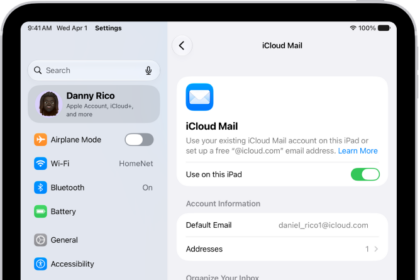
- Open the “Settings” app and go to “Apps.”
- Tap Mail.
- Tap Mail Accounts.
- Tap on the email account that is showing the “Cannot Get Mail” error messages
- Login and authenticate with the mail account if necessary
Often a shortcut is available to this if you tap the ‘Details’ button at the bottom of the Mail app if that little status bar shows an error.
If there was a temporary email server hiccup, often just this simple process will resolve any mail issues in iOS.
Somewhat counterintuitively, you don’t want to go to the “Mail” section of Settings, despite the fact that you’re modifying mail account settings. Instead, because the Mail settings are defined by an account and password, you thus go to the Mail section of Settings app in iOS.
6. Check for Actual Email Server Problems
Though it’s rare, sometimes email servers have downtime either for maintenance reasons, crashes, security issues, someone tripped over a cable somewhere, or any number of other reasons. Thus it can be a good idea to check if the email server is actually down.
For large email providers like Gmail, Outlook, and similar, you can often just go to those websites directly from a web browser, or search the news to see if there is a significant outage. If there is, wait until that outage is resolved before trying to access the mail server.
For smaller email providers like from an internet service provider, or a corporate network, business email, or smaller email providers, you may need to reach out directly to whoever manages the email service or email server itself (like your office IT staff) to confirm that the mail server is working as expected.
7. Restart the iPhone or iPad
Good old fashioned restarting of an iPhone or iPad will often remedy erroneous issues that are otherwise inexplicable to diagnose or troubleshoot. While it’s annoying to reboot a device, it’s fast and easy, so it’s a worthwhile troubleshooting step regardless of your opinions on the matter.
Simply turning your device off by going to Settings > General > Shut Down and then turning the device back on again often works. If turning it off and on doesn’t fix the issue, try forcing it to restart:
- Press and quickly release the volume up button.
- Press and quickly release the volume down button.
- Press and hold the side button.
- When the Apple logo appears, release the side button.
8. Check for iOS or iPadOS Updates
Sometimes these types of bugs are fixed quietly in OS updates. It’s worth making sure you’re on the latest version of iOS or iPadOS:
Go to Settings > General > Software Update and install any available updates.
After updating, reopen Mail and see if the Cannot Get Mail error persists.
9. Delete & Re-Add the Mail Account on Your Device
If you’re certain that your internet connection is working properly, and the mail server is not down, and that there are no issues with the internet connection or the mail server or your login and authentication credentials, then you can delete and re-add the mail account to the iPhone or iPad.
Removing and re-adding a mail account in iOS or iPadOS can have some unintended side effects, because many email providers also sync contacts and notes and other functions through the email account, occasionally with things like loss of notes or contacts or of archived emails. Thus you will want to have a full backup of your iOS or iPadOS device made to iCloud or iTunes or both before going this route so that you don’t lose data.
- First backup your iPhone or iPad to iCloud or computer or both
- Delete the Mail account from iOS or iPadOS by going to Settings > Apps > Mail > Mail Accounts > choosing the email account, then choosing “Delete Account”
- Restart the iPhone or iPad
- Now add the email account to iOS or iPadOS again by going back to Settings > Apps > Mail > Mail Accounts > and choosing “Add Account”
While the process of backing up, removing an email account, rebooting, and re-adding that email account can be annoying, it’s also highly effective when all else fails to remedy an issue with Mail app for iOS or iPadOS.
Did these tricks work to resolve your “Cannot Get Mail” error message on iPhone or iPad when trying to check email? Do you have another solution that worked for you? Share your experiences and thoughts in the comments below!