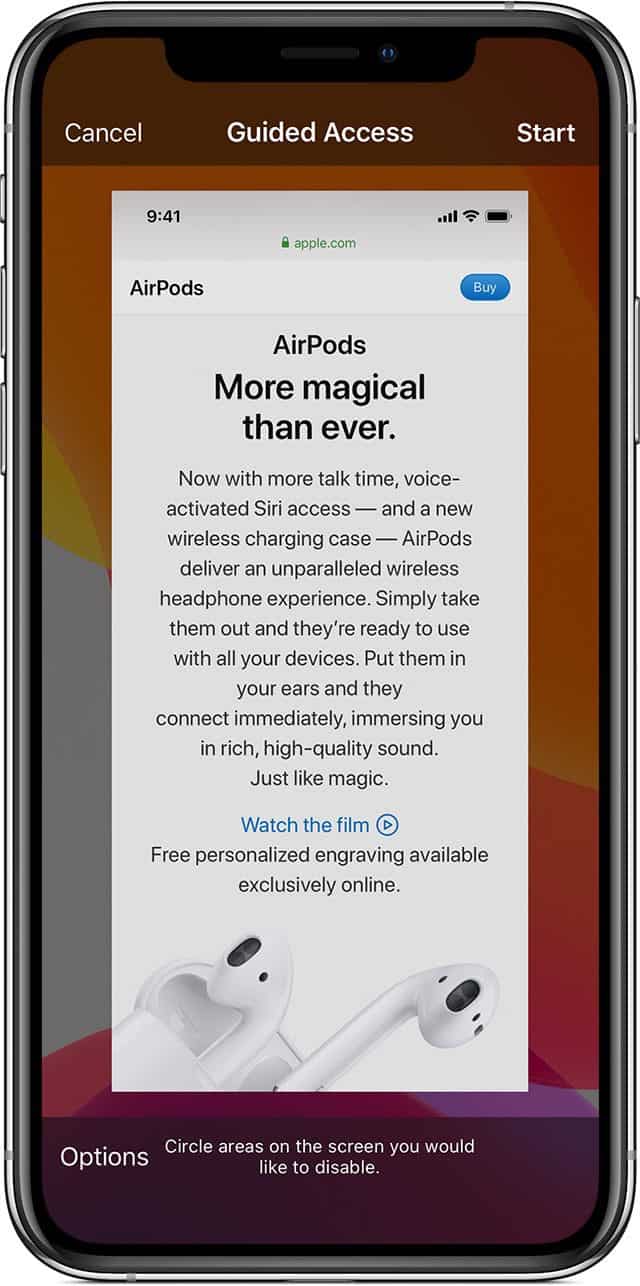
Guided Access limits your device to a single app and lets you control which features are available. There can be many instances where you may want to use Guided Access on your iPhone or iPad, for example:
- When you want to let a child use your device. This is why some people call this “child mode.”
- When accidental gestures might distract you.
- When you want to use your device in a business environment. For example, a lot of restaurants use iPads or iPhones as a part of a POS system.
Some users have said that they are unable to get Guided Access to work on their iPhone or iPad. There are a few reported problems:
- Unable to turn on and set up Guided Access.
- Unable to end Guided Access.
- Unable to start a session. Triple-clicking the Side or Home button does not work.
- Device freezes in Guided Access.
If you run into issues when you want to use Guided Access on your iPhone or iPad, here is what you can do:
Basic troubleshooting steps
- Ensure that you follow the setup instructions described in this Apple documentation correctly.
- Reboot your iPhone or iPad. Go to Settings > General > Shut Down. If rebooting does not work, then after rebooting, follow these steps:
- Go to Settings > Accessibility, then turn off Guided Access.
- Now reboot your device.
- After rebooting, go back to Settings > Accessibility and turn on Guided Access.
- Ensure that your iPhone or iPad is running the latest version of iOS or iPadOS. Go to Settings > General > Software Update to check for updates.
Triple-clicking not working?
- Please first note that not all apps support Guided Access. This means that, for example, if you triple-click the side or the Home button in Settings or on the Home screen, a Guided Access session won’t start. However, while you are in a supported app, like Safari, triple-clicking the button should start Guided Access.
- Try using Siri as an alternative. To start a Guided Access session with Siri, open the app that you want, then tell Siri "Turn on Guided Access." However, this won’t work when you want to exit Guided Access. You cannot ask Siri to end Guided Access because Siri will be blocked in Guided Access.
- To end a Guided Access session, triple-click the Side or Home button, enter your Guided Access passcode, then tap End. Or if you turned on Touch ID or Face ID for Guided Access, double-click the Side or Home button.
Reset all settings
If you are still having problems, you may try resetting all of your settings. When you do this, all settings—including network settings, the keyboard dictionary, location settings, privacy settings, and Apple Pay cards—are removed or reset to their defaults. No data or media are deleted. Here is how you can do this:
- Go to Settings > General > Transfer or Reset iPhone/iPad > Reset.
- Choose Reset All Settings and follow the onscreen instructions.