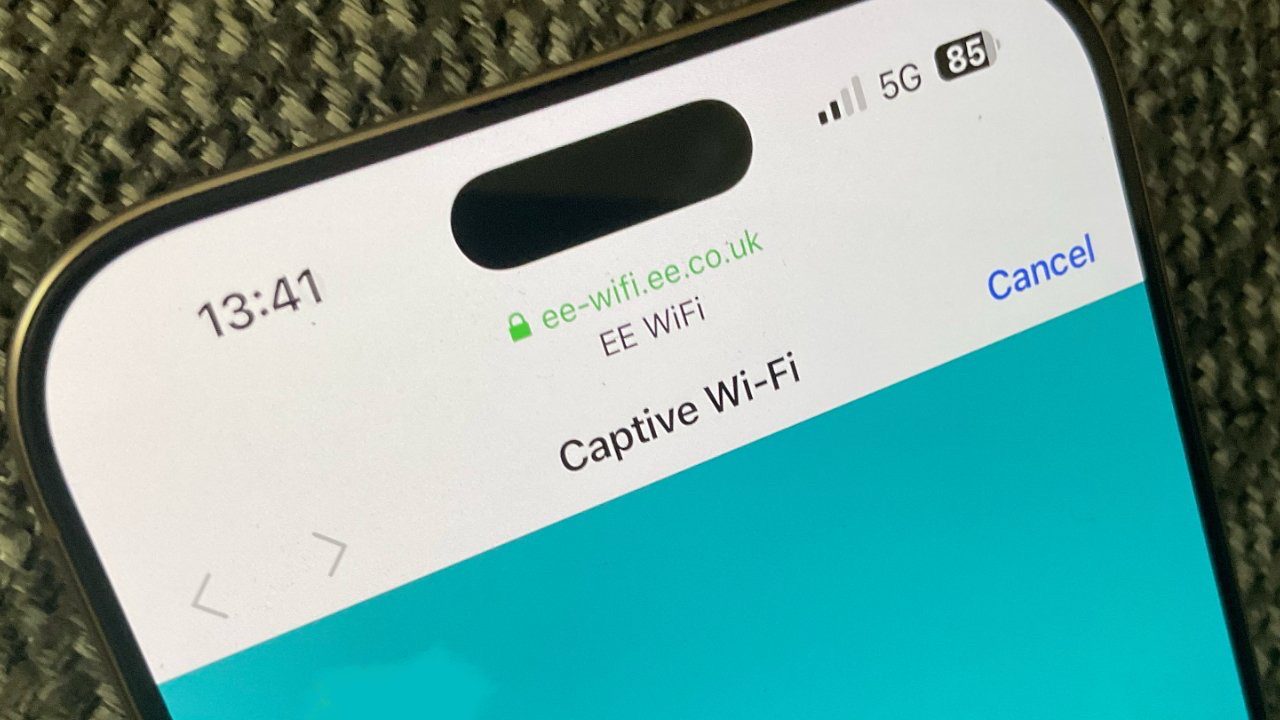
iOS 26 is Apple’s latest operating system update. The new iOS 26 update comes with a lot of new features, fixes and improvements, but also, it has bugs, and other performance issues. One of the issues people are facing after updating their iPhone to iOS 26 is slow Wi-Fi speed.In fact, we are receiving complaints from a lot of iPhone users about poor Wi-Fi performance issues ever since upgrading/updating to iOS 26.
More specifically, a lot of users are complaining that these Wi-Fi issues include:
- Speeds being very slow
- dropping connection unexpectedly
It further seems that multiple iOS devices is affected by this Wi-Fi bug, including the iPhone 16, iPhone 15, iPhone 14, iPhone 13, iPhone 12, iPhone 11, iPhone SE (2nd and 3rd generation).
This is an important problem. We rely on Wi-Fi and these speed problems hurt us. If you are having this issues, this article lists some troubleshooting tips that you may try to fix it:
How to troubleshoot slow Wi-Fi connection on iOS 26
Toggle Wi-Fi Off And Back On
One simple fix when you are experiencing slow Wi-Fi speed on your iPhone after iOS 26 update is quickly turning Wi-Fi off and back on. Think of it like turning your iPhone off and back on — it gives your iPhone a fresh start and second chance to make a clean connection to Wi-Fi.
Head over to Settings > Wi-Fi and turn off Wi-Fi and wait a few seconds and turn back on.
Restart your Wi-Fi router.
Sometimes the internet connection is slow because of an issue with your Wi-Fi router, not the iOS update. You may need to restart your router.
First, unplug your router from the wall. Wait a few seconds and plug it back in. Your router will boot back up and start to reconnect. Be prepared, this might take some time!
Turn off VPN
If you’re connecting to the Wi-Fi network through a VPN, it could be the reason your Wi-Fi speed is slow. If the VPN is an app, just turn it off from within, but if it’s in the Settings app, follow the steps below:
- Open the Settings app.
- Tap on General.
- Scroll down and tap VPN & Device Management.
- Turn off the toggle next to Status at the top, changing it from Connected to Not Connected.
Turn off and on Wi-Fi assist
With Wi-Fi Assist, you can stay connected to the Internet even if you have a poor Wi-Fi connection. For example, if you’re using Safari with a poor Wi-Fi connection and a webpage doesn’t load, Wi-Fi Assist will activate and automatically switch to cellular so that the webpage continues to load. You can use Wi-Fi Assist with most apps like Safari, Apple Music, Mail, Maps, and more. Wi-Fi Assist is on by default. Head over to Settings > Cellular and scroll down and disable Wi-Fi assist and wait a few seconds and turn on again.
When Wi-Fi Assist is activated, you’ll see the cellular data icon in the status bar on your device.
Turn off Wi-Fi networking services
Head over to Settings > Privacy & Security > Location Services > System Services and disable Wi-Fi networking.
Restart Your iPhone
The next thing to try when Wi-Fi connection is slow after installing iOS 26 update is restarting your iPhone. Turning your iPhone off and back on allows all of its programs to shut down and restart naturally, potentially fixing a minor software issue.
Go to Settings > General > Shut Down. Swipe the red and white power icon from left to right to shut down your iPhone. Wait a few seconds, then turn your iPhone on again by pressing and holding the power button or the side button until the Apple logo appears
Force restart your iPhone
It’s possible a temporary iOS 26 glitch is causing your internet connection to be slow. Try force restarting your iPhone to clear minor iOS bugs.
- Press and quickly release the volume up button.
- Press and quickly release the volume down button
- Press and hold the Side button until the screen goes blank and Apple logo appears. Note that this is also called Hard Reset.
Forget Network
Sometimes forgetting your Wi-Fi network on your iPhone and setting it up like new can fix connectivity issues. Head over to Settings > Wi-Fi > Your Wi-Fi Connection > (i) button and then tap Forget This Network. Then restart your iPhone and reconnect your Wi-Fi by going to Settings > Wi-Fi and select your connection and enter your password.
Set custom DNS
It may be that your Internet provider’s DNS servers are down or having some connection issues. You may try Google DNS. Here is how you can do this:
- Head over to Settings > Wi-Fi
- Find your Wi-Fi
- Tap on the (i) button
- Tap Configure DNS and select Manual
- Tap add Server
- Type 8.8.8.8, Google’s DNS numbers.
- Tap Save
You can undo this by selecting Automatic, if you want to do so.
Update to the latest iOS 26 version
Apple has released software updates after the iOS 26 update, which may resolve issue with Wi-Fi performance. This is simple. Just go to Settings > General and Software Update.
Reset network settings
No luck? Next, you can reset your iPhone’s network settings for a fresh start. When you Reset Network Settings, all Wi-Fi, Cellular, APN, and VPN settings are restored to factory defaults. You’ll have to reconnect your Bluetooth devices and reenter your Wi-Fi passwords after completing this step.
Reset Network Settings by going to Settings > General > Transfer or Reset iPhone > Reset > Reset Network Settings.
Contact your ISP or Apple for support
If you’ve done all this and Wi-Fi speed is still slow on your iPhone, it might be time to contact either your Internet Service Provider (ISP), or Apple support for a solution.
See also: What is iOS 26 Captive Assist and How Does It Work on iPhone, iPad & Mac?