
This article explains how to make a Group FaceTime call on iPhone. FaceTime enables you to have group chats containing up to 32 people (including yourself). You can either start a call with multiple people or start small and then add people after establishing the call. The more people in the call, the smaller the boxes on the screen that show the people. However, grid view lets you see up to a half-dozen people on the screen at once in same-size tiles, which may make conversing feel more natural.
Make a Group FaceTime call on iPhone
- Open the FaceTime app on your iPhone.
- Tap the New Call button.
- In the field near the top of the screen, enter the names, numbers, or emails of the people you want to call.
You can also tap the Add Contact button to open Contacts and add people from there, or tap suggested contacts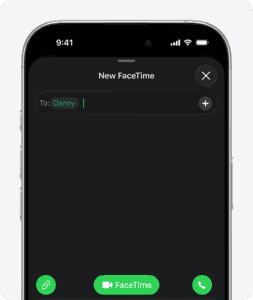 .
. - Tap FaceTime to make a group FaceTime video call or tap the Call button to make a group FaceTime audio call.

Each participant appears in a tile on the screen. When a participant speaks (verbally or by using sign language) or you tap the tile, that tile becomes highlighted or more prominent. Tiles that can’t fit on the screen appear in a row at the bottom. To find a participant you don’t see, swipe through the row. The participant’s initials may appear in the tile if an image isn’t available.
To prevent the tile of the person speaking or signing from becoming more prominent during a Group FaceTime call, go to the Settings app , tap Apps, tap FaceTime, then turn off Speaking below Automatic Prominence.
Note: Sign language detection requires a supported model for the presenter. In addition, both the presenter and participants need iOS 14, iPadOS 14, macOS 11, or later.
Start a Group FaceTime call from a group Messages conversation
In a group iMessage conversation, you can start a Group FaceTime call with all the people you’re chatting with in Messages.
- Tap the FaceTime button at the top right of the iMessage conversation.
- Tap FaceTime Audio or FaceTime Video.
Add another person to a call
Any participant can add another person at any time during a FaceTime call.
- Do one of the following:
- During a one-on-one FaceTime call: Tap the screen to show the FaceTime controls (if they aren’t visible), tap the More button, then tap Add People.
- During a Group FaceTime call: Tap the people count at the top of the screen, then tap Add People.
- Enter the name, number, or email of the person you want to add, or tap the Add Contact button to add someone from Contacts. You can add multiple people.
- Tap Add People.
Join a Group FaceTime call
When someone invites you to join a Group FaceTime call, you receive a notification of the incoming call—you can either join or decline.
- To answer a video call, tap the Accept button, then tap the Join button. To answer an audio call, tap the Accept button.
If a slider appears, you can drag it right to answer. - Decline the call: Tap Decline or the End button.
Leave a Group FaceTime call
To leave a group call at any time, tap the End button in the FaceTime controls, or tap Leave while viewing the list of participants.
The call remains active if one or more participants remain.
See also: How to make a FaceTime call on iPhone