This article explains how to make a FaceTime call on iPhone. FaceTime enables you to make audio-only or video-and-audio calls from your iPhone, iPad, or Mac. On the iPhone, using FaceTime is as easy as making a regular call — and FaceTime offers two major benefits quite apart from the video:
- FaceTime calls don’t count against your call allowance, though they will count against your data plan allotment if you make these calls over a cellular connection.
- The audio quality on FaceTime calls, at least those over Wi-Fi, can be superior to a regular cellphone connection. But a robust 5G or other cellular connection typically works fine too.
FaceTime even lets you include users of non-Apple devices, such as Android and Windows, in calls.
Make a FaceTime call on iPhone
Here’s how to make a FaceTime call on your iPhone:
- Open the FaceTime app on your iPhone.
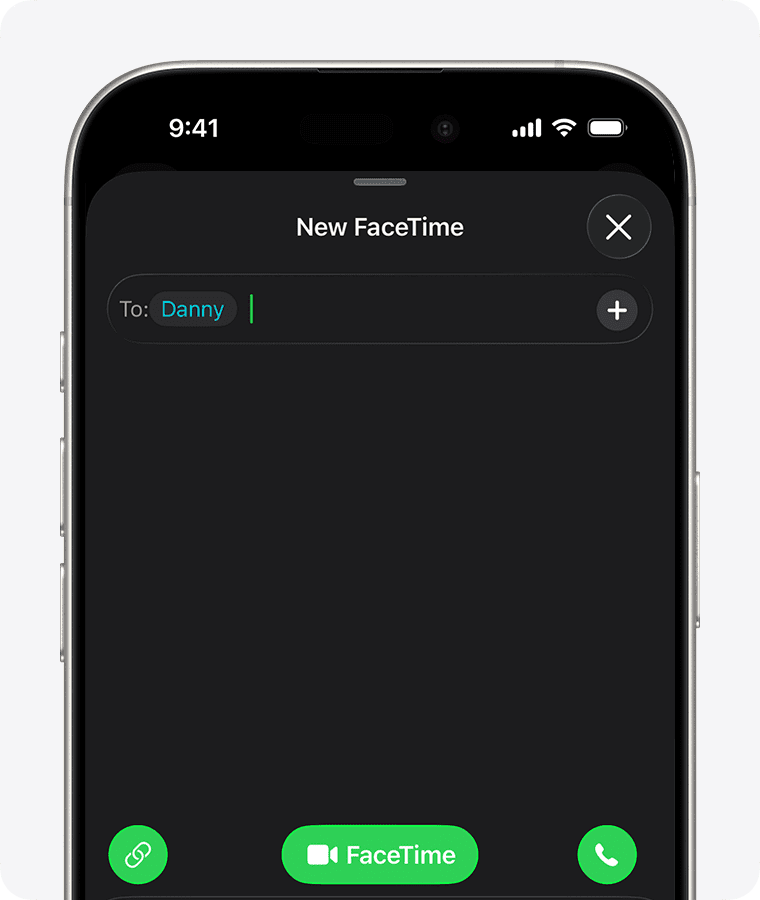
- Tap the New Call button to display the New FaceTime screen
- Enter the name, number, or email of the person you want to call. Alternatively, you can tap the Add Contact button to open Contacts and add people from there, or tap a suggested contact
 .
. - Tap the FaceTime button to start a FaceTime video call, or tap the audio call icon (phone receiver) to make a FaceTime Audio call.
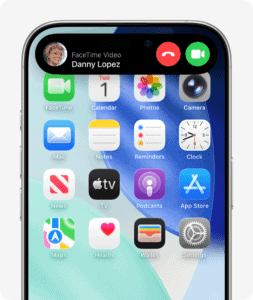
FaceTime places the call. The other person can accept the call by tapping the green button or decline it by tapping the red button. If the other person is using an iPhone and it’s locked, they can slide a slider to accept the call. They can also decline and send you a text message or ask to be reminded to get in touch later.
Create a link to a FaceTime call on iPhone
In FaceTime, you can create a link to a FaceTime call and send the link to a friend or a group (using Mail or Messages). They can use the link to join or start a call.
- Open the FaceTime app on your iPhone.
- Tap New Call, then tap Create Link.
- Choose an option for sending the link (for example, Messages or Mail).
Note: You can invite anyone to join you in a FaceTime call, even people with Android or Windows devices, as long as they have a browser that supports WebRTC (such as the latest version of Google Chrome or Microsoft Edge). They can join you in one-to-one and Group FaceTime calls from their browser—no login is necessary. Sending video requires H.264 video encoding support.
Other ways to place FaceTime call on iPhone
Here are three other ways to place FaceTime calls on an iPhone:
- Ask Siri: Just say “Hey, Siri, make a FaceTime call to Dad” or a similar command.
- In your Contacts list: Tap the FaceTime icon (video camera) or the FaceTime audio icon (telephone).
- In an iMessage conversation: Tap the FaceTime button at the top right of the iMessage conversation. Tap FaceTime Audio or FaceTime Video.
Receiving a FaceTime call on an iPhone
When you receive an incoming FaceTime request on your iPhone, tap the green button, and then tap the Join button; if your iPhone is locked, slide the Slide to Answer slider. You’ll then see and hear the caller and be able to communicate with them. Your own video feed appears in a small picture-in-picture (PiP) window, enabling you to check for spinach in your teeth and (if you find some) get out of the frame, stat.
Find your missed calls, voicemails, and more in FaceTime
- In FaceTime app on iPhone, tap the Filter button in the upper right corner.
- Tap any of the options from the list:
- Calls (your recent FaceTime video and audio calls)
- Missed (FaceTime video and audio calls that were not answered)
- Video (video messages from other callers)
- Voicemail (voicemails from other callers)
- Unknown Callers (calls from unsaved Contacts)
- Spam (calls identified as spam or fraud)
- Manage Filtering (your settings to screen, silence, and filter calls)
Discover more ways to interact on a FaceTime call
- During a FaceTime call on iPhone, tap the More button.
- Tap any of these options:
- Add People (adds more people to the current FaceTime call)
- Contact Card (opens the other caller’s Contact card)
- Live Captions (shows real-time captions on the current FaceTime call)
- Live Translation (translates between languages in real-time)
- Hold Assist (get notified to pick up when you’re no longer on hold)
- Screen Sharing (shares your screen with the other caller)
- SharePlay (lets you share movies, workouts, and more on the current FaceTime call)
Tip: You can use FaceTime in portrait mode or landscape mode. You might find it easier to bring another person into a scene in landscape mode.
Tip: You can also use the front or rear cameras during a FaceTime call. To toggle between the front and main cameras, tap the switch cameras icon (still camera). To mute a FaceTime video call, tap the microphone icon with the slash running through it. The caller won’t be able to hear you but can continue to see you.
If you have an iPhone X or later model, you can add cartoonish memoji or stickers. And you can add shapes, filters, arrows, and even text during a FaceTime call. Tap your thumbnail to expand it; tap the Portrait button, the Studio Light button, the Memoji button, or the Gestures button; and work with the controls that appear. When you finish making choices, tap the minimize video icon (two diagonal arrows butting heads) to shrink your thumbnail back down to size.
Note: Although many FaceTime calls commence with a regular phone call, you can’t go from a FaceTime video call to an audio-only call without hanging up and redialing.
From the FaceTime app, you can also designate FaceTime favorites (audio or video), and make FaceTime calls from the Recents screen of the Phone app.
To block all FaceTime calls on your iPhone, go to Settings ⇒ Apps ⇒ FaceTime, and then make sure the FaceTime switch is off (white). While you’re in FaceTime Settings, you can list one or more email addresses by which a caller can reach you for a video call, along with your iPhone’s phone number.
If you want to use another iPhone app while on a FaceTime call, swipe up on a Face ID model or press the Home button on a Touch ID iPhone model, and then tap the icon for the app you have in mind.
Through the picture-in-picture feature, you can continue to peek at the person you’re talking to in a window you can drag around the screen while exploring other apps and functions.
Tip: If you like what you see, snap a photo of the FaceTime call in progress.
Important: If you remove the FaceTime app from your iPhone, or if you removed FaceTime in an earlier version of iOS, you won’t be able to make or receive FaceTime calls or use SharePlay on your iPhone unless you redownload the app.
See also: How to Make International Calls for Free on iPhone