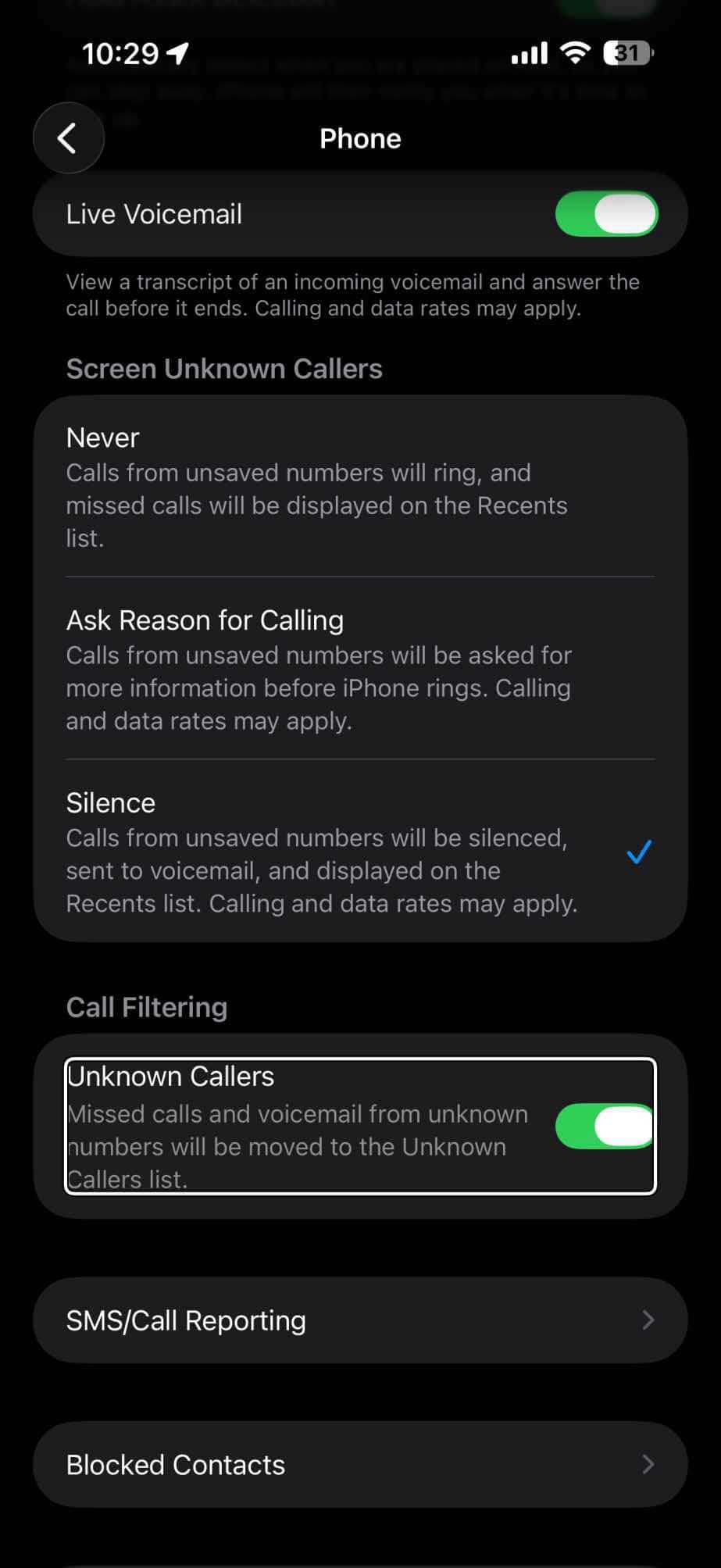
The Phone app on your iPhone gives you two features for managing incoming calls from unsaved numbers:
- Screen Incoming Calls: Makes the Phone app automatically ask the caller for more information before it rings for you.
- Move to Unknown Callers: Makes the Phone app silence the call, sending it straight to voicemail and adding the number to the Unknown Callers list. You can review the list by tapping the filter icon in the upper-right corner of the screen, and then tapping Unknown Callers on the menu.
You can enable Move to Unknown Callers from the Phone app. Tap the filter icon in the upper-right corner of the screen, and then tap Manage Filtering on the menu. On the Reduce Distractions from Unknown Callers overlay, tap the Turn On Screening button.
Screen or silence unknown callers
- On your iPhone, go to Settings ⇒ Apps ⇒ Phone or FaceTime.
- Choose how to manage incoming calls from unsaved numbers. This means phone numbers that aren’t saved in your contacts.
Phone app: Scroll to Screen Unknown Callers, then select Never, Ask Reason for Calling, or Silence. Never means calls from unsaved numbers ring like any other call; Ask Reason for Calling means these calls are screened (the caller is asked why they’re calling before your phone even rings); and Silence automatically silences these calls and sends them to voicemail. 
- FaceTime: Tap to turn on Silence Unknown Callers. Calls from unknown numbers are silenced and sent to voicemail.
Filter unknown callers
- On your iPhone, go to Settings ⇒ Apps ⇒ or FaceTime.
- go to the Call filtering section, and then turn on Unknown Callers. Missed calls and voicemails from unknown numbers are moved to your Unknown Callers list.
View calls from unknown or spam callers
- Go to the Phone app on your iPhone.
- Do one of the following, depending on which Phone app layout you are using:
- Unified layout: Tap Calls.
- Classic layout: Tap Recents.
- Tap the Filter button in the top-right corner of your screen.
- Tap Unknown Callers or Spam.
See also: How to block unknown callers on your iPhone
Silence spam callers
- On your iPhone, go to Settings ⇒ Apps ⇒ Phone or FaceTime.
- Go to the Call Filtering section, then turn on your spam filter.
- Phone app: Tap to turn on Spam. Calls identified as spam or fraud by your phone carrier are silenced, sent to voicemail, and moved to your Spam list.
- FaceTime: Tap to turn on FaceTime Spam. Calls identified as spam or fraud are silenced and moved to the Spam list.
- If you want to see your Spam list, tap the Filter button > Spam. In the Phone app, this appears in the Recents tab in Classic view, and in the Calls tab in Unified.