- You can use the "Silence" feature on your iPhone to automatically mute calls from people you don’t know.
- Calls from numbers you don’t have saved won’t ring, but they can still leave voicemails.
- Silence unknown callers is a great way to deal with annoying spam calls.
For as advanced as phones have gotten, it sometimes seems like we receive more spam and robocalls than ever. And the data backs this up: Americans are dealing with a flood of unwanted spam calls.
There are lots of ways to deal with spam calls, from blocking their numbers to using third-party filtering apps. But the easiest thing to do is ignore them — and if you have an iPhone, you’ve got a useful feature that can help you out.
No matter your phone carrier, every iPhone has a feature called "Silence." When this is selected, your phone won’t ring for calls from numbers you don’t have saved.
In other words, when unknown number calls you, you won’t know. Your iPhone won’t ring, and after a few moments, it’ll just send the caller to voicemail. Afterwards, you’ll see the number show up on your recent call list.
You’ll still hear rings for numbers you have saved in your Contacts list, numbers you’ve called or texted before, and "Siri Suggestions" — usually phone numbers that you’ve seen in an email or text message recently. Additionally, the feature will turn itself off for 24 hours after you call an emergency number like 911.
If you’re dealing with a deluge of calls from people you don’t know, Silence is a great way to keep yourself sane. Here’s how to turn it on
How to Silence Unknown Callers on iPhone
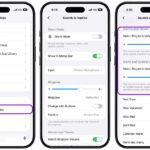
- Open the Settings app on your iPhone.
- Tap Apps near the bottom of the menu.
- Tap Phone or FaceTime.
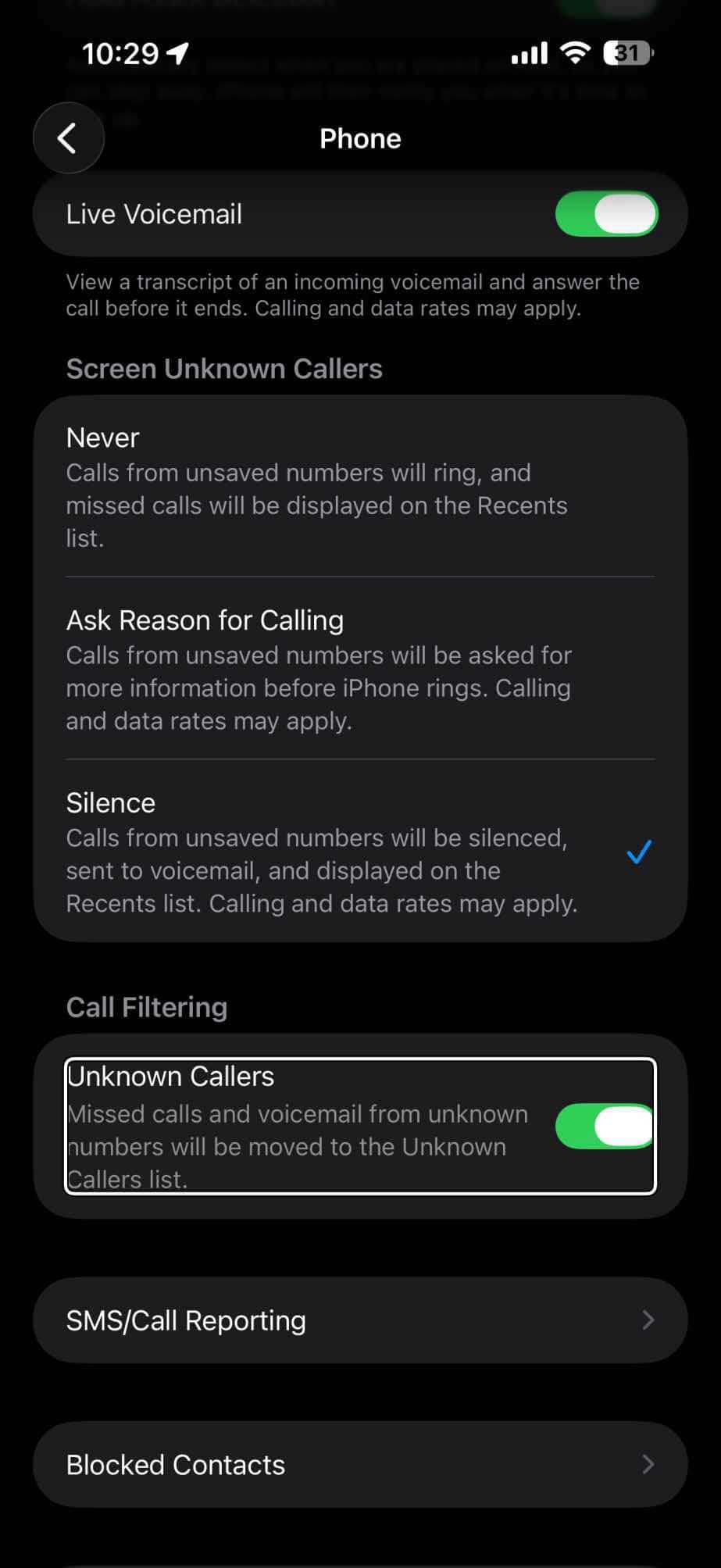
- Choose how to manage incoming calls from unknown numbers. This means phone numbers that aren’t saved in your contacts.
- Phone app: Scroll down to Screen Unknown Callers, then choose Silence. All calls from unknown numbers will be silenced, sent to voicemail, and appear in the Recents list.
- FaceTime: Tap to turn on Silence Unknown Callers. Calls from unknown numbers are silenced and sent to voicemail.
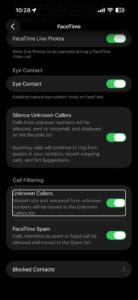
- Phone app: Scroll down to Screen Unknown Callers, then choose Silence. All calls from unknown numbers will be silenced, sent to voicemail, and appear in the Recents list.
See also: How to block a caller on iPhone
Silence spam callers
- Open the Settings app on your iPhone.
- Tap Apps.
- Tap Phone or FaceTime.
- Scroll down to Call Filtering and turn on your spam filter.
- Phone app: Tap to turn on Spam. Calls identified as spam or fraud by your phone carrier are silenced, sent to voicemail, and moved to your Spam list.
- FaceTime: Tap to turn on FaceTime Spam. Calls identified as spam or fraud are silenced and moved to the Spam list.
If you want to see your Spam list, tap the Filter button, then tap Spam. In the Phone app, this appears in the Recents tab in Classic view, and in the Calls tab in Unified.