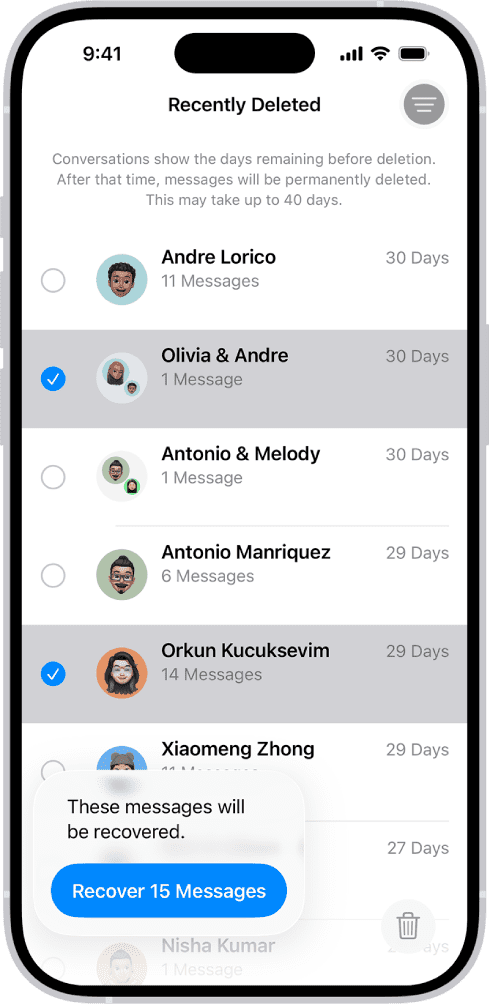
- You can recover deleted text messages you deleted on your iPhone within one month of deletion.
- You can also use iCloud, iTunes, or Finder to recover deleted texts on iPhone if you saved backups to your computer.
- If all else fails, contact your mobile carrier — they may restore deleted messages for you.
Whether you regularly delete your iPhone messages, or recently mass deleted them to free up storage space, you should always take care to save the texts you still need.
But if you’ve accidentally deleted some text messages that you meant to keep, don’t panic — there are a few different ways to recover lost text messages on your iPhone.
How to retrieve deleted text messages on iPhone
To retrieve text messages that you deleted on your iPhone within 30 days, follow these steps:
- Go to the Messages app on your iPhone.
- From the main Messages screen, tap the filter icon (three horizontal lines) at the top-right corner of the conversation list.
- Tap Recently Deleted.
- Select the conversations whose messages you want to restore, then tap Recover.
- Tap Recover Messages.
If you use Messages in iCloud, recovering a message or conversation on your iPhone recovers it on all your devices where Messages in iCloud is turned on.
How to retrieve deleted messages on iPhone using iCloud backup
If your iPhone is set to back up to iCloud, you might be able to recover deleted text messages using a recent backup.
This will revert your iPhone back to the point when you made that backup, meaning that while it can help you recover the text message, you might lose some other data.
To do this:
- Open the Settings app and tap your name at the top.
- Select iCloud, and make sure that Messages are turned on in the list of apps.
- Tap iCloud Backup. Check that your iPhone has been backed up recently.
- Go back to the main Settings app menu and select General, then scroll down and select Transfer or Reset iPhone.
- Tap Erase All Content and Settings, then confirm that it’s what you want to do. You’ll likely have to provide your Apple Account password to turn off Find My.
- Your iPhone will take a few minutes to reset to factory conditions. After that, you’ll be greeted with the iPhone’s initial welcome screen. Go through the first few steps, and on the Transfer Your Apps & Data screen, choose From iCloud Backup.
- Sign into iCloud to access your backups, then choose the last backup before you deleted the text messages you want to recover.
How to restore deleted messages on iPhone using Finder or iTunes
If you backed up your iPhone onto a Mac or PC instead of iCloud, you can try restoring your iPhone with that backup instead. This means using iTunes if you have Windows, or Finder if you’re on a Mac with macOS 10.15 or later.
To retrieve deleted iPhone messages with Finder or iTunes:
- Connect your iPhone to your computer and open Finder or iTunes, if they don’t pop up automatically.
- In Finder (on macOS 10.15 or later), select your iPhone under Locations in the sidebar. In iTunes (on Windows or older macOS), click on the phone icon at the top of the screen and choose Summary from the menu on the left.
- Click Restore Backup and your old texts will hopefully reappear on your phone. If they don’t, your backup didn’t include these texts.
Quick tip: If the Restore Backup button is grayed out, click the bubble that says This Computer or Back up all of the data on your iPhone to this Mac. You can change it back after you find the text you need.
Request Deleted Messages from Your Carrier
If all else fails, consider reaching out to your phone carrier. Some service providers keep a record of your text messages like they keep a record of your calls.
Quick tip: You won’t be able to retrieve any of your iMessages from your carrier, since they only keep records of SMS messages.
You’ll either need to log in to your carrier account or use the service provider’s customer service line. Either way, it’s a good last-ditch effort to retrieve that deleted message from your iPhone.
See also: