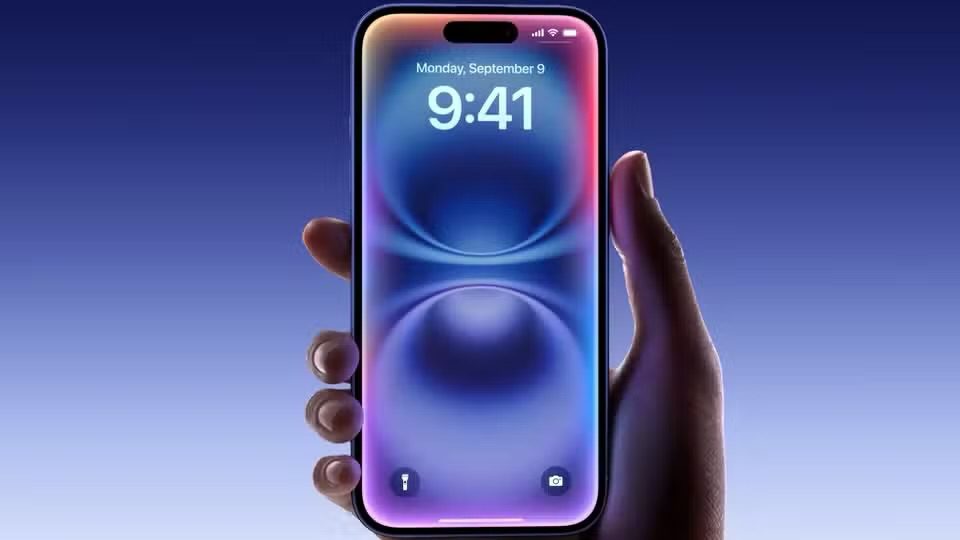
If you’ve ever tried to set a custom ringtone for one of your contacts on your iPhone, you know that it’s a laborious process. Users need to either connect their iPhone to a Mac to import third-party ringtones or edit the track using GarageBand. Both routes are unnecessarily complex, and many users will appreciate Apple simplifying the ordeal.
iOS 26 lets you set custom ringtones on your iPhone without using the GarageBand app. The setting is accessible when sharing an audio file via the Files, Voice Memos, and other compatible apps.
In this guide, I’ll show you how to set a Voice Memo as iPhone Ringtone in iOS 26 without using GarageBand.
Steps to set a Voice Memo As iPhone Ringtone in iOS 26
- Open the Voice Memos app on your iPhone.
- Ttap on the three-dot icon next to the recording you want to use as a ringtone.
- Tap on the share button in the bottom-right corner of the screen,
- tap on More, and tap on Use as Ringtone.
That’s it! Now, the Voice Memo recording will appear at the top of available ringtones in the Settings app under Sounds & Haptics > Ringtone. Like first-party ringtones, you can set it for all calls or dedicate specific tunes for different contacts.
The Use as Ringtone option also appears for audio files in select other apps, including Files. Once you select the desired audio track, tap the Share button, scroll to the bottom of the list, then tap the all-new Use as Ringtone button. (If you don’t see the new option, it may be hidden behind the More button in the share sheet.) That audio file will be listed as a ringtone option in the Settings app under Sounds & Haptics > Ringtone.
To delete a custom ringtone from the list, go to Settings > Sounds & Haptics > Ringtone. There, you can swipe from right to left on the custom track, then hit Delete to permanently remove it. Adding and removing custom ringtones work similarly on iPadOS 26.
Setting custom ringtone on iPhone in iOS 26 works for everything—MP3, M4A, or other supported audio files, a clip you’ve received via iMessage, something you recorded, it all works.
Currently, it is not possible to set Apple Music songs as custom ringtones for free, even with a subscription.
Apple continues to sell 30-second song ringtones for $1.29 each through the iTunes Store app on iOS 26, but this is a legacy feature.
With iOS 26, Apple has made it incredibly easy to personalize your iPhone’s ringtone using your own voice or favorite audio clip—no GarageBand or computer required. It’s the perfect way to make your device truly your own.
See also: 10 Best iOS 26 Tips and Tricks You Should Try on Your iPhone