





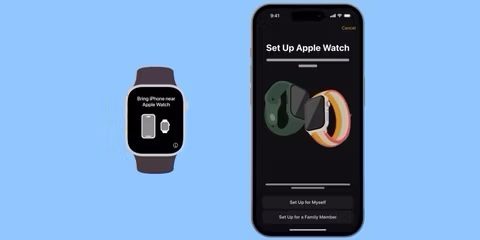
You can use your iPhone to set up an Apple Watch for another family member, like a child, who may not have their own iPhone. Having an Apple Watch for a child allows them to call or message family and friends, and keep track of fitness goals. They can also make use of Maps and Emergency SOS if they need it. You can track your child’s location while they are wearing their Apple Watch. Your child can also listen to music via Bluetooth headphones using their watch.
You can set up a family member’s Apple Watch via a feature called Apple Watch For Your Kids (formerly known as Family Setup), which is available for watchOS 7 and later. There are some requirements in order to make this work. The most important is that your family member must have a watch with cellular; Apple Watches come with two options: GPS, and GPS Cellular.
Apple Watch setup for family members requirements
- Apple Watch Series 4 or later with cellular, or Apple Watch SE (any generation) with cellular — a cellular plan isn’t necessary, but affects the availability of some features.
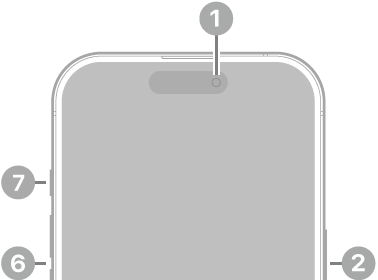
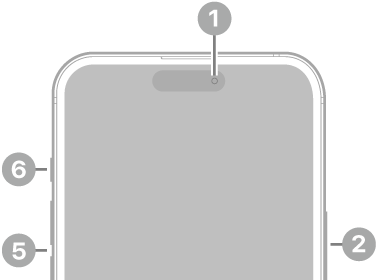
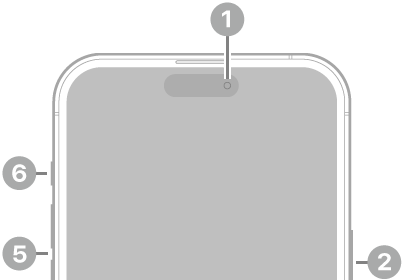
- Your iPhone must be iPhone 6s or later with iOS 14 or later for the initial setup. For watchOS 26 specifically, you need iPhone 11 or later with iOS 26 or later.
- You must have an Apple Account with two-factor authentication enabled. Your family member must also have an Apple Account.
- You will need to have Family Sharing set up with you as the organizer or parent/guardian.
What you can Do with an Apple Watch without an iPhone
A family member who doesn’t have their own iPhone can make phone calls and send messages. They can also share their location — a good feature for children with Apple Watches.
The family member’s Apple Watch will be managed using your iPhone, so in some ways, their watch will not be an independent device — not unlike having your own Apple Watch set up using your own iPhone. Much of the management for the watch happens on the iPhone.
There are some features that will not be available on an Apple Watch that does not have its own companion iPhone, and so won’t be available on a watch you set up using Apple Watch For Your Kids.
Features Available for an "Apple Watch For Your Kids" Watch
- With a cellular plan, the Apple Watch will have its own phone number.
- High and low heart rate notifications — for users 13 and older.
- Heart Rate Variability (HRV) — for users 18 and older.
- Fall detection — for users 18 and older.
- Move minutes for tracking fitness goals — for users under 13.
- Time in Daylight tracking — parents can view the amount of time their children spend in daylight using the Health Sharing feature in the Health app.
Apple Watch has Apple Pay features. Some of these are available:
- Apple Cash Family — for users under 18. With Apple Cash Family, users can make purchases, and send and receive money via Messages (United States only).
Features not Available for an "Apple Watch For Your Kids" Watch
- Apple Pay using credit or debit cards from the Wallet app. Purchases can only be made using Apple Cash Family.
- Medications
- Respiratory Rate
- Irregular heart rhythm notifications
- ECG
- AFib History
- Cycle Tracking
- Sleep
- Wrist Temperature
- Blood Oxygen
- Walking Steadiness
- Audiobooks
- News
- Home
- Shortcuts
- Double tap gesture
- International roaming
How to Set Up a Watch using Apple Watch For Your Kids
To set up an Apple Watch for a family member who doesn’t have their own iPhone, have your iPhone, the Apple Watch, and your family member’s Apple Account and password ready. If the watch isn’t brand new, you will need to first erase the Apple Watch.
- Someone must put the watch on — either you or your family member. Press and hold the side button until the Apple logo appears.
- Keep the Apple Watch near your iPhone until a message appears on your iPhone saying "Use your iPhone to set up this Apple Watch." Tap on Continue.
- If the message doesn’t appear, open the Watch app on your phone and select All Watches, then tap Add Watch.
-
You’ll be asked to "Set Up for Myself" or "Set Up for a Family Member." Select "Set Up for a Family Member."
- Position the Apple Watch inside the frame as instructed and wait until you see a message saying that the watch has been paired.
- If your iPhone’s camera isn’t usable, you can tap on "Pair Apple Watch Manually."
- Tap on Set Up Apple Watch, then follow the onscreen instructions to:
- Agree to the Terms and Conditions.
- Choose a text size for the Apple Watch.
- Set up a passcode to keep the watch secure.
- Choose a family member. Either choose from the list, or tap on Add Family Member. Enter that family member’s Apple Account password.
- Turn on Ask to Buy if you want to give approval for any downloads or purchases made on the Apple Watch.
- Set up cellular and Wi-Fi. If your iPhone cellular provider supports Apple Watch For Your Kids, you can add the watch to your plan during this step. If your carrier doesn’t support it, or you’d like to use a different carrier, select Not Now and contact an alternative carrier directly to set up your cellular plan.
- At this point, you’ll choose whether to turn on many of the other features for the Apple Watch, including Location Services for the Find My app, Siri, Apple Cash Family, Messages in iCloud, Health Data, Emergency Contacts, Medical ID, Activity, Time in Daylight, Workout Route Tracking, and Photos.
- Set up the contacts that will be available on the Apple Watch. On your iPhone go to Settings > [your name] (at the top) > iCloud. Check that Contacts is turned on.
- Set a Screen Time passcode for the watch. You can turn on Schooltime. Tap OK to begin using the watch.

, available for watchOS 7 and later.)