On the face of it, Apple’s Find My iPhone feature does what it says. If you lose your iPhone, you can identify its last known location by looking in the Find iPhone app or on the iCloud Web site, and you can make it play a sound. It’s great for tracking down a missing iPhone, whether you misplaced it in the house or left it behind at a restaurant.
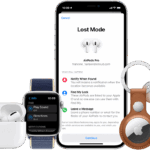
But Find My iPhone does much more! For starters, it works with nearly any Apple device. You can use it to locate a missing Mac, iPad, iPod touch, Apple Watch, and even AirPods. Find My iPhone also helps protect your data if a device is stolen. It even works with Family Sharing to locate devices owned by anyone in your family—a boon to any parent with a forgetful teenager.
Turning the Find My iPhone setting on is a great way to know where your iPhone is at all times, but there are some cases where you’ll need to turn the setting off. The most common scenario is when you’re selling, trading in or otherwise saying goodbye to an iPhone — which you might do if you’ve bought a replacement model. Turning off the feature removes the old iPhone from the list of devices associated with your account and it prevents new owners from accessing information about you.
You should also turn the feature off if you need to send your iPhone in for service, according to Apple’s support page.
How to turn on Find My iPhone
Turn on Find My so that you can locate a lost iPhone.
- Open the Settings app.
- Tap your name, then tap Find My.
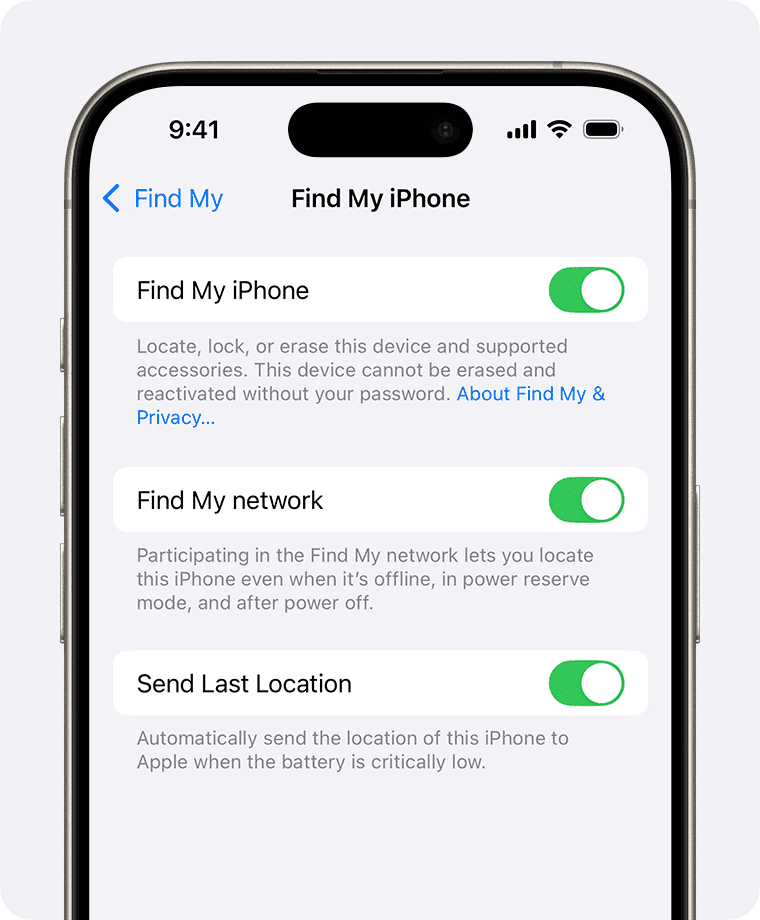
If you’re asked to sign in, enter your Apple Account information. If you don’t have an Apple Account, tap “Don’t have an Apple Account or forgot it?” then follow the instructions. - Tap Find My iPhone, then turn on Find My iPhone.
- You can also turn on or off either of the following:
- Find My network: If your device is offline (not connected to Wi-Fi or cellular), Find My can locate it using the Find My network.
- Send Last Location: If your device’s battery charge level becomes critically low, its location is sent to Apple automatically.
How to turn off Find My iPhone
Apple makes it easy to turn off Find My iPhone. You can turn off Find My iPhone by using the Find My setting on your iPhone or by signing in to iCloud.com/find using a web browser.
How to turn off Find My on your iPhone
You can turn off Find My on your iPhone When you turn off Find My on your iPhone, Activation Lock is automatically removed.
- Open the Settings app.
- Tap your name, then tap Find My.
- Tap Find My iPhone, then tap to turn it off.
- Enter your Apple Account password, then tap Turn Off.

If you no longer have your iPhone or it’s unusable:
If you sent your device to your phone insurance provider without turning off Find My iPhone first or if your phone is unusable, it’s OK. You can still remotely turn off Find My and erase your iPhone.
How to remotely erase your iPhone
- Open a web browser on your device.
- Go to icloud.com/find, then sign in to your Apple Account (if necessary).
Pro Tip: To sign in without entering a two-factor authentication code, click the Find Devices button at the bottom of the window. - Select the device below All Devices on the left.
- If you’ve already selected a device, you can click All Devices to return to the list and select a new device.
- Click Erase This Device.
Pro Tip: Because the device is not lost, do not enter a phone number or message. - Follow the onscreen instructions.
- If your device is online, the remote erase begins after you follow the onscreen instructions. If your device is offline, the remote erase begins the next time it’s online. You receive an email when the device is erased.
- When the device is erased, click Remove This Device.
- Activation Lock is removed immediately, and your device is also immediately removed from Find My. All your content is erased, and someone else can now activate the device