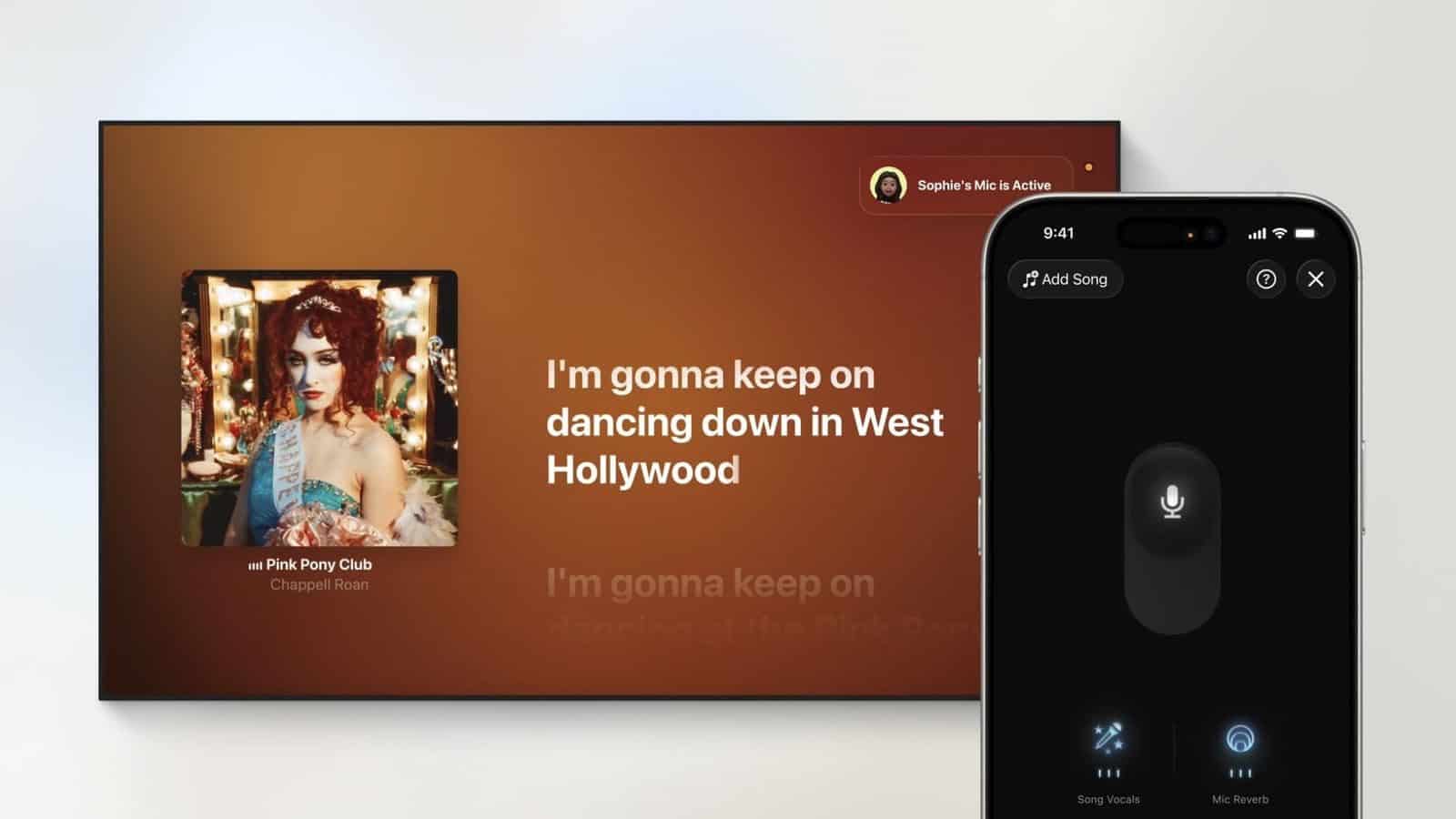
If you’ve been singing into the TV remote while using Apple Music Sing on your Apple TV, it’s time for an upgrade. In tvOS 26, Apple Music Sing now lets users turn their iPhone into a wireless microphone for Apple TV karaoke sessions, with voices amplified through the television’s audio system.
The feature supports multiple participants, allowing friends to join using their own iPhones to queue songs or send emoji reactions that appear onscreen. Real-time lyrics display on the Apple TV alongside visual effects that respond to the music.
What You’ll Need
To use your iPhone as a karaoke mic, make sure you have the following:
- An iPhone 11 or later models paired with a third-generation Apple TV 4K
- An Apple Music subscription
- Both devices are connected to the same Wi-Fi network
How to Set Up iPhone as a Karaoke Mic with Apple Music Sing
- Make sure your iPhone and Apple TV are running iOS 26 and tvOS 26, respectively.
- Open the Apple Music app on your Apple TV.
- Go to Apple Music Sing.
- Choose a track that supports Sing mode (you’ll see a mic icon next to eligible songs).
- A prompt will appear on your Apple TV asking you to connect your iPhone as a microphone. You can scan a QR code or follow the on-screen instructions to pair.
- Start singing
Once connected, your voice will project through your TV’s speakers. The lyrics will sync dynamically with the music, and you can adjust vocal levels using your iPhone controls.
The broad new language support in Apple’s platforms extends to new Lyrics Translation and Pronunciation features in Sing. Translation covers select songs between English-Chinese (simplified), English-Japanese, Korean-Chinese (simplified), Korean-English, Korean-Japanese, and Spanish-English language pairs.
Meanwhile, pronunciation assistance spans multiple scripts including Cantonese to Jyutping, Chinese variants to Pinyin, Hindi to Romanized Hindi, Japanese to Romanized Japanese, and Korean to both Katakana and Romanized Korean formats. Punjabi songs gain Romanized Punjabi pronunciation support.
See also: How to Use Apple Music AutoMix in iOS 26 for DJ-Like Song Transitions