Learn how to gauge the size of real-world objects with the Measure app and camera on your iPhone. And learn how to measure objects and people more easily using the LiDAR Scanner on supported Pro iPhones.
The Measure app uses augmented reality (AR) technology to turn your iPhone into a tape measure. You can gauge the size of objects, automatically detect the dimensions of rectangular objects, and save a photo of the measurement. And with supported Pro iPhones, you can measure objects more easily with visible guides, measure a person’s height, and see a history of your measurements. In this article, we will show you how to use the Measure app on your iPhone, step-by-step.
Before you start
First, make sure that your iPhone’s software is up to date. Go to Settings > General > Software Update and update your iPhone if necessary.
The Measure app works on iPhone SE (1st generation) or later and iPhone 6s or later
Also make sure that you’re in a place with good lighting.
Is the measure app in iPhone accurate?
The accuracy of the Measure app on iPhone depends heavily on the precision of where the end points are placed, so there’s room for error.
The Measure app can be inaccurate anywhere from 2% to 20%. It’s great for quick measurements to get an idea of size, but where precise measurements are required, it’s probably best to double check with a physical measuring method.
Use iPhone Measure app to take a single measurement
- Open up the Measure app.
- Follow any onscreen instructions that ask you to move your iPhone around. This gives your iPhone a frame of reference for the object you’re measuring and the surface it’s on. Keep moving your iPhone until a circle with a dot in the center appears.
- Move your iPhone so that the dot is over the starting point of your measurement, then tap the Add button.
- Slowly move your iPhone until the dot is over the ending point of your measurement, then tap the Add button again.
After you take a measurement, you can adjust its starting and ending points. Touch and hold one of the points, then drag it where you want it to go. The measurement changes as you move the point.
Save your measurement
While the measurement is displayed, you can tap the number to see it in inches and centimeters. Tap Copy, and the value is sent to your clipboard so you can paste it into another app. Tap Clear to start over.
You can also take a photo that shows the object and its measurement. Just tap the Shutter button, and the photo appears in the lower-left corner of your screen. Tap it to make edits using Markup, or swipe left to save it to your Photos app.
Use iPhone Measure app to take multiple measurements of an object
- After you take the first measurement, move your iPhone to place the dot over another location on or near the object.
- Tap the Add button to start the second measurement, then move your iPhone to place the dot somewhere along the existing measurement.
- Tap the Add button again and the second measurement appears.
- Repeat these steps to take as many measurements as you’d like.
- Tap the Undo button to remove the most recent measurement, or tap Clear to start over.
Additional measurements must start or end somewhere along an existing measurement. Otherwise, all previous measurements are replaced by the newest one.
Use iPhone Measure app to measure the dimensions of a rectangle
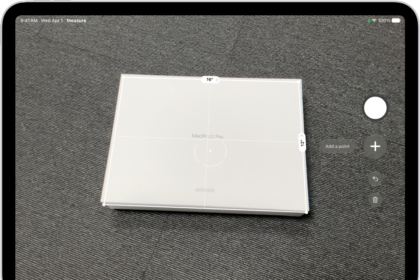
- If your iPhone detects that the object you’re measuring is a square or rectangle, it automatically places a measurement box around the object. Tap the Add button and measurements appear for the object’s width and length. Move your iPhone slightly, and the object’s calculated area appears.
- While the measurement is displayed, you can tap the calculated area number to see the length of the diagonal as well as the area in square inches or square meters.
Use the Measure app with a Pro iPhone
These iPhones use the LiDAR Scanner to help you measure objects more quickly and accurately with the Measure app:
- iPhone 12 Pro and later
- iPhone 12 Pro Max and later
Use the Measure app to measure a person’s height
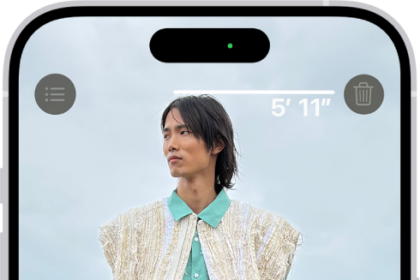
When the Measure app detects a person in the viewfinder, it automatically measures their height from the ground to the top of their head, hat, or hair. You can tap the Shutter button to take a photo of the person with their height measurement. Then you can use Markup on the photo, save it, and share it.
Here are some tips for getting a good height measurement:
- Make sure that you’re in a place with good lighting.
- Avoid dark backgrounds and reflective surfaces.
- Check that the person you’re measuring has nothing covering their face or head, like a face mask, sunglasses, or a hat.
- Try to step back from the person you’re measuring. You might be standing too close.
- Use vertical and edge guides on iPhone 12 Pro or later, and iPhone 12 Pro Max or later, guide lines help you measure the height and straight edges of furniture, countertops, and other objects easily and precisely. Guide lines appear automatically along edges and when making a vertical measurement.
- Snap your starting and ending points to the yellow guide line, then tap a measurement to see the expanded information that your iPhone provides. You can view the measurement’s elevation, distance away, angle, and more.
See more granular measurements with Ruler View
The Measure app on iPhone 12 Pro or later, and iPhone 12 Pro Max or later adds a ruler overlay to line measurements, showing you the object’s dimension in granular increments. Move your iPhone close to a line measurement to see the Ruler View appear, then tap the shutter button to take a photo so you can use the increments for planning projects.
See your measurement history
Tap the List button to view all the measurements that you’ve taken during the current session, including screenshots that you took. This helps you keep track of dimensions as you measure a space or series of objects. You can copy the dimensions into Notes, Mail, or any app you want to save your list in, or clear them to start over.