Several users have said that they were unable to send GIFs and images using #images in the Messages app on the iPhone 18 Pro or iPhone 18 Pro Max. They have said that they received the following message:
“Could Not Share Image. The internet connection appears to be offline”.
Your iPhone 18 Pro includes a built-in GIF keyboard. It’s called #images.
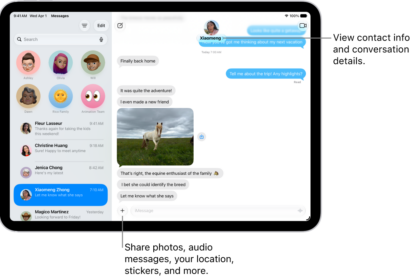
Messages on your iPhone 18 Pro allows you to search for various GIFs in #images to send so that you can send (and receive) moving images easily. If this feature is not working for you, this article explains how you can fix it.
Please try the troubleshooting tips below. Make sure that you check each step to see if your problem is fixed.
Before you do anything, make sure that your iPhone 18 Pro is running the latest version of iOS. Updating your device will improve the performance of your device. You can easily update your device by going to Settings > General > Software Update. This will check for updates. If any updates are available, follow the onscreen instructions to update your device.
1. Restart the Messages app to see if this fixes your problem. Here is how:
- Quit the Messages app. Go to your Home screen and then swipe up from the bottom of your screen. This will reveal the App Switcher.

- Find the Messages app. You can swipe left or right.
- When you find it, swipe up.
- Now open the Messages app and try again.
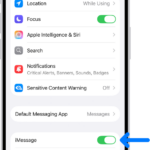
2. Make sure that MMS Messaging is enabled on your device. You can check this by going to Settings > Apps > Messages. Scroll down and find the SMS/MMS section.
3. As the error message indicates, the most common reason why you can’t send or receive GIF messages is a bad Internet connection. You can try the following tips:
- Enable Airplane Mode on your iPhone, wait about a minute and then disable it (Settings > Airplane Mode).
- Disable Wi-Fi and wait about a minute and then enable it by going to Settings > Wi-Fi.
- Make sure that Cellular Data is turned on (Settings > Cellular > Cellular Data). Do you see a No Service message?
- Try connecting to a different Wi-Fi network.
- Restart your Wi-Fi router. To do that, simply unplug your router from its power source. Wait 30 seconds. And then plug it in.
4. Restart your iPhone 18 Pro. Here is how:
- Press and hold the volume up (or down) and the side buttons together until you see the power off slider. Then drag the slider. Wait about a minute. Then press and hold the side button until you see the Apple logo.

5. Change your region.
On your device, go to Settings > General > Language & Region. Tap Region and select a different region (such as Canada, United Kingdom, etc). Then exit settings. Restart your device and now, again, tap Settings > General > Language & Region and change your region back (select your original region such as the United States).
6. Force restart your device. Here is how:
- Press and release the volume up button and press and release the volume down button and then press and hold the side button until you see the Apple logo.

7. Reset network settings. Note that doing so will erase your network settings, for example, this will delete all your saved Wi-Fi passwords. Here is how:
- On your iPhone, go to Settings > General > Transfer or Reset iPhone > Reset > Reset Network Settings > Reset Network Settings.
If you are still having this problem, you may want to contact Apple. Furthermore, please note that #images is not available everywhere.