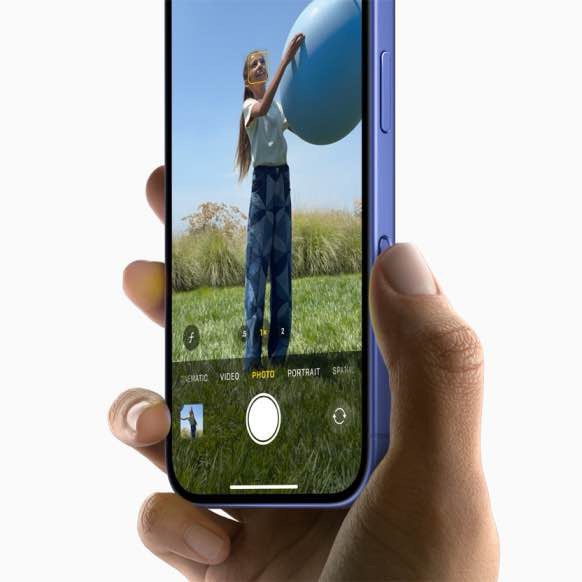
Does your iPhone 16 or iPhone 16 Pro camera keep blinking or flickering when you are trying to record a video or take a photo? This problem seems to affect both rear and front cameras making it impossible to use the camera. This article provides some explanations as to why this may occur and steps to stop your camera from blinking and fix this annoying problem.
When it comes to rear cameras, the baseline iPhone 16 sports a 48-megapixel wide-angle camera and a 12-megapixel ultrawide camera, while the 16 Pro has a 48-megapixel wide-angle camera with a larger and faster image sensor, a 48-megapixel ultrawide camera and a 12-megapixel telephoto camera with 5x optical zoom. Both phones feature the same 12-megapixel TrueDepth front-facing camera. The iPhone 16 camera works perfectly in most cases, but sometimes, you can get weird bugs like this one, which causes your iPhone 16 camera to blink.
With this problem, the iPhone 16 camera view blinks in both Photo and Video modes. When the device blinks, the iPhone focus keeps changing, creating a blinking effect. The blinking appears to stop briefly and then reoccur again. In Video mode, the iPhone even flickers faster.
Having your camera flashing is a seriously annoying problem that no one wants to have to deal with.
What’s causing the blinking on your iPhone 16 camera?
There have been reports of iPhone 16 and iPhone 16 Pro users seeing blinking and flickering when trying to use their device’s camera. It could be happening at random, although it’s likely that if there is no physical damage to your device, something in the way the camera works could be causing the issue.
One of the main potential causes of blinking on an iPhone 16 camera could be the Macro Mode on these newer devices that switch between lenses automatically as you get closer to a subject.
Another potential cause could be exposure issues with bright lighting when taking photos. As your camera tries to maintain automatic exposure and struggles to find the right balance leading to perceived flashing and blinking in your viewfinder.
If your iPhone 16 camera is blinking or flickering, here are a few steps to help you fix this issue and start taking beautiful pictures all over again.
Turn off automatic macro switching
If you notice the blinking and flickering when your iPhone 16 gets close to an object, it could be the device changing from its Wide to Ultra Wide lens causing the issue. It’s easy to turn off automatic Macro Mode. Here’s how:
- Open the Settings app on your iPhone 16 and Tap Camera
- Turn off the switch next to Macro Control
After turning it off, test your camera. If your iPhone 16 camera blinking continues to occur, you can turn it back on by going to Settings and Camera again.
How to change the exposure on your iPhone 16 camera
Before you take a photo, the iPhone camera automatically sets the exposure, and face detection balances the exposure across many faces. To manually adjust the exposure on your iPhone 16, do the following:
- Lightly double-press the Camera Control to open an overlay that shows the available camera settings.
- Slide your finger on the Camera Control to the Exposure setting, then lightly press to select it.
- Slide your finger to adjust the exposure.
Changing the exposure settings could fix the temporary blinking and flickering in the Camera app on your iPhone 16 or iPhone 16 Pro. If the issue persists, however, it might be a hardware issue requiring further troubleshooting.
Apple Support
Before contacting Apple Support, you should try rebooting your iPhone to fix minor bugs. If the issue persists, however, book a genius bar appointment in your nearest Apple store to get some diagnostics run on the camera module.
The blinking and the flickering that sometimes come to the camera app is super annoying, but the faster you ascertain what’s causing it, the sooner you can get back to taking great pictures with your iPhone 16, iPhone 16 Plus, iPhone 16 Pro or iPhone 16 Pro Max.