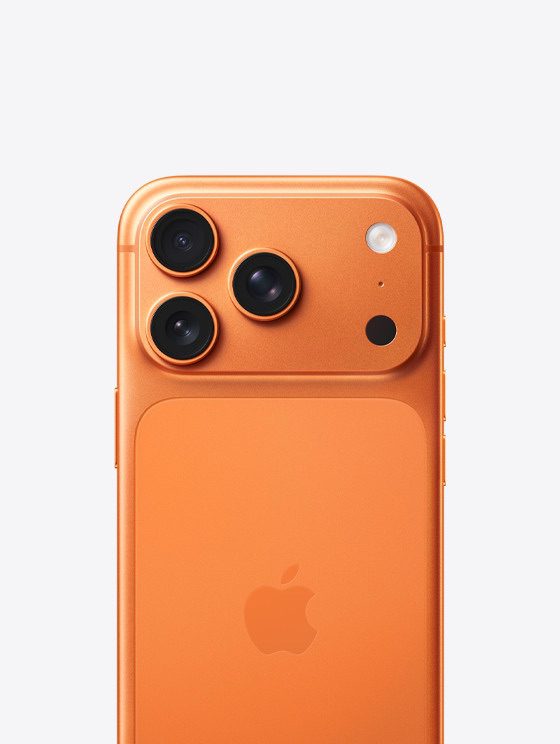
- Restarting your iPhone 17 Pro or the Camera app can clear temporary glitches that cause camera blinking issues.
- Using the right settings for specific camera options can help fixblinking or flickering.
- If your iPhone 17 Pro camera blinking issues persist after trying all the fixes, contact Apple support.
Are you experiencing blinking or flickering issues with your iPhone 17 Pro or iPhone 17 Pro Max camera? Various factors can cause this, so don’t assume it’s a hardware issue and take it to an Apple Store just yet. Go through these troubleshooting steps first.
1. Close the Camera App and Open It Again
The first thing you should do when your iPhone 17 Pro or iPhone 17 Pro Max camera is blinking is too close and relaunch the Camera app. Doing so will reset the app’s state, eliminating any temporary data that may be corrupt and cause blinking issues.
First, you’ll want to open the App Switcher. To do this, swipe up from the bottom of your screen.
Once the app switcher is open, use your finger to swipe camera app up and off the top of the screen. You’ll know the camera app is closed when it no longer appear in the App Switcher.
Now reopen the Camera app to see if the blinking issue is fixed. If it’s still blinking, move on to the next step!
2. Disable Macro Mode
Even after restarting your Camera app, the camera blinking issue might persist. In such cases, the iPhone 17 Pro macro mode feature that helps you take detailed close-up photos might be the culprit. If you experience blinking or flickering problems only when taking close-ups, this might be due to your camera switching to the ultra-wide lens.
Disable macro mode on your iPhone 17 Pro by following these steps:
- Launch the Settings app.
- Tap Camera.
- Toggle off the switch next to Macro Control.
3. Manually Adjust Your Camera’s Exposure
Your iPhone 17 Pro camera automatically adjusts the exposure (amount of light entering the lens) depending on the environmental conditions. It will reduce exposure in a bright environment and increase it in a dark environment. This automatic adjustment might not always be ideal. Sometimes, your iPhone might find it difficult to settle on a specific exposure value, which leads to blinking.
To solve this, you should manually adjust the exposure by following these steps:
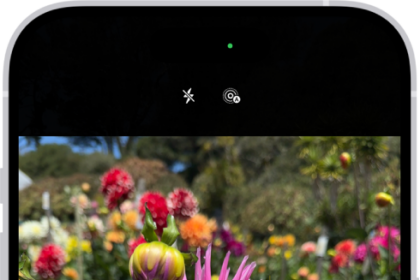
- Tap the chevron icon at the top of the Camera app.
- Next, tap the circular button with a plus and a minus icon.
- Now, drag the slide left or right to find the ideal exposure level.
- Once you’re satisfied with the outlook in the Camera preview, tap the Shutter button to take a picture.
4. Enable Lock Camera in Settings
Macro mode isn’t the only feature on your iPhone 17 Pro that switches camera lenses to help you snap the best shot. Your iPhone will also switch lenses automatically at any point while shooting a video to try and give you the best results. However, this can also cause iPhone 17 Pro camera blinking and flickering issues if your device can’t quite get it right.
Fortunately, Apple allows you to prevent the Camera app from switching lenses while recording a video. Here’s how to turn off this default behavior:
- Launch the Settings app.
- Tap Camera.
- Tap Record Video.
- Toggle on the switch next to Lock Camera.
5. Restart Your iPhone
Restarting can fix most smartphone problems, so it’s no wonder it’s commonly recommended in almost every guide on fixing most issues. Restarting clears all the data stored in memory, thus removing any temporary glitches causing irregular behavior, such as your iPhone 17 Pro camera blinking.
It also releases all resources and restarts all apps afresh, including the Camera app, which can help fix the issue.
Press and hold the side button and either volume button simultaneously until you see Slide To Power Off.
Once you see the power slider, swipe the red and white power icon from left to right to shut your iPhone down. Wait a few moments, then press the side button to turn your iPhone on again.
Conclusion
Hopefully, one of our tips helped you resolve your iPhone 17 Pro camera blinking or flickering problem. However, if you’ve tried all the solutions above and your iPhone 17 Pro camera is still blinking, it’s time to contact Apple support. If the issue is hardware-related, you’ll need to take your iPhone 17 Pro to an Apple Store or Apple Authorized Service Provider for lens replacement. But this may cost you a lot of money unless you’ve purchased an AppleCare warranty.