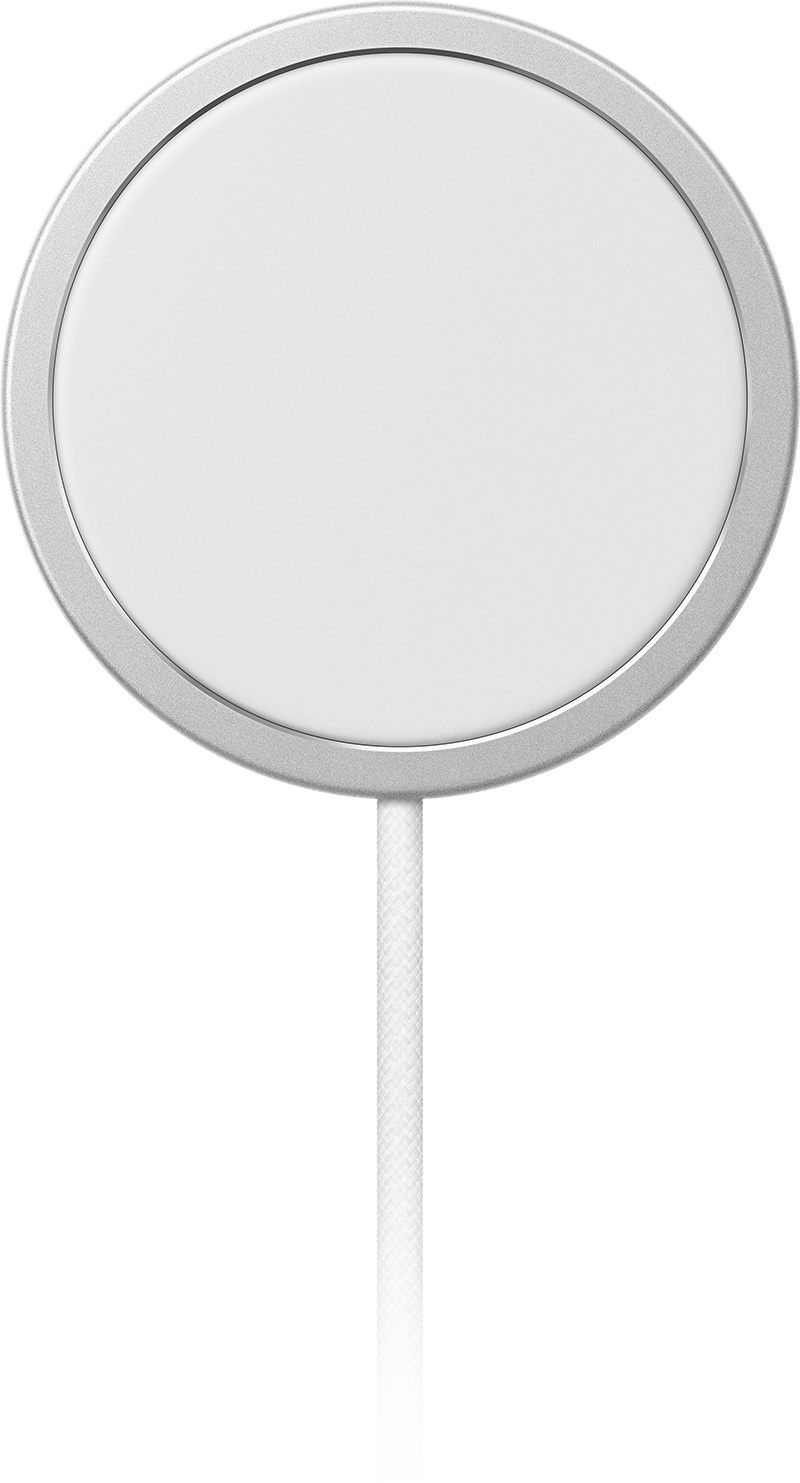
Wireless charging is not really cordless but still offers a convenient way to charge your iPhone without plugging it in. The iPhone 18 Pro and iPhone 18 Pro Max have wireless charging capabilities that work with Qi-certified chargers. You can also use a MagSafe charger with an iPhone 18 Pro and iPhone 18 Pro Max. Both iPhone 18 Pro models can wirelessly charge up to 50 percent in around 30 minutes with a MagSafe Charger and a 35W or higher adapter. Some users have reported their iPhone 18 Pro won’t charge wirelessly with a Qi-certified charging accessory. In this article, I explain how you can fix the problem when wireless charging is not working on your iPhone 18 Pro or iPhone 18 Pro Max. There are three common complaints with this problem:
- Sometimes, your device may not charge at all.
- Sometimes charging occurs, but very slowly.
- Sometimes charging starts (you see the lightning icon on your iPhone), but then stops after some time, usually seconds.
When your iPhone 18 Pro is being charged wirelessly, you will see a lightning/flash charging icon in the status bar.
How to fix iPhone 18 Pro wireless charging not working
- Your iPhone 18 Pro may not be charged because your wireless charger may not be connected to a power source. Ensure that your wireless device is plugged into a power outlet.
- As stated above, iPhone 18 Pro and iPhone 18 Pro Max can be charged this way.
- For wireless technology to work, your device needs to make a clean connection with the wireless charging device. Pick up your iPhone, reposition your phone and put it on the center of the charging mat.
- Like the issue above, if your iPhone 18 Pro vibrates while on the charging pad, this may cause it to shift its position on the pad. For example, if you get a message, your phone may vibrate. If you experience this, you may want to adjust your settings by going to Settings > Sounds & Haptics, or you can use Focus (Settings > Focus > Do Not Disturb) to silence alerts.
- Remove your case. Some protective cases may cause your iPhone 18 Pro to charge slowly or not charge at all. This is true if your case is a battery case, made out of metal or is thick. Remove the case and then test again.
- Ensure that your iPhone is up to date. Go to Settings > General > Software Update.
- If your iPhone 18 Pro is connected to a power source via a USB-C port or a USB adapter, wireless charging won’t work. Instead, your iPhone will use the wired connection to charge.
- Ensure that your wireless charger is not damaged or defective. Try your iPhone on another charger and/or try another phone on your charger to test.
Force restart your iPhone
If you have done all the basic troubleshooting steps above and you are still having this issue, you may want to force restart your iPhone 18 Pro. Here is how:
- Press and quickly release the Volume Up button.
- Press and quickly release the Volume Down button.
- Press and hold the Side button until you see the Apple logo. If you see the Power Off slider, ignore it. When you see the Apple logo, release the Side button.
If your issue continues, you could have a hardware issue. You may want to contact Apple Support.