Is your iPhone Maps app not working? Or is it not accurate enough? Here’s what you can try to fix the problem.
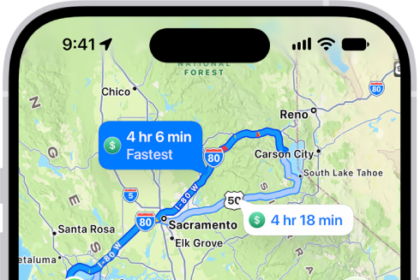
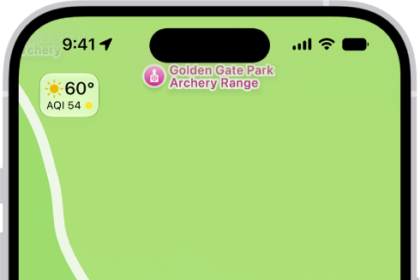
Apple Maps is a useful app for navigating your way around. The Maps app supports topographic maps that are complete with trail networks and hikes, a feature that Apple first brought to the Apple Watch a couple of years ago. There are maps of trails and hike suggestions for all 63 national parks in the United States. There are thousands of hikes available, with Apple providing an option to save favorites, add notes, and get information like elevation and length.
Some users have reported that Maps is not working on their iPhones. There are various reasons why this can occur. An iOS glitch or the Location Services settings might have been disabled.
Thankfully, there are some simple steps you can follow to troubleshoot iPhone Maps problems. In this article, we’ll show you what to do when iPhone Maps app is not working.
How to Fix iPhone Maps Not Working
1. Close and Reopen Maps
A lot of problems can occur during an iOS update. If Maps crashed while installing the latest iOS 26 update, it could be the reason the app is not working on your iPhone. If Maps app has crashed, closing it might get rid of the error!
First, you’ll want to bring up the App Switcher. To do this, double tap the Home button (iPhones without Face ID), or swipe up from the bottom of your screen (iPhones with Face ID).
Once the app switcher is open, use your finger to swipe Maps up and off the top of the screen. You’ll know Maps is closed when it no longer appear in the App Switcher.
Now that you’ve closed Maps, reopen the app to see if it’s working again. If it’s still not working, move on to the next solution!
2. Make Sure Location Services is Turned on
Maps uses Location Services to get data for a specific location. It’s also worth noting that Precise Location issues are the most common reasons for Apple Maps not working on iPhone. When you turn the setting on, it should provide precise location data, and Maps would be able to pinpoint your correct location.
To make sure both Location Services and Precise Location settings are turned on, go to Settings > Privacy & Security > Location Services > Maps. Make sure While Using the App is selected, then turn on Precise Location to allow Maps to use your specific location.
3. Make Sure Background Refresh is Enabled for Maps
If you have problems with the accuracy of Apple Maps on your iPhone, make sure that it is set to run in the background so that it can show you the updated information.
To turn on background refresh for the Maps app on your iPhone, launch the Settings app and go into General > Background App Refresh. Turn on the switch next to Maps app.
4. Restart Your iPhone
One of the many reasons Apple Maps won’t work on iPhone is due to a glitch with the software. Restarting your iPhone will give all your apps the opportunity to shut down and get a fresh start.
If you have an iPhone without Face ID, press and hold the power button until Slide To Power Off shows up on the screen. If you have an iPhone with Face ID, press and hold the side button and either volume button simultaneously until you see Slide To Power Off appear on the screen.
Once you see the power slider, swipe the red and white power icon from left to right to shut your iPhone down. Wait a few moments, then press the power button (iPhones without Face ID) or the side button (iPhones with Face ID) to turn your iPhone on again.
5. Update Your iPhone to the latest iOS version’
Apple releases new updates to introduce new features and resolve known bugs, one of which may be causing the problem with Maps app! The iOS version you are currently running on your iPhone may be having bugs and issues in it, which Apple may have already rectified in a subsequent update. Maps app is a native iPhone app, which means it can only be updated by an iOS update.
Start the Settings app and go to General > Software Update. Tap Update Now if an iOS update is available.
6. Check Your Internet Connection
If you still can’t get iPhone Maps to work, the next step is to see if you have an internet connection. This is especially important if you haven’t downloaded maps for offline use. To check if you have an Internet connection, simply look at the status bar of your iPhone to see if you have Wi-Fi signal.
Just toggle off the Wi-Fi and toggle it back on again. If it fails to come back on, restart your router. Some routers allow restarts to be triggered through an app, while others may have a physical button. If yours has neither, you can unplug the router’s power source and plug it back in.
See also: How to connect your iPhone to a Wi-Fi network
Try Cellular Data Instead
If you are unable to use Maps on your iPhone over Wi-Fi, try using Cellular Data instead. Open Settings and tap Cellular. Make sure the switch next to Cellular Data is on.
Next, scroll through the list of apps allowed to use cellular data and make sure the switch next to Maps is turned on.
Open Maps and see if it’s working properly. If it’s still not working, move onto the next step!
7. Check Apple’s System Status Page
If your internet connection is fine, then there’s a good chance the problem is at Apple’s end. The best way to find out is to go to Apple’s System Status page. This gives you the current status of each Apple service. If you see a red dot next to Maps, it means it’s down, and green dot means it’s up and running.
8. Check Your Date & Time Settings
It may seem like a silly suggestion, but this can often cause many Maps issues on iPhone. This could be due to Apple’s servers having trouble syncing with your date and time settings. Go ahead and configure them to Set Automatically, if they aren’t.
Start the Settings app on your iPhone and tap General. Select Date & Time. Make sure the the toggle next to Set Automatically is switched on.
9. Turn off VPN
Plenty of VPN users say they have encountered issues with Maps on iPhone. Have you tried deactivating a VPN (if you are using it)? If you’re using a VPN app, you can go into the app and turn off your secure connection. You can also go into the Settings app on your iPhone and turn off the toggle next to VPN.
10. Reset The Network Settings
One great troubleshooting step to try to make sure your connection isn’t the problem is wiping all of your network settings. This will make your iPhone forget the Wi-Fi network it’s using. It’ll also reset any connection settings back to the way they came when your iPhone was new.
If a connection setting is to blame for iPhone Maps not working , this will possibly fix the problem. You’ll have to log back in to your Wi-Fi network, so make sure you have your Wi-Fi password handy.
To reset your network settings, start the Settings app on your iPhone and go to General. Tap Transfer or Reset iPhone > Reset > Reset Network Settings.
11. Delete And Reinstall Maps
There’s one more thing you can try if all else has failed. Try deleting the Maps app and re downloading a new copy from the App Store. Sometimes there is a glitch that stops Maps from working, and usually, deleting it and re-downloading it gets rid of the problem.
Press and hold the Maps app on the Home Screen or App Library until the quick action menu opens. Tap Remove App > Delete App > Delete.
Once the Maps app has been deleted on your iPhone, launch the App Store, and tap the Search tab in the lower right-hand corner of the screen. Type “Maps” into the search box at the top of the screen.
Once you’ve found the Maps app in the App Store, tap the Cloud button to its right. The Maps app will download and reinstall on your iPhone.
Now launch the Maps app and check if it’s working. If it’s still not working, move on to the next step!
12. Reset All Settings
If Maps on your iPhone is still not working, there may be a deeper iOS glitch causing the problem.
Reset All Settings erases everything in the Settings app and restores it to factory defaults. When you perform this reset, your saved Wi-Fi passwords will be erased, your Bluetooth devices will be disconnected, and your iPhone’s wallpaper will return to its default.
Start the Settings app on your iPhone then tap General. Tap Transfer or Reset iPhone > Reset > Reset All Settings. Enter your iPhone passcode, if you have one. Then, confirm the reset by tapping Reset All Settings again.
Troubleshoot Apple Maps Issues on iPhone Easily
Like any other app, Apple Maps also experiences hiccups from time to time. However, these issues should not keep you from using the app. If you are facing an issue with iPhone Maps app , one of the methods outlined above should help you fix the problem. Next time Maps app is not working on your iPhone after an iOS update, you’ll know how to fix the problem! Make sure to share this article on social media, or leave us a comment below if you have other questions about the Maps app.