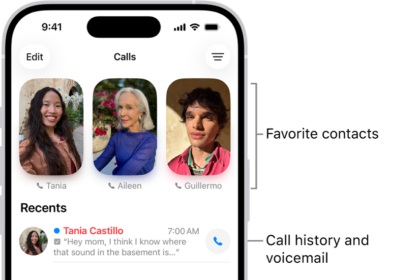
Sometimes you may experience an unusual problem where your iPhone cannot receive calls but can make them. This is an unusual situation because it appears that your iPhone is still connected to a cellular network since you can make phone calls. But some other problems are preventing you from receiving calls.
If you experience this problem, people may get Call Failed error messages when they try to call you. You may see “Searching” or ” No Service” notices in the status bar. This is probably not a SIM failure since outgoing calls are working.
This article explains how you can troubleshoot and fix the problem when your iPhone is not receiving calls but can make them.
Check your iPhone settings
If your iPhone can’t receive calls but can make them, follow these steps, testing after each step.
- Turn Airplane Mode on and off. Go to Settings and turn on Airplane Mode, wait five seconds, then turn it off.
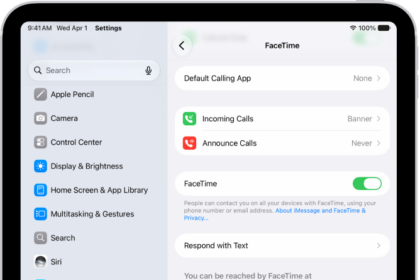
- Check Do Not Disturb. Go to Settings > Focus > Do Not Disturb and make sure it’s off.
- Check for any blocked phone numbers. Go to Settings > Apps > Phone > Blocked Contacts and make sure the number you want to receive calls from isn’t blocked.
- Check Call Forwarding. Go to Settings > Apps > Phone > Call Forwarding and make sure it’s off.
- Check Silence Unknown Callers. Go to Settings > Apps > Phone > Silence Unknown Callers. If the setting is on, a caller must be listed in your Contacts or Recents. Or they must have shared their number in Mail or sent you a message using that number in order for their call to go through. Add their number to Contacts to ensure the phone rings. Calls from some third-party apps might not go through.
Update your iPhone and carrier settings
Ensure that your iPhone is running the latest version of iOS. Also, ensure that the latest carrier settings updates are installed on your device. Carrier settings updates are released by your cellular company. Here is how you can check this:
- Check for an iOS software update: Go to Settings > General > Software Update.
- Check for a carrier settings update: Go to Settings > General > About. A Carrier Setting Update prompt will appear if there is an update.
Restart your iPhone
Simply reboot your iPhone. Your incoming calls problem may be a simple issue that can be fixed with a restart. Restarting is easy, and you do not lose any data. If your iPhone (iPhone X and later) does not have a Home button, then press the volume up (or volume down) button and the Side buttons together until you see the power off slider. If you have an older iPhone model with a Home button, then press and hold the side (iPhone 6, 7, 8 and iPhone SE second/third generation models) or the top (iPhone 5 and earlier and the first generation iPhone SE) until you see the power off slider. Drag the slider to turn off the device. Wait a few seconds and then press and hold the side or top button to turn it back on.
Check your network settings
- Reset your network settings. Go to Settings > General > Transfer or Reset iPhone > Reset > Reset Network Settings. This will erase all current saved settings, including Wi-Fi passwords, preferred networks, and VPN and APN settings that you’ve used before.
- Try to receive calls in another location.
Contact your service provider
When your iPhone won’t receive calls but can make them, the issue could be with your service provider. Contact them.
Here are the customer support phone numbers of the major US wireless carriers:
- AT&T: 1-(800)-331-0500
- T-Mobile: 1-(800)-866-2453
- Verizon: 1-(800)-922-0204
If your carrier isn’t listed above, a quick Google search for their customer support number should get you headed in the right direction.
Reset all settings
If your problem continues, try resetting all of your settings. This will erase and restore various settings such as network, privacy, location and so on. It is important to mention that your data and content will not be deleted. For example, your photos, videos, music, and files will stay. On your iPhone, go to Settings > General > Transfer or Reset iPhone > Reset and then tap Reset All Settings.