





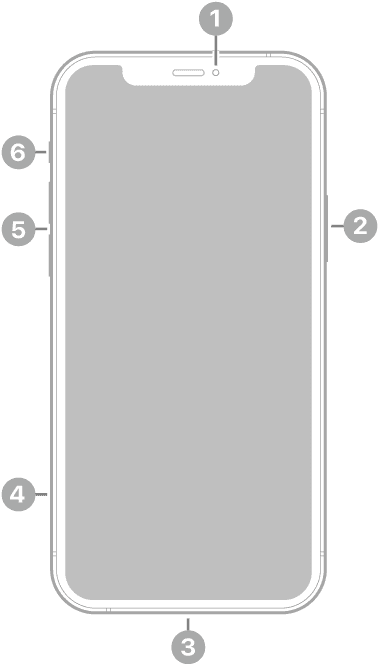
This article explains how you can troubleshoot when your iPhone volume (audio, ringer, alerts and other sounds effects etc) keeps adjusting itself. For example, your iPhone may itself randomly lower or increase the volume. Sometimes, your phone may keep resetting the volume to the lowest volume or to the highest level. This is an important problem. This problem, for example, may cause you to miss calls.
Why Does Your iPhone Volume Change on it’s Own?
Your iPhone may automatically decrease or increase its ringer or media volume due to various reasons, such as:
- Attention Aware is enabled, causing the ringtone volume to drop when you’re looking at the iPhone.
- The device is set to reduce “Loud Sounds” when using headphones to protect your hearing.
- The Back Tap feature is being triggered inadvertently, turning up or down the audio levels.
- A damaged volume button or liquid ingression causes the volume to change on it’s own.
To stop your iPhone lowering volume on its own, we’ll start by turning off iOS features that might affect it. Failing that, we’ll walk you through standard troubleshooting tips that can also help.
iPhone volume alert problems
Please try the tips below until you fix the problem. Please make sure to check your iPhone after each step to see if the volume starts working.
Before we start, if your iPhone has a protective case, remove it. After removing, does your problem occur? Furthermore, is your device connect to a wired or Bluetooth accessory (headphones etc)? Unplug or disconnect them to see if your issue is fixed.
1. Lock the volume sound of your alerts. After locking, does your phone change the volume on its own? To do that, go to Settings > Sounds & Haptics (or Sounds) > Turn off Change with Buttons. When it is set to off, does your problem occur?
You may also adjust the volume by dragging the Ringer And Alerts slider up or down.
2. Restart your iPhone. Here is how you can restart an iPhone:
- iPhone with Face ID: Simultaneously press and hold the side button and either volume button until the sliders appear, then drag the Power Off slider. Wait for about one minute. Then press and hold the side button until the Apple logo appears.
- iPhone with the Home button: Press and hold the side button until the slider appears. Drag the slider. Wait until your iPhone is completely turned off. Then press and hold the side button until you see the Apple logo.
- All models: Go to Settings > General > Shut Down, then drag the slider. Wait until your iPhone is completely turned off. Then press and hold the side button until the Apple logo appears.
3. Are you having this problem with an iPhone with Face ID? If so, you may want to check this particular setting. This setting is called Attention Aware Features. iPhones with Face ID include TrueDepth cameras. Your iPhone’s TrueDepth camera, by using the face detection algorithm, will decide if you are looking at your device or not. When this feature is enabled, your iPhone will lower the volume of alerts if you are looking at your iPhone.
On your device, go to Settings > Accessibility > Face ID & Attention and see if Attention Aware Features is enabled or not. If it is enabled, turn it off to see if your issue is fixed.
4. Update iOS. Make sure that your iPhone is running the latest version of iOS. You can update your iPhone wirelessly by going to Settings > General > Software Update. Your iPhone will check for an update. If there is an update available, tap Download and Install to install the update.
5. If you are still having this problem, you may want to force restart your iPhone. Here is how you can force restart an iPhone:
- iPhone 8 or later: Press and quickly release the volume up button, press and quickly release the volume down button, and then press and hold the side button until you see the Apple logo.
- iPhone 7 models: Press and hold the volume down and the side buttons together until the Apple logo appears.
- iPhone 6s or earlier: Press and hold the Home and the side buttons together until you see the Apple logo.
Volume Changes When Playing Music?
Disable Back Tap
If you notice your iPhone volume going up or down when watching videos or listening to music, it’s possible that you inadvertently triggered the Back Tap feature. With Back Tap in iOS 14 or later, a quick double or triple tap on the back of your iPhone can turn down the volume, turn up the volume, and more. You may want to check if this is the cause of your issue. Here’s how:
- Go to Settings > Accessibility > Touch, and tap Back Tap.
- If you see Volume Down or Volume Up next to Double Tap or Triple Tap, tap the option and choose None.
Check app notification settings
Similarly, if your iPhone volume dips or dampens randomly for a second or two when watching videos or listening to music, it’s most likely due to app notifications. iPhones are designed to temporarily lower the volume to help you hear audible alerts for messages, apps, and games onboard.
For an interruption-free experience, i recommend that you put your iPhone on Silent Mode. If you get frequent notifications from a particular app, you can disable sounds for that app specifically.
- Go to Settings > Apps and select the app in question.
- Tap "Notifications."
- Turn off the switch for "Sounds."
This will retain notifications but turn off the audible alerts accompanying them, fixing the volume dip.
Disable "Reduce Loud Sounds"
The Reduce Loud Sounds feature on iPhones automatically lowers the volume when you’re listening to loud audio through headphones.
While the feature is designed to protect your hearing from being damaged by loud sounds, your iPhone may become too quiet as it automatically reduces volume without telling you. Here’s how you can turn it off.
- Go to Settings > Sounds & Haptics.
- Scroll to the bottom and turn off "Reduce Loud Sounds."
- Tap "Headphone Safety."
- Turn off the switch for "Reduce Loud Audio."
If nothing works and your iPhone keeps adjusting the volume levels on its own, we’d recommend contacting Apple Support. You can take your device to an Apple Store for inspection. You can chat with an Apple Support specialist online for more information. Visit support.apple.com/contact to access support options, or use the Apple Support app on your iPhone to connect with an expert.







 keeps adjusting itself. For example, your iPhone may itself randomly lower or increase the volume. Sometimes, your phone may keep resetting the volume to the lowest volume or to the highest level.)