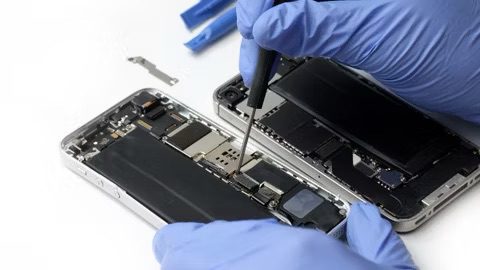
After replacing your screen, you realize that your iPhone won’t turn on. Thankfully, there are things you can do to fix this problem. In this article, I’ll explain what to do when your iPhone won’t turn on after screen replacement.
Why Won’t My iPhone Turn On After Screen Replacement?
Your iPhone may not be turning on after screen replacement due to a minor software glitch. This can be fixed quickly by performing a hard reboot.
Unfortunately, another issue that can cause this problem is bent pins. The pins inside the logic board are very sensitive, and if they get bent, you may need a new display or a new logic board.
Many times, the replacement screens people buy aren’t the best quality, so it could be worth buying another replacement screen and trying again.
Unfortunately, it only takes one little misconnection to cause a significant iPhone problem!
If your iPhone won’t turn on after screen replacement, it may be a good idea to try to reseat the screen. You may want to consider going back to the company that replaced your screen in the first place and ask them to fix the problem they created. Before doing that, follow the steps below!
Hard Reset Your iPhone
Sometimes forcing your iPhone to restart is all you need to do to fix the problem. Since your iPhone screen won’t turn on, you’ll have to do a hard reset. The way to hard reset an iPhone depends on which model you have, so we’ve broken down the process for each device.
iPhone 6s, iPhone SE, & Earlier
Press and hold the Home button and the power button (Sleep/Wake button) at the same time until the screen goes black and the Apple logo appears again.
iPhone 7 & iPhone 7 Plus
Press and hold down the volume down buttonand the power button at the same time. Keep holding both buttons until the Apple logo shows up on the display.
iPhone 8, iPhone X, iPhone XR, iPhone XS, iPhone 11, iPhone 12, iPhone 13, iPhone 14, iPhone 15, iPhone 16
Press and quickly release the Volume Up button, press and quickly release the Volume Down button, then, press and hold the side button. Keep holding the side button until the Apple logo appears. Remember to press the volume buttons at the beginning, or else you might accidentally send a message to your SOS contacts!
Put Your iPhone In DFU Mode
A [Device Firmware Update (DFU) restore erases and reloads your iPhone’s software and firmware. This type of restore is also the last step you can take to completely rule out any type of iPhone software problem.
Below, we’ve broken down the DFU restore process for different models of the iPhone.
DFU Restore Older iPhones
First, connect your iPhone to a computer using your charging cable. Then, press and hold the power button and the Home button at the same time. After about eight seconds, let go of the power button while continuing to press the Home button. Release the Home button when your iPhone appears in iTunes or Finder.
Start the process over from the very beginning if your iPhone didn’t show up in iTunes or Finder.
DFU Restore An iPhone 7 Or 7 Plus
Start by connecting your iPhone to a computer using a Lightning cable. Then, simultaneously press and hold the Volume Down button and the power button. After about eight seconds, let go of the power button, but keep holding the Volume Down button until your iPhone shows up in iTunes or Finder.
If your iPhone didn’t show up in iTunes or Finder, start over from the very beginning.
DFU Restore An iPhone 8, iPhone X, iPhone XS, iPhone XR, iPhone 12, iPhone 13, iPhone 14, iPhone 15, and iPhone 16
Use a Lightning or USB-C cable to connect your iPhone to a computer. Next, press and let go of the Volume Up button, then press and let go of the volume down button, then press and hold the side button.
When the screen turns black, press and hold the volume down button while continuing to hold the side button. Wait about five seconds, then release the side button while continuing to hold the volume down button. Keep holding until your iPhone appears in iTunes or Finder.
Addressing A Potential Hardware Problem
If your iPhone screen still won’t turn on, a hardware issue is causing the problem. It’s common for this issue to happens after a botched repair job.
First, check to see if your iPhone is on and it’s just the screen that’s broken. Try flipping Ring/Silent switch on the side of your iPhone that turns your ringer on and off. If your iPhone has An action Button, long press that button instead. If you feel it vibrate, that means your iPhone is on, and it’s your screen that’s broken.
If you went to a third-party repair shop, we recommend returning there and request them to fix the problem. Since they may be the ones who caused it, there’s a chance they’ll fix your iPhone, free of charge.
If you tried to replace the screen on your own, you’ll want to get the iPhone back into its original state before taking it into an Apple Store. Apple won’t touch your iPhone or offer you an out-of-warranty replacement price if they notice that you’ve replaced your iPhone’s screen with non-Apple parts.
iPhone Screen: Fixed!
We know it’s stressful when your iPhone won’t turn on after a screen replacement. Now you know exactly how to fix this problem if it ever happens again. Thank you for reading. and let us know how you fixed your iPhone in the comments below!