Summary
- If your iPhone won’t turn on, make sure you’re switching it on the right way first.
- You can fix an iPhone that won’t turn on by forcing it to restart or checking for charging or hardware issues.
- If all else fails, plug your iPhone into a computer to see if you can back it up before sending it for repairs.
When your iPhone won’t turn on, it’s easy to fear the worst — but a fix is often simpler than it first seems. Whether the issue is a drained battery, a faulty charging cable, or a software glitch, identifying the problem is the first step to resolving it and easing your worry that the device is beyond repair.
Reasons your iPhone is not turning on
In general, you can narrow it down to one of three key issues: a software glitch, a charging malfunction, or a serious hardware problem.
Here’s how to figure out why your iPhone won’t turn on and how to fix it.
How to turn on an iPhone
You need to make sure you’re turning on your iPhone the right way before trying any of the troubleshooting steps mentioned below. Not all iPhones are created equal, and it can sometimes get confusing to know just how to turn your model on.
By the offset chance this is the issue, here’s how to turn on an iPhone if it:
- Has a Home and Side button. Press and hold the Side button until you see the Apple logo on the screen.
- Has a Home and Top button. Press and hold the Top button until you see the Apple logo on the screen.
- Doesn’t have a Home button but has a Side button. Press and hold the Side button for a few seconds and release it when the Apple logo appears on the screen.
What to do if your iPhone won’t turn on
Once you’re sure that you can switch on your iPhone properly, you can try to get to the bottom of why it’s not turning on.
1. Try charging your phone
A dead battery is one of the most common and straightforward reasons an iPhone won’t turn on. While normal use can drain the battery over time, power-intensive activities like video streaming, gaming, or running multiple apps can cause it to die faster than expected.
If your iPhone doesn’t turn on, charge your iPhone for one hour and then try again. If your iPhone shows a low, charge, charge your iPhone for 30 minutes or until it starts.
If your phone still doesn’t respond after charging, the battery itself may be defective and no longer able to hold a charge. You can check for battery issues by seeing if your phone turns on while plugged in. If your phone does turn on while connected to a power source, you can check the battery health using the following steps:
- Open the Settings app on your iPhone.
- Go into the Battery settings.
- Select the Battery Health option from the Battery menu.
- Check the Maximum Capacity percentage.
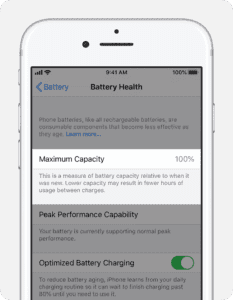
- If this number is below 80%, your battery has degraded significantly and you’ll notice a shorter life per charge, but you should be able to continue using your iPhone.
- If the number is below 50%, your battery is due for a replacement, as your battery’s maximum power output may be too low to handle the performance of your phone.
If you find that your battery is what’s causing your issues, a replacement might be necessary. You can visit the nearest Apple Authorized Service Provider or send your iPhone directly to Apple for repair.
See also: How much does it cost to replace an iPhone battery?
2. Check your charging accessories
If your iPhone won’t turn on, even while it’s charging, a faulty charging accessory might be to blame. Damaged cables, worn-out adapters, or debris in the charging port can all interfere with proper power delivery.
To troubleshoot the problem:
- Try a different charging cable or USB adapter.
- Use a wall power outlet and check for firm connections between your charging cable, USB wall adapter, and wall outlet or AC power cable, or try a different outlet.
- Remove any debris from the charging port on the bottom of your device, then firmly plug your charging cable into your device.
- Let your device charge for half an hour.
If your device still won’t power on or if the screen displays a battery icon, force restart your device:
Tip: Preventing charging cable damage can help you avoid a dead iPhone due to faulty charging accessories. Avoid bending your cable too much, as this can cause fraying and make the cable less effective over time.
3. Force Your iPhone to Restart
A software glitch can sometimes stop your iPhone from turning on, especially after a failed software update, system crash, or improperly installed app. These issues may interfere with the startup process and cause your phone to seem completely unresponsive.
If you suspect a glitch is behind your iPhone not turning on, try to force a restart. This simple step can often clear out minor software hiccups and get your device running again by interrupting the power cycle and forcing a fresh boot.
- iPhone 8 or later and iPhone SE (2nd generation and later): Press and quickly release the volume up button. Press and quickly release the volume down button. Press and hold the side button until the Apple logo appears.
- iPhone 7 and iPhone 7 Plus,: Press and hold both the side button and the volume down button until the Apple logo appears.
- iPhone 6s or earlier and iPhone SE (1st generation): Press and hold both the side (or top) button and the Home button until the Apple logo appears.
- Let your device charge for another half hour.
If your iPhone still won’t power on, your device may be having a hardware issue.
4. Inspect Your iPhone for Physical Damage
If none of the above solutions were able to turn your iPhone back on, your phone may be having a physical damage.
The charging port on many iPhones can become damaged with lots of wear from plugging and unplugging charging cables, especially if you aren’t particularly gentle with the port. If the port becomes damaged to the point where the contacts break, the phone will be unable to charge using a cable. If this is the case, your phone will no longer turn on because it’s simply discharged.
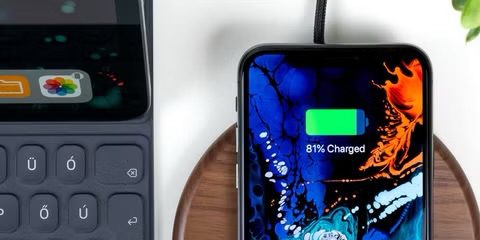
If your iPhone is equipped with wireless charging capabilities, try using a wireless charging pad and see if your phone will power up then. If your phone powers up, you’ll need to replace the charging port with a new one, usually located on the daughterboard of the device.
The screen of the phone is responsible for displaying the user interface, and because it controls most of the input/output for the phone, a faulty screen may be mistaken for the iPhone not turning on.
If the phone was recently dropped and the screen is visibly damaged, a screen replacement may return the phone to working condition. However, you can test this by plugging the phone into an external display if possible. If you get an output on the external display, it means that your phone is still turning on, but the display is busted.
The motherboard controls most of the phone’s functionality, handling input sent in from the screen and buttons and processing it to produce the desired outcome.
Typically, the motherboard only goes bad when it experiences a significant impact, exposure to water, extreme temperatures, or when the BIOS settings are changed (like when a jailbreak attempt is unsuccessful). If you suspect any of the above have damaged your motherboard, you may need to replace it with a new one to regain functionality for your phone.
To see if your phone has any life in it at all, try this:
- Connect iPhone and your computer with a cable.
- Start Finder on your Mac. If you have a Windows PC, start iTunes or windows Devices app.
- Check to see if your phone appears on Finder, iTunes or Windows Devices app. If it does, you’re in luck — the phone is actually powered on, and you can probably back it up.
- If you see the iPhone icon appear, click it and then click General in Finder. In iTunes or Windows Devices, click Summary. Click Back Up Now to try to ensure you have a good backup of your phone’s apps and data. You can later use this backup to restore your phone after it’s serviced or replaced.
- Contact Apple support to have your phone serviced or replaced. Be sure to book a genius bar appointment first.