- If your iPhone 17 Pro or iPhone 17 Pro Max is not sending messages, first make sure your phone has service, as the issue may be with the Wi-Fi or cellular network, not your device itself.
- Check in your iPhone’s Settings app that various messaging options are turned on so that your phone can dispatch texts if iMessage fails.
- Turning your iPhone off and back on again can usually refresh the software and restore better signal connections, enabling your messages to send once again.
There are few sadder phrases than those two little red words your iPhone 17 Pro displays when a message fails to send: “Not Delivered.” Those words, along with that exclamation point in a circle, mean your charming photo or witty comment didn’t go through.
Fortunately, as in life, with the iPhone: the simplest answer is usually the correct one. If your iPhone 17 Pro is not sending messages, first make sure you have a connection to either a Wi-Fi or cellular network, and make sure your phone is not set to Airplane Mode.
How to troubleshoot your iPhone 17 Pro if it isn’t sending messages
If your iPhone 17 Pro or iPhone 17 Pro Max is not sending messages, try these fixes to get your messages sending smoothly again.
But, first, of course, try just tapping that exclamation point beside your failed message and then tap “Try Again.”
Check your network connection
SMS and MMS messages send in green iPhone text bubbles, while iMessages send in blue iPhone text bubbles. SMS and MMS require a cellphone network to send a text, and iMessage requires an internet connection through data or Wi-Fi. Be sure you are sending the right type of message.
Sometimes bad weather, internet hackers, or a rural location can affect your service connection. One simple way to check if your cell signal is bad is by looking at the number of network bars in the top-right of your iPhone’s status bar, next to the battery icon. Less filled bars mean poor connection. If you see “Searching,” “No Service,” or “SOS,”that means you don’t have a signal.
Try moving to an area with better reception if it’s weak or nonexistent. If you’re in an area that usually has a good signal, contact your mobile network operator.
Make sure you are not in Airplane Mode
Airplane Mode prevents your iPhone from sending and receiving cellular signals. Unless you’re connected to a Wi-Fi network, you won’t be able to send or receive text messages via iMessage when you enable Airplane mode.
And even then, you can’t send or receive SMS and MMS messages since they rely on cellular signals. Because of this, you should make sure that you’ve turned off Airplane Mode before trying to send text messages.
You can do this by opening your iPhone’s Control Center and tapping the Airplane toggle in the top left. This symbol is grayed out whenever Airplane Mode is off. As a bonus, sometimes toggling Airplane Mode on and off can clear up temporary signal hiccups, too.
Check your iPhone’s Messages settings
When you message another contact with an Apple device, your iPhone sends it via iMessage by default.
Because iMessage texts sometimes fail to send, your iPhone might instead try sending SMS (Short Message Service) messages, even to other iPhone users. However, you need to switch this feature on in Settings for it to work.
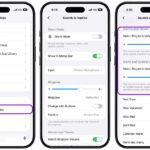
In the Settings app, scroll to and tap Apps. Scroll to and tap Messages, then make sure the switches next to iMessage and Send as SMS are toggled on (to green).
If your iPhone 17 Pro won’t Send pictures messages, make sure the switch next to MMS Messaging is turned on (to green).
Make sure your Mobile Plan is active
If your iPhone 17 Pro won’t send text messages, you should check whether you currently have an active mobile service plan. If you don’t have one, you won’t be able to send texts.
While the vast majority of phone plans offer standard unlimited texting, you might have exceeded your monthly limit of text messages if you have a limited plan.
In either case, you should contact your network provider to ensure there are no issues with your account services.
Make sure you are texting the correct phone number
Sending text messages to inactive or unused numbers is a recipe for failure and frustration. Confirm that you are texting the right number. If you entered the number wrong or the intended recipient now has a new number, you may be prevented from sending the text. So take your time when entering numbers.
If you continue to have trouble, contact your intended recipient by other means to confirm the number.
This last point is important. Sometimes, your contacts may change their numbers, or their mobile operator may disconnect them. The issue may be with someone else’s phone and not yours.
Restart the Messages app
If your iPhone 17 Pro can’t send text messages, try closing the Messages app and opening it again. Sometimes applications get lost or stuck trying to perform a certain action—like sending a text. Often, refreshing the app can clear out the action, allowing the app to once again function properly.
Restart your iPhone
If you’ve tried all of the above, you can restart your iPhone next. Restarts clear temporary memory, so they can be a good way of removing any issues affecting how your iPhone works.
To restart your iPhone, hold down the power button on the right side and one of the volume buttons on the left side. When the power slider appears, drag it to power down. When you turn it back on, it may well be able to send messages again.
Update iOS
You should always keep your iPhone 17 Pro updated with the latest version of iOS. New updates for iOS can iron out software issues and bugs. So if your iPhone 17 Pro still can’t send text messages, it’s a good idea to update iOS.
To update, you need to have your iPhone connected to a Wi-Fi network and a power source. You should then do the following:
- Navigate through the Settings app to the “General” tab, then tap Software Update.
- You’ll see a Update Now button if a pending update is available. Select it to download the latest version and install it on your iPhone.
If your iPhone says, “iOS is up to date,” you have the latest version installed and don’t need to do anything else.
Reset your network settings
Resetting your network settings is a last-ditch attempt before seeking help from your carrier or Apple, but it might be your last chance for getting those messages out.
- Navigate through the Settings app to the “General” tab, then tap “Transfer or Reset iPhone.”
- Tap “Reset”, then select “Reset Network Settings.”
Contact your carrier or Apple
If your iPhone 17 Pro still won’t send SMS messages after all this, your last option is to contact your carrier or Apple. First, try calling the customer service line. If they can’t help you, it’s likely a hardware issue, and you should contact Apple or an authorized service provider for expert assistance.
Depending on your location, you can book an Apple Store appointment at a Genius Bar. You may have to eventually replace the iPhone, but that should be the last case scenario.
Fix Your iPhone 17 Pro Messaging Issues
Unfortunately, it can take a little bit of time to figure out exactly what the source of your texting issues may be. However, if you’re patient and willing to try a couple of different techniques, you should have no problem getting your messages sending again.
If you’ve tried everything we listed above but still can’t send text messages on your iPhone 17 Pro, it may be time to get another phone.