Sometimes you may see an error message saying, “Payment Not Completed” with a red exclamation mark when you attempt to make a payment on your iPhone 18 Pro. More specifically, according to user reports, you may see this message when:
- You want to download a free app, update an app or purchase a paid app from the App Store.
- You are trying to download something from the iTunes Store or the Book Store.
- You are trying to pay with Apple Pay, such as an in-app purchase or a subscription.
- You attempt to pay off your Apple Card balance.
- You want to use Apple Pay on websites.
Basically, users try to make a purchase, but they see this error message instead of the “Done” with a checkmark message indicating the payment was successful. This appears to be an Apple Pay problem. This problem will prevent you from making purchases using your iPhone with your Apple Account. There are a few different reasons why this may occur, as a variety of different situations may trigger a “Payment Not Completed” error. In this article, I list several tips for you to try to fix this problem.
1. Basic checks for Apple Pay errors
Before you try the steps below, I recommend you follow these steps first and ensure these are met:
- Ensure that your iPhone is using the latest version of iOS. Check this by going to Settings > General > Software Update.
- Restart your iPhone 18 Pro, and then try to make the payment. Do you see the same error after restarting?
- There may be a temporary issue with the Apple Servers. Sometimes Apple Servers may be having trouble and be down, causing related services to not work. If this is the case, Apple resolves it quickly. The only thing you can do is wait. To see the status of Apple Servers, go to the Apple System Status page.
2. Update your payment method
This issue may occur if the billing information associated with your Apple Account does not match what is on file with your financial institution. See Can’t Verify Payment Method on iPhone 18 Pro. You can update your payment method from your iPhone. Follow these steps to ensure that your details are up to date:
- Tap Settings.
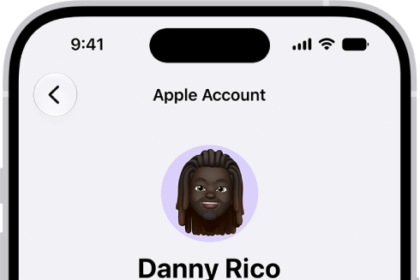
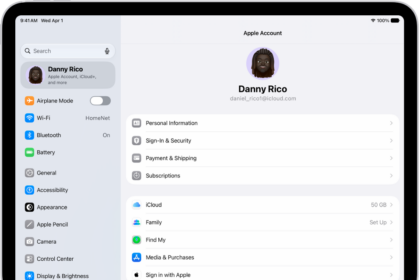
- Tap your name at the top of the Settings page.
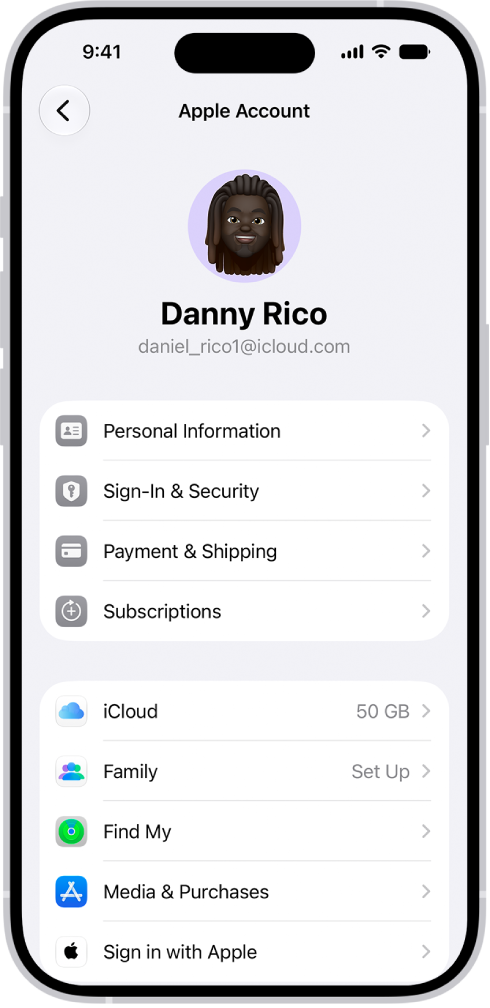
- Tap Payment & Shipping. If asked, sign in.
- Select your payment method.
- Then ensure that your billing address is correct. If you see any incorrect information, correct it by tapping on the address, editing the information, then tapping Done.
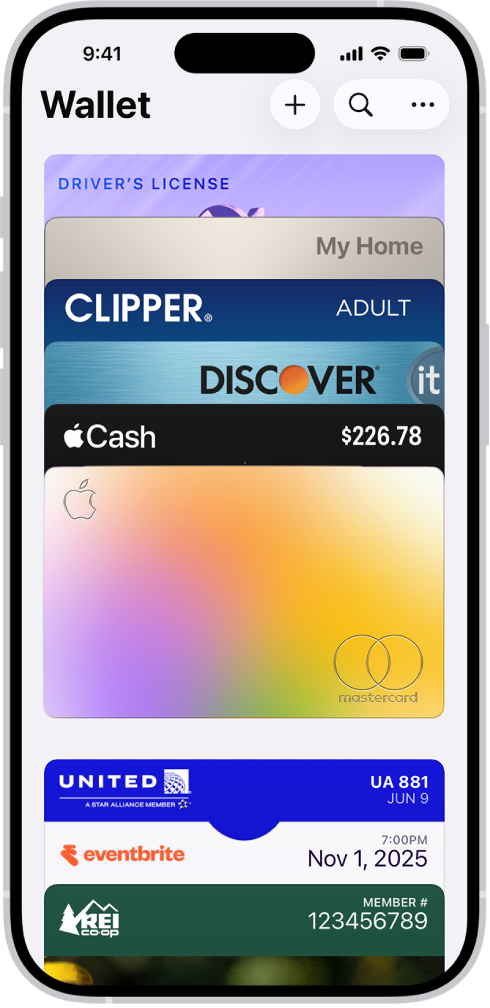
Additionally, open the Wallet app and then tap your card. Then tap the more (…) icon. Find the Billing Address section and ensure that your billing address is correct. If not, tap the address and update it.
3. Disable VPN
If you are using a VPN (Virtual Private Network) service, that may be the problem. Using a VPN may result in authorization problems and failed transactions. On your iPhone 18 Pro, disconnect VPN and try again. You can go to Settings > General > VPN & Device Management and then turn off the service.
4. Remove and add your Apple Account payment method
There may be a glitch causing your payment to fail. Removing your payment method and then adding it back may help you. Here is how:
- Go to Settings > [your name] > Payment & Shipping.
- Sign in if asked.
- Select your payment method.
- Then tap the red Remove Payment Method button.
- After removing it, restart your iPhone 18 Pro and again go to Settings > [your name] > Payment & Shipping, then tap Add Payment Method and follow the onscreen instructions.
5. Disable Face ID
It appears that this error may occur if Face ID authentication fails. You can easily test this by temporarily disabling it. Here is how:
- On your device, go to Settings > Face ID & Passcode.
- Enter your passcode to access the Face ID settings.
- Then turn off Face ID for iTunes & App Store and Contactless & Payments.
- Now restart your device and try again. If you can make a payment successfully this time, it is a Face ID problem. You may try setting up an alternate appearance.
6. Check your connections
If you still continue to have a problem, it may be a connection problem. Try these and after trying each, check to see if the issue is fixed:
- On your iPhone 18 Pro, turn on Airplane Mode, wait a few seconds and turn it off. You can access Airplane Mode in Settings.
- If you are using a Wi-Fi connection, ensure that you are not too far away from the router.
- Restart your Wi-Fi router by unplugging it, waiting 30 seconds, then plugging it in again.
- And lastly, reset your network settings. Note that resetting your network settings will delete all of your network-related settings, such as your Wi-Fi passwords, etc. If you want to do this, go to Settings > General > Transfer or Reset iPhone > Reset > Reset Network Settings.