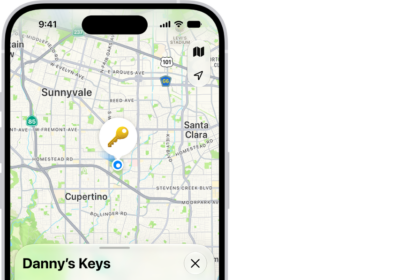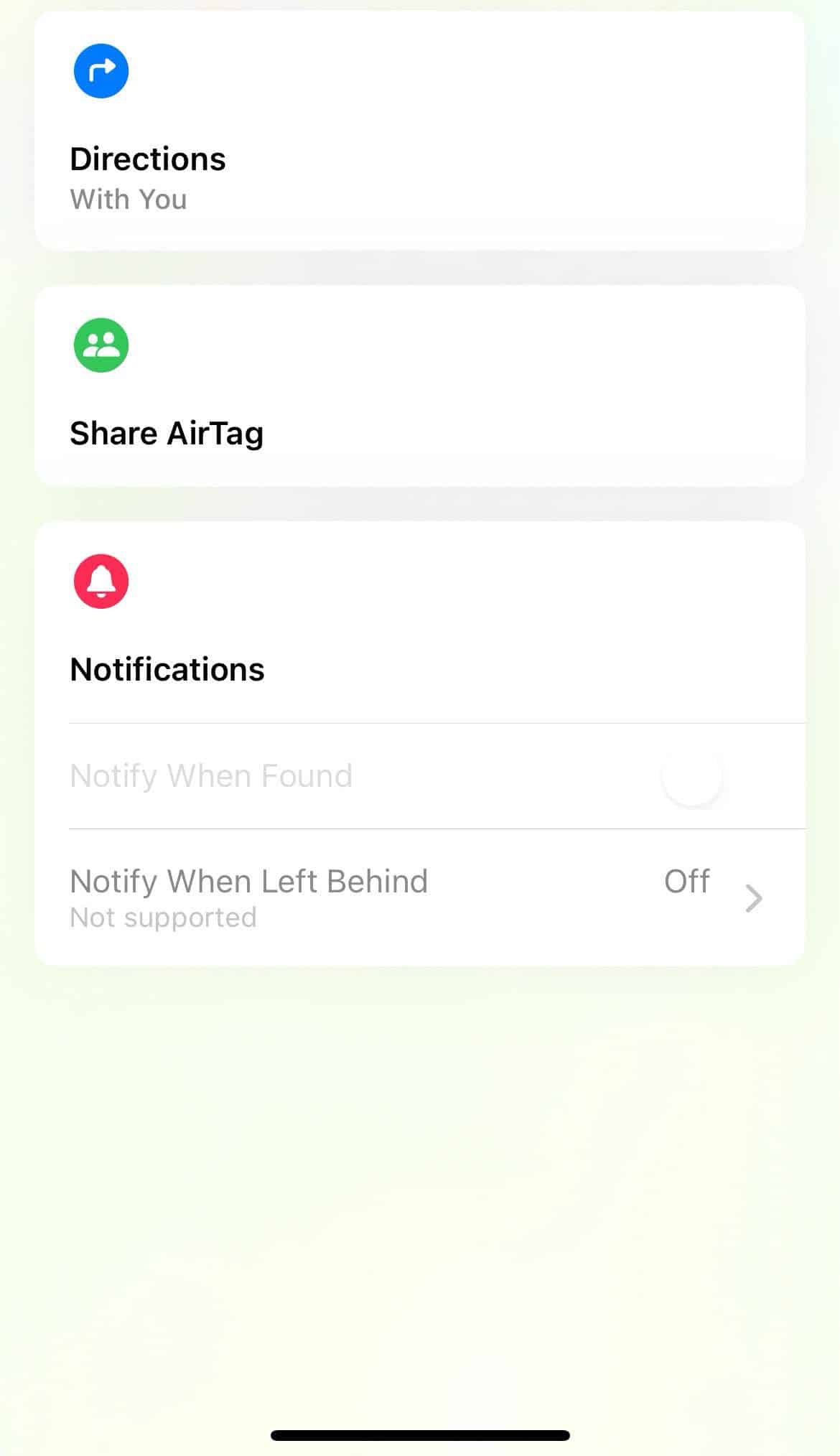
If you recently opened the Find My app and noticed that the “Play Sound” option is missing from your AirTags, you’re definitely not alone. After updating to the latest version of iOS, a number of users (myself included) suddenly lost the ability to make their AirTags ring from their iPhones and other Find My devices.
For many of us, this feature is crucial. I personally use it to find my keys almost weekly. Others train their pets to respond to the sound or rely on it to track luggage while traveling.
What’s Going On?
The issue seems to be related to the latest iOS update. Multiple users in Reddit have reported that after updating, they could no longer see the “Play Sound” button in the Items tab of the Find My app. Other features like “Share This Item” and “Lost Mode” were also missing for some.
Normally, “Play Sound” is the very first option you’d see when you tap into one of your AirTags in the Find My app, so it’s quite frustrating if the feature is missing. It’s designed to help you quickly locate your item if it’s nearby but out of sight—like under the couch or buried in a backpack.
You can use this feature from your iPhone, iPad, or Mac. Just open the Find My app, go to the Items tab, select the AirTag or third-party item you want to locate, and tap the Info button on the map. If everything is working correctly, you’ll see a Play Sound option—tap it, and the AirTag will emit a chime to help you find it. If the item is close enough, it should be loud enough to follow. If the option is missing, that usually means the item can’t play a sound at that moment.
The sound will stop on its own after a short time, but if you want to stop it sooner, just tap the item again in the Find My app, go to the Info menu, and tap Stop Sound.
How to fix
1. Force Restart Your iPhone
This is the most successful method to bring back missing “Play Sound” option for AirTags in Find My app.
To force restart an iPhone with Face ID (like the iPhone 16:
- Press and quickly release the Volume Up key.
- Press and quickly release the Volume Down key.
- Press and hold the Side button until the Apple logo appears.
After performing a force restart, most users reported that the “Play Sound” button returned. Force-restart fixed the issue for me too.
2. Double-Check Location Settings
It’s also worth checking that the Find My app has the right permissions to access your location. If something changed during the update, this might cause features like “Play Sound” to disappear in Find My.
Here’s how to make sure everything is set up correctly:
- Go to Settings > Privacy & Security > Location Services and make sure Location Services are turned on.
- Scroll down to Find My, tap it, and ensure it’s set to While Using the App.
- Also make sure Precise Location is turned ON.
While this may not seem directly related to the “Play Sound” feature, misconfigured permissions can sometimes interfere with how Find My communicates with your AirTags.
3. Power your iPhone down, then back on
If force restarting feels too dramatic, you can simply shut down the phone:
- Go to Settings > General > Shut Down.
- Drag the power off slider from left to right.
- Wait a few seconds, then turn your iPhone back on.
Powering the iPhone down, then back on cleared all problems. All of my settings appeared to be correct, and now I have "Play Sound" available in Find My app again.
What If Your AirTag Says It’s “Unreachable”?
If your Find My app not only hides the “Play Sound” button but also shows your AirTag as unreachable, that’s a separate issue—but it’s one that sometimes overlaps with this bug.
Here are a few common reasons your AirTag might appear unreachable, even if it’s physically close to your iPhone:
- Out of Range: This is the most obvious cause, but probably not your issue if you know both devices are nearby. An AirTag range is estimated to be 300-800 ft.
- Low or Dead Battery: If your AirTag’s battery is critically low or completely depleted, it won’t be able to communicate with your device. You may get low battery notifications. Your AirTag battery should last more than a year. You can check the battery status in the Find My app—if it’s showing empty or not displaying at all, it may be time to replace it. It is easy to change an AirTag battery.
- Bluetooth Interference: Bluetooth signals can be disrupted by walls, thick furniture, or even other wireless devices nearby. If there’s heavy interference or physical obstacles between your phone and the AirTag, the signal may be too weak to connect.
- AirTag Went Offline: When an AirTag is separated from its paired device for a long time, it can enter an offline state. In this mode, it stops broadcasting its location until it’s back within range or picked up by another nearby Apple device in the Find My network.
- Apple’s Privacy Protections: Apple built in strong anti-stalking protections. If an AirTag is seen traveling with someone who isn’t its registered owner, it may stop sharing its location or showing up as reachable to prevent unwanted tracking. Of course, this shouldn’t apply if you’re the rightful owner—but it’s something to be aware of, especially if you’ve recently transferred the AirTag to a new device.
If you’re seeing the “unreachable” message consistently, try restarting your phone, moving to a more open space, or replacing the AirTag battery. And if none of that works, it may be worth resetting and re-pairing the tag.
See also: How to fix Find My Not Showing AirTag, Cannot Connect