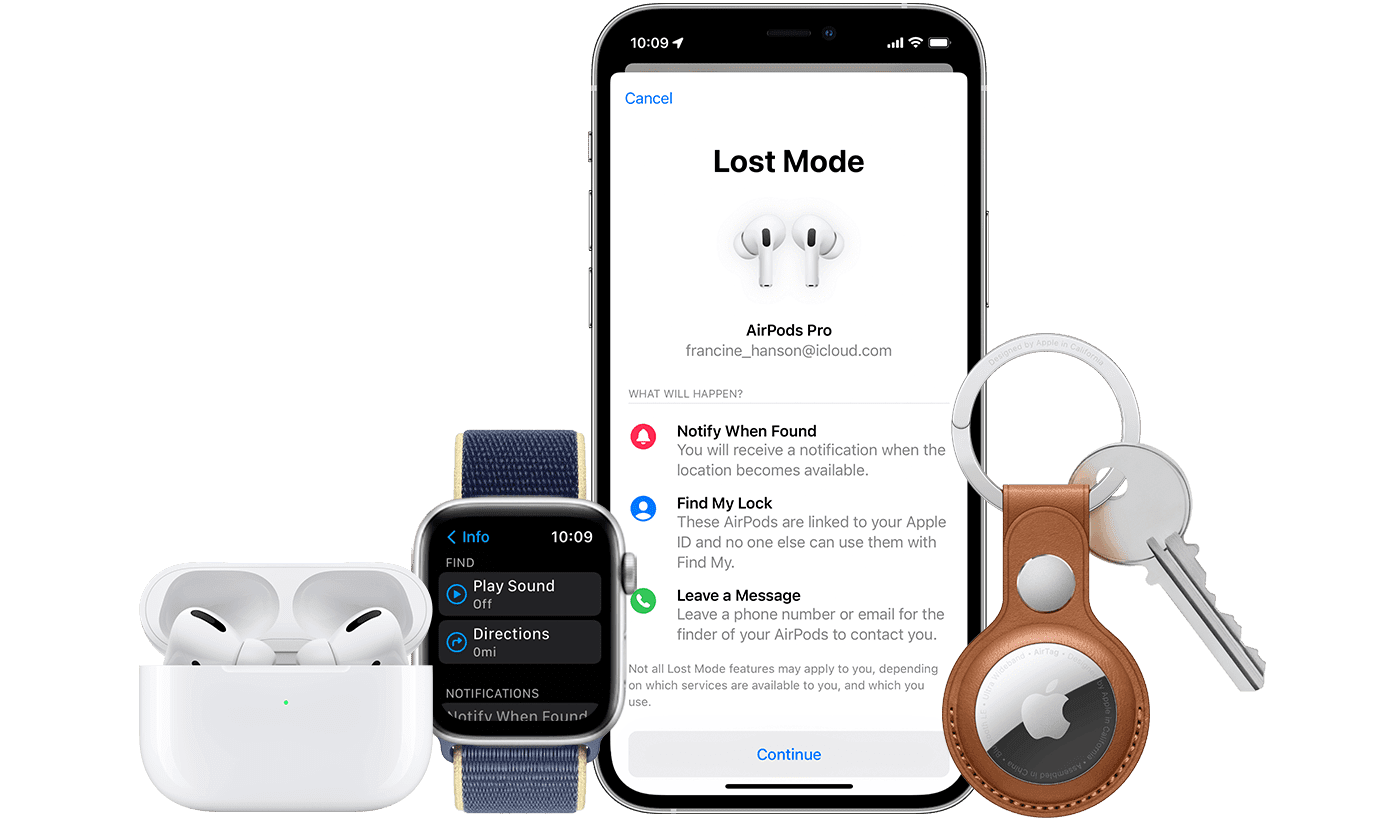
Some users have said that they don’t see their AirTag in the Find My app. Find My lets you easily keep track of your Apple devices including your AirTags and the items you’ve attached to your AirTags.
There are different ways to access the Find My app. You can open the Find My app on your device such as iPhone, iPad, or Mac. You can also use a web browser to visit the https://www.icloud.com/find website and thus you can access the Find My web app. But currently iCloud.com does not show AirTags.
A similar issue is that, I was also having this problem, you may see an error message saying “Cannot connect to AirTag. Make sure Bluetooth is turned on and your AirTag is in range”
When you open the Find My app, you will need to choose the Items tab to see your AirTag location. If the Items tab does not show your AirTag, or if you even do not see this option, this means that you will not be able to locate your device. This further means that you will not be able to use these iCloud features with your AirTag:
- View location.
- Play a sound.
- Lost mode.
There are a number of steps you can take, if you are having this problem. In this article, I list those steps.
Before you do anything, please note this: When we sent an AirTag to Istanbul, there were times when our AirTag was not accessible and was missing because our AirTag was in the air. So the AirTag could not send its location to Apple. This may be the case perhaps, if you cannot see your AirTag’s location.
If you can’t see AirTags in Find My
Restart and Update
The first step is simple. Simply restart your device. Restarting means turning your device off and back on.
Also ensure that your device is running the latest version of iOS, iPadOS or macOS.
Also, if you have another device, like an iPhone or iPad, test to see if the Find My app on the other device is showing your AirTag. If you cannot still see your AirTag, this may mean that the problem is with your AirTag. But if you can see it, then the problem is with your device. If this is the case, you may want to reset Location & Privacy on your device by going to Settings > General > Transfer or Reset (Device) > Reset and tap Reset Location & Privacy. You may also consider resetting your network settings by going to Settings > General > Transfer or Reset (Device) > Reset > Reset Network Settings.
Battery
The first step I recommend for you is to check the battery. It is possible that your AirTag’s battery has run out. Try these:
- The first step before replacing the battery, take out the battery and then put it back in.
- If that does not work, replace the battery in your AirTag. Follow these steps:
- Press down on the polished stainless steel battery cover of your AirTag and rotate counterclockwise until the cover stops rotating.
- Remove the cover and battery.
- Insert a new CR2032 lithium 3V coin battery (available at most electronic and drug stores) with the positive side facing up. You’ll hear a sound indicating that the battery is connected.
- Replace the cover, making sure that the three tabs on the cover align with the three slots on the AirTag.
- Rotate the cover clockwise until it stops.
Reset, set up and re-add
After trying the step above, did you figure out that the battery was not the problem? Then the next step is to (1) reset your AirTag (2) set up and re-add in Find My. I explain the steps below:
Reset your AirTag
Since, you cannot see your AirTag, you will need to do a manual reset, here is how:
- Press down on the polished stainless steel battery cover of your AirTag and rotate counterclockwise until the cover stops rotating.
- Remove the cover and the battery.*
- Replace the battery.
- Press down on the battery until you hear a sound. This sound means that the battery is connected.
- When the sound finishes, repeat the process four more times, removing and replacing the battery, then pressing down on the battery until you hear a sound. You should hear a sound each time you press on the battery, for a total of five sounds. The fifth sound is different from the previous four. This indicates that the AirTag is now ready to pair.
- Replace the cover by aligning the three tabs on the cover with the three slots on your AirTag.
- Press down on the cover.
- Rotate the cover clockwise until it stops rotating.
After resetting, you will need to set up your AirTag.
Set up and re-add in Find My
Before you start the process, ensure that your iPhone or iPad is running the latest version of iOS or iPadOS.
- Go to the Home Screen on your iPhone or iPad.
- Hold your AirTag near your iPhone.
- Tap Connect on the screen of your iPhone or iPad.
- Choose a name from the list or choose Custom Name to type a name and select an emoji, then tap Continue.
- Tap Continue to register the item to your Apple Account, then tap Finish.
See also: How to turn on or off Find My iPhone