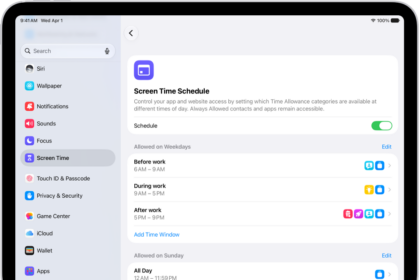
Several users have reported that they are unable to use Screen Time properly on their iPhone 18 Pro.
Users have reported the following problems with Screen Time:
- App and content restrictions and limits are not working in Screen Time. For example, Screen Time does not limit Safari, FaceTime, Facebook, or Chrome.
- Users are unable to add or modify limits, restrictions, or settings.
- Screen Time reports regarding how you (or your kids) use your device are not accurate.
- Parental controls are not working, meaning users are unable to manage a child’s device.
- Screen Time won’t turn on, the button is grayed out.
Some users have said that they have begun experiencing this problem after updating their devices.
You can use Screen Time on your iPhone 18 Pro to set screen time limits for yourself or your child. For example, you can block Chrome easily via Screen Time to prevent your child from accessing the Internet.
Are you having this problem too? Are you having trouble getting Screen Time to work? In this article, we explain how you can troubleshoot your problems if Screen Time is not working on your iPhone 18 Pro.
1. Check Apple’s system status page
Apple has a special webpage that lets users monitor whether different Apple services are running, currently down, or experiencing issues. This means that if you are having Screen Time problems, it could be because of an outage. In other words, it is possible that your device may not be reaching Apple’s Screen Time service.
Here is how you can do this:
- Open a web browser and visit the system status page.
- Find Screen Time.
- If you spot a red, yellow, or orange dot next to Screen Time, this means that Screen Time is experiencing problems. Meaning it is not working and Apple is aware of the problem, what you can do is to wait. If Screen Time has a green dot, that means that there is no problem and you should try the next tip below.
2. Update everything
Update your device(s). If there is more than one device (e.g., your child’s iPhone), update all devices. Here is how:
- iPhone: Update your device to the latest version of iOS. You can do so by going to Settings > General > Software Update.
Then, if you are having issues with third-party apps (Facebook, YouTube, Games, Social Media, etc), make sure that you have the latest version of those apps as well. You can update it by going to the App Store on your iPhone.
3. Turn off, restart and turn on Screen Time
Try these three steps in this order:
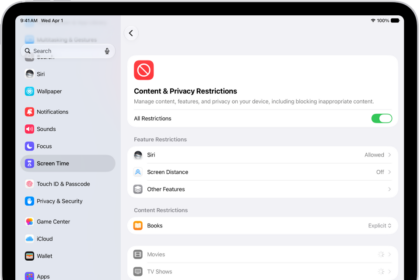
- Turn off Screen Time. On your iPhone, you can do that by going to Settings > Screen Time. Tap Manage Screen Time, then tap Turn Off App & Website Activity.
- Now restart your device.
- And then turn on Screen Time. Again, on your iPhone 18 Pro, go to Settings > Screen Time. Then follow the onscreen instructions to set Screen Time up again.
If the steps above do not work, then try these similar steps, if you have a family member like your child:
- Turn off Screen Time on your device. And turn off Screen Time on your child’s device too.
- On your child’s phone, go to Settings > [child’s name] > Sign Out. This will remove your child’s Apple Account from the device.
- Restart the devices.
- On your child’s phone, sign in with the Apple Account. Open Settings and then tap Sign in to your [device].
- Now turn on Screen Time.
4. Check the date and time
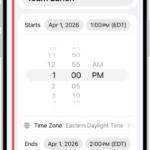
Please ensure that the date and time on your iPhone 18 Pro are set correctly for your time zone. You may want to turn on the “Set Time Automatically” option. Here is how you can do this:
- iOS: Settings > General > Date & Time.
This screen will show the date and time. If they are incorrect, correct them and turn on Set Time Automatically.
If your device could not determine your location, ensure that Location Services is enabled.
If you are still having issues, you can contact Apple Support. You can also send feedback to Apple here: https://apple.com/feedback.