Several iPhone 18 Pro users have stated that Siri sharing suggestions in the Share Sheet screen are not working. More specifically, users have reported that Siri suggestion shortcuts are not showing. Instead, it appears that users are seeing a blank area, or they are not seeing the area at all.
You can share various content types (images, URLs, etc) without leaving the app you are using via the Share button. This share screen is called Share Sheet. Siri makes this sharing smarter.
On top of the Share Sheet, you will see a quick-share panel. This section includes nearby AirDrop devices (if any) and your recent message conversations. These message conversations are based on Siri’s suggestions. This is the first row of icons. This row includes Siri sharing suggestions for conversations that you might want to share. It contains the Messages app conversations but it can also contain third-party messaging apps such as WhatsApp, Telegram, etc.
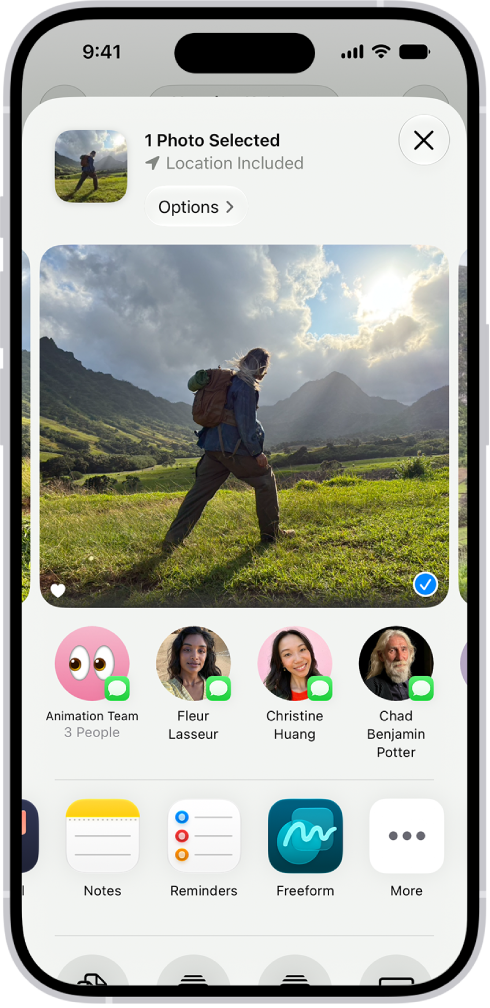
In this article, we explain what you can do to fix when these Siri message sharing suggestions are not working properly. This article is for you if your iPhone 18 Pro has stopped giving you the option to share information from the current context with apps to recent contacts.
Show When Sharing
First, ensure that Show When Sharing is enabled on your iPhone 18 Pro. If this is disabled, you will not see Siri’s suggestions.
You can check this by going to Settings > Siri. Then tap Suggestions. Ensure that Show When Sharing is on.
If suggestions are still not appearing, then check for certain apps if Siri is allowed to use them to make suggestions, see below.
Learn from this App
On your device ensure that the “learn from this app” option is enabled. When you turn this on for an app, you are allowing Siri to learn from how you use the app to make suggestions.
For example, if you want your recent message (iMessage, SMS text messages, etc) conversations to appear here, turn on “learn from this app” for Messages. Or, if you want to see your WhatsApp conversations, turn this on for WhatsApp. Here is how you can do this:
- On your iPhone 18 Pro, go to Settings > Siri, then tap App Access
- Tap the app name that you want this app to contribute information to personalize Siri.
- Then tap to turn on Learn from this App.
- For the purpose of this article, we turn this on for Telegram.
- If there is an option called “Show Siri Suggestions in App”, ensure this is enabled too. For example, the Messages app has this option.
- Now once Learn from this app is turned on for Telegram, now Telegram suggestions will start appearing.
If Siri suggestions are not working completely, you may want to try the following:
- Ensure that Siri is enabled in iCloud. You can check this by going to Settings > [Your Name ] > iCloud > Siri.
- And please ensure that your device has the latest version of iOS.
If you are still having this problem, you may want to contact Apple. Apple offers live chat support. You can also send feedback to Apple.