It appears that YouTube may fail to play videos and produce an error message saying, “Something went wrong. Tap to retry” on iPhone 18 Pro or iPhone 18 Pro Max. It further seems that people may run into this issue randomly for no apparent reason.
This problem may occur just before you play a video or as soon as you tap to start the video, regardless of how you access YouTube. You can access a YouTube video a number of ways, including:
- On the youtube.com website.
- YouTube’s iPhone app.
- On other websites, as YouTube videos can be embedded in them.
Another detail of the problem is that the YouTube site or app is still working; it’s just that the videos fail to load. Instead, the video player turns black (blank) with this text saying, “Something went wrong.” When Tap to retry is tapped, nothing happens, and the video does not reload or play again. Here are some tips you can try to address the problem.
Basic steps to check you have an Internet connection
Check these first:
- Ensure that your device is not in Airplane Mode.
- If this issue occurs on the YouTube web version, reload the page. Or open a new tab or window and try again.
- If this issue occurs on the YouTube app, restart the app.
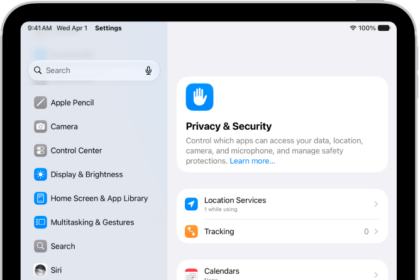
- Ensure that the YouTube app is allowed to use cellular data (if you purposely prevent this to limit data usage, then the YouTube app will not work over cellular). Go to Settings > Cellular to check this.
- Certain YouTube videos may not play if they are deemed to be targeted toward adults if you have turned on Screen Time with content restrictions. Go to Settings > Screen Time to check this. YouTube also has similar settings preventing some videos from being loaded. You can check them out to change your settings.
Update your iPhone 18 Pro and the YouTube app
Ensure that your iPhone 18 Pro is running the latest version of iOS. Go to Settings > General > Software Update to see if there are updates for your device. Then ensure that you have the latest version of the YouTube app. You can update third-party apps like YouTube in the App Store. Open the App Store, tap your profile icon. Tap App Updates, then tap Update next to apps you want to update, or tap Update All.
Please note that you can also turn on Automatic Updates for both iOS and third-party app updates. Here is how you can turn these on:
- App Store updates: Settings > Apps > App Store and then turn on App Updates.
- iOS updates: Settings > General > Software Update > Automatic Updates.
Restart your iPhone 18 Pro
So after checking that everything is up to date, are the YouTube videos still randomly not playing? Restart your iPhone 18 Pro to see if this fixes the problem. Restarting is simple to do but can be an effective troubleshooting step. Restarting your device will refresh memory, clear caches, restart services, and do other basic housekeeping stuff.
Sign out, delete, install and sign in
If you are having the “Something went wrong” issue with the official YouTube app, deleting and then reinstalling it may fix the problem by following these steps:
- Open YouTube and sign out. You can do so by tapping your profile picture, then tapping Accounts at the top. Then tap Use YouTube signed out.
- Now delete the app. Touch and hold the app on the Home Screen or in App Library. Tap Remove App, then tap Delete App. Tap Delete to confirm.
- After deleting, restart your device again.
- Now open the App Store and download YouTube again.
- Sign in now by tapping the Account and Sign in.
Reset network settings
This tip is a more drastic solution than the others above. This one erases your network settings. For example, your Wi-Fi passwords will be deleted from your device (but you can first copy your Wi-Fi passwords to make things easier). All of your network settings will be restored to the default settings. None of the steps listed above erased anything. Go to Settings > General > Transfer or Reset iPhone > Reset > Reset Network Settings, and then follow the onscreen instructions.