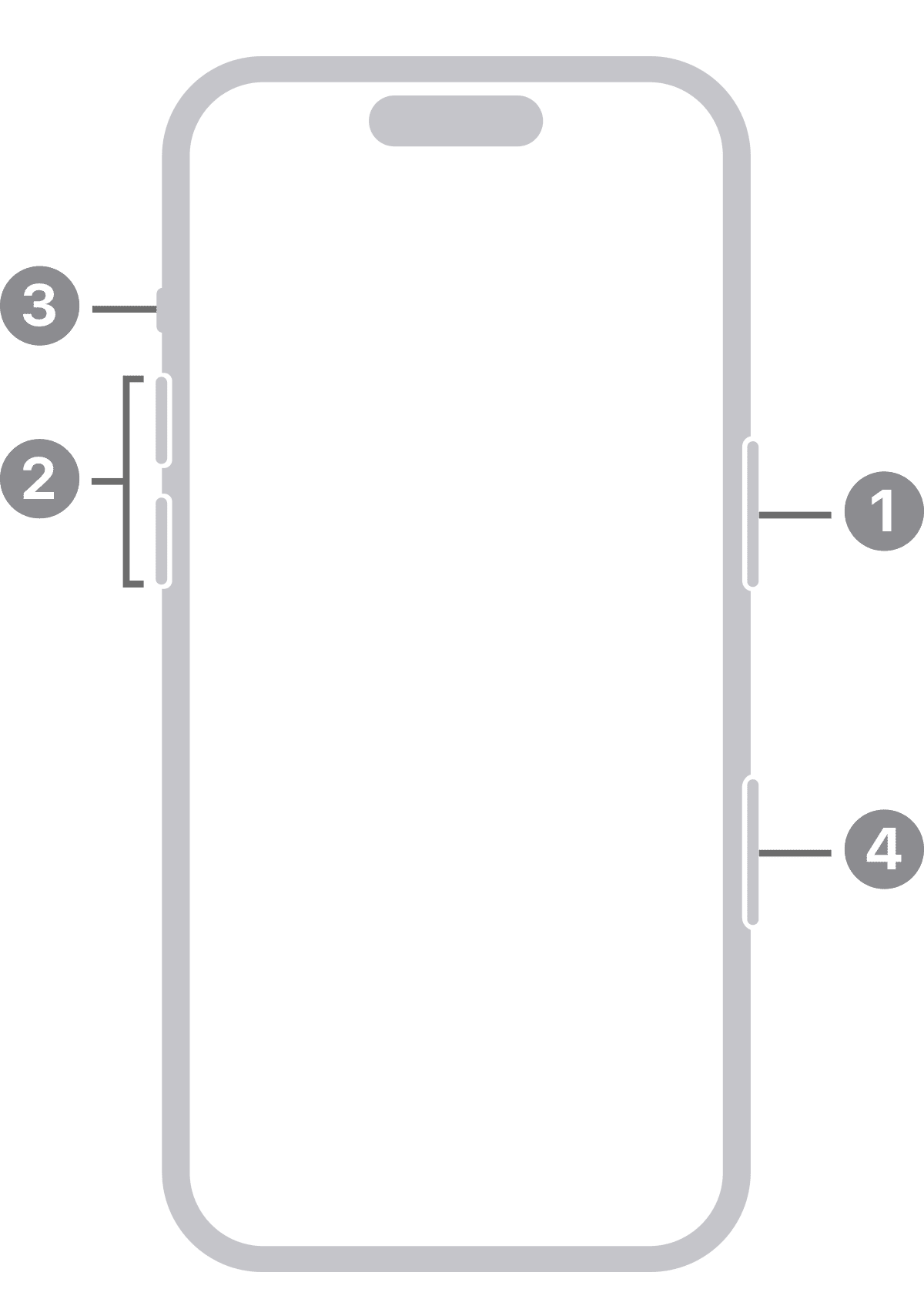
Your iPhone has a few physical buttons located on the sides or front face of the device. These buttons are used to do a lot of essential duties. In this article, we’ll go through all the controls on the sides of your iPhone and What they do.
Side button

This physical button on the right side of the iPhone enables you to take several actions, including powering on your iPhone; putting it to sleep and waking it; and summoning Siri, the virtual assistant.
Camera control

All iPhone 16 models include Camera Control button below the Side button. Use the Camera Control to open the Camera app; take a photo or start video capture; and adjust zoom, exposure, depth of field, and other settings.
Ring/silent switch
This switch on the left side of your iPhone lets you quickly toggle between ring mode and silent mode. When the switch is set to ring mode — the up position, with no orange showing on the switch — your iPhone plays all sounds through the speaker on the bottom. When the switch is set to silent mode — the down position, with orange visible on the switch — your iPhone makes no sound when you receive a call or when an alert pops up on the screen.
Action button
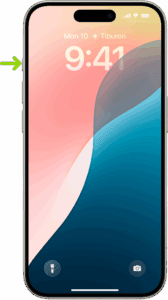
In place of the ring/silent switch, the iPhone 15 Pro and all iPhone 16 models have the action button, which you can customize in the Settings app to take your preferred action, such as recording a voice memo or turning on the flashlight. The action button’s default action is to toggle between ring mode and silent mode; long-press the action button until you feel haptic feedback confirming the mode change.
Note: Silent mode is overridden by alarms you set in the iPhone’s Clock app; by music, audiobooks, and other audio you play; and by you auditioning sounds such as ringtones and alert sounds in the Settings app. Also, when you configure a focus, such as Do Not Disturb, you can permit specific apps to interrupt it.
Tip: If your phone is set to ring mode and you want to silence it quickly when it starts ringing, press the side button or either of the volume buttons.
Volume up/down buttons
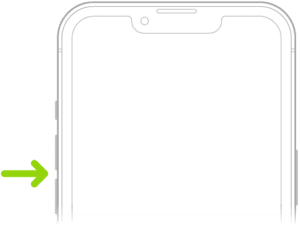
Two volume buttons are just below the ring/silent switch or the action button. The upper button increases the volume; the lower one decreases it. You use the volume buttons to raise or lower the loudness of the ringer, alerts, sound effects, songs, and movies. During phone calls, the buttons adjust the voice loudness of the person you’re speaking with, regardless of whether you’re listening through the receiver, the speakerphone, or a headset.
Home button (Touch ID models only)
No matter what you’re doing, you can press the Home button once to go to the Home screen. Pressing the Home button twice will bring up the App Switcher. The iPhone’s Touch ID sensor uses your fingerprint to unlock the phone and to authenticate you.