Some users have reported that they are unable to play videos in Safari. They have said that the video player shows a black screen instead of the video content itself. Further, they have said that even though they are unable to see the video, they can hear the sound. It seems that the video is playing but only a black screen appears. Lastly, it appears that this problem may happen when you want to watch movies or videos in full-screen mode or in windowed mode. This issue may occur on many different video hosting websites such as YouTube, Facebook, or Reddit.
This problem can be quite a nuisance for iPhone users; It can ruin your video watching experience. In this article, I will show you how you can fix the Safari video playback problem that causes the black screen.
Video screen is black with sound issue
Try these steps until you have fixed the problem:
- Ensure that your iPhone 18 Pro is up to date. If not, update to the latest version of iOS. Note that since Safari is a built-in app, iOS updates also include any Safari updates.
- If you have an ad blocker app installed, it could be causing this problem. Disable it. If this does not fix the problem, you can re-enable it later.
- Reload the video page in Safari and try again. You can tap the refresh button or do a downward swipe on the webpage to reload it.
- Restart your iPhone 18 Pro. Go to Settings > General > Shut Down. Drag the slider. Wait for your iPhone to turn off. Press and hold the side button to turn it on again.
- Force restart your iPhone 18 Pro:
- Press and quickly release the volume up button. Press and quickly release the volume down button. Press and hold the side button. When the Apple logo appears, release the side button.

- Press and quickly release the volume up button. Press and quickly release the volume down button. Press and hold the side button. When the Apple logo appears, release the side button.
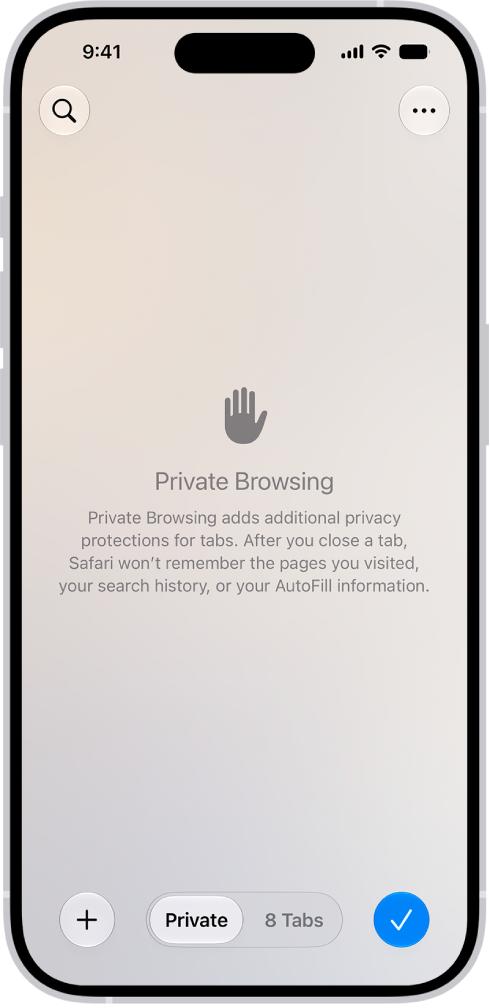
- Open a private window in Safari and test there. Swipe right on the tab bar at the bottom of the screen until Private Browsing opens, then tap Unlock. Test in Private Mode. If you can play videos, then this means that cookies, caches, and other data may be causing the problem. To clear these, you can delete your history (see the next step).
- Delete Safari history and data by going to Settings > Apps > Safari. Scroll down until you see Clear History and Website Data, then tap it.
- If none of the steps have worked for you, you may consider resetting all settings. This will erase all of your settings including your network and privacy settings. However, this does not delete your content or data, like your photos. To do this, go to Settings > General > Transfer or Reset iPhone > Reset > Reset All Settings.
Conclusion
I explained what you can do if you run into a Safari video playback problem. With this particular problem, users see a black screen in the video player, however the sound keeps playing. I listed 8 troubleshooting tips, and hopefully one of them will fix your problem. This is an annoying problem; You will not be able to watch your videos until it is fixed. If none of the steps work for you, you may want to contact Apple. Please leave a comment below if any of the tips worked for you.