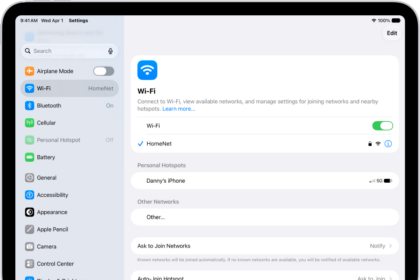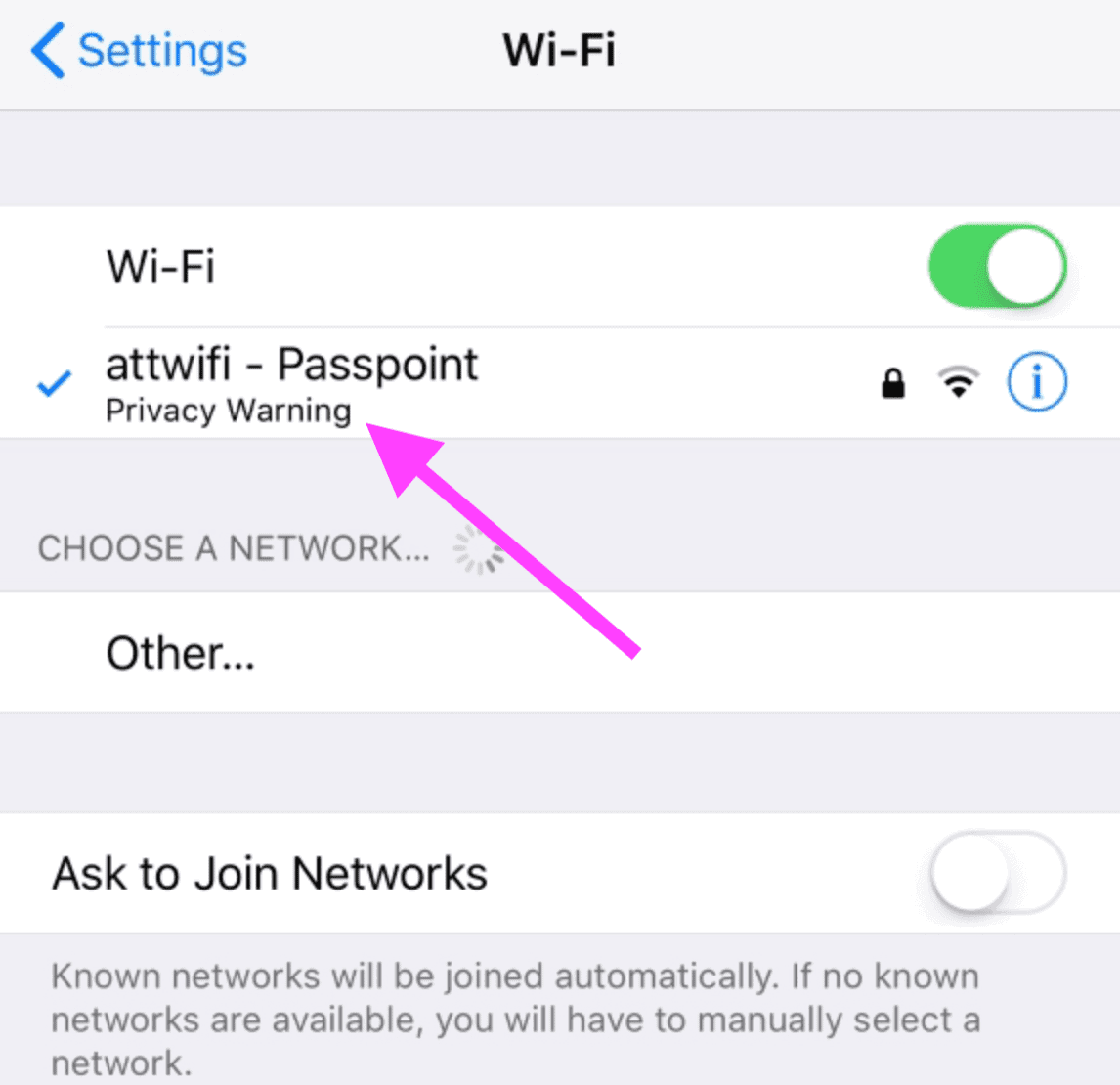
Sometimes you might see Privacy Warning under the name of a Wi-Fi network in Settings on your iPhone or iPad.
When you see this message, various questions may come to your mind. You may ask yourself:
- Why am I seeing this?
- Is something wrong with my iPhone or network?
- Is my online activity tracked or monitored by someone?
- Will other people be able to connect to my network?
- How can I fix things and get rid of this message?
These are all valid questions, and in this article, I will provide some answers. The Privacy Warning is distinct from the Weak Security message that can also appear in Wi-Fi settings.
Why does your iPhone Wi-Fi say ‘Privacy Warning?’
There are a few reasons why your iPhone Wi-Fi say Privacy Warning. If you tap the info (i) icon next to the name of your network connection, you will see more details on this warning. Here are the common messages you may see:
- Private Wi-Fi Address is turned off for this network.
- This network is blocking encrypted DNS traffic.
Whatever message you see, the steps to address it are generally the same. This message reflects Apple’s privacy stance regarding Wi-Fi security. To improve privacy, your iPhone or iPad uses a different Media Access Control (MAC) address with each Wi-Fi network you access. If you are seeing this message, it means that your device’s private Wi-Fi address feature is turned off, or the network is blocking encrypted DNS traffic, which could allow the network to track your device or view your DNS queries. The websites you visit could potentially be traced, particularly on public hotspots.
What you should do when you see ‘Privacy Warning’
Here are some things you can do when you see this message:
Enable Private Wi-Fi Address:
- Go to Settings > Wi-Fi.
- Tap the (i) info icon next to the network that shows the Privacy Warning message.
- Tap Private Wi-Fi Address.
- Select either Fixed or Rotating:
- Fixed: Your device uses a private address that stays the same for this network. This is the default for secure networks using WPA2 or WPA3.
- Rotating: Your device uses a private address that changes every 2 weeks. This is the default for networks with weak or no security.
- Off: Your device uses its actual hardware MAC address (not recommended for privacy).
- After changing this setting, you may need to reconnect to the network. The Privacy Warning should disappear.
If you see this message on your home Wi-Fi network, it is usually safe to keep Private Wi-Fi Address enabled. However, ensure that your connection aligns with Apple’s recommended settings for Wi-Fi routers. Your router should use:
- WPA3 Personal (most secure, recommended)
- WPA2/WPA3 Transitional (compatible with older devices)
- WPA2 Personal (AES) (acceptable if WPA3 is not available)
Avoid using deprecated security protocols such as WEP, WPA Personal, WPA/WPA2 mixed modes, or any setting with TKIP in the name, as these will trigger security warnings on your device.
If the warning persists after enabling Private Wi-Fi Address, try these additional steps:
- Forget the network and reconnect:
-
Go to Settings > Wi-Fi.
-
Tap the info (i) icon next to the Wi-Fi network.
-
Tap Forget This Network, then tap Forget to confirm.
-
Reconnect to the network by selecting it from the list and entering the password.
-
Restart your router and iPhone:
-
Power cycle your Wi-Fi router.
-
Restart your iPhone by pressing and releasing the volume up button, pressing and releasing the volume down button, then pressing and holding the side button until the Apple logo appears.
-
Reset Network Settings (if needed):
-
Go to Settings > General > Transfer or Reset iPhone.
-
Tap Reset, then tap Reset Network Settings.
-
Enter your passcode to confirm.
-
Note: This will erase all saved Wi-Fi passwords, VPN settings, and Bluetooth pairings.
You should be more concerned about this message if you are using a public connection such as the Wi-Fi available in a library, coffee shop, or airport. On public networks, ensure Private Wi-Fi Address is enabled to protect your privacy and prevent tracking across networks.