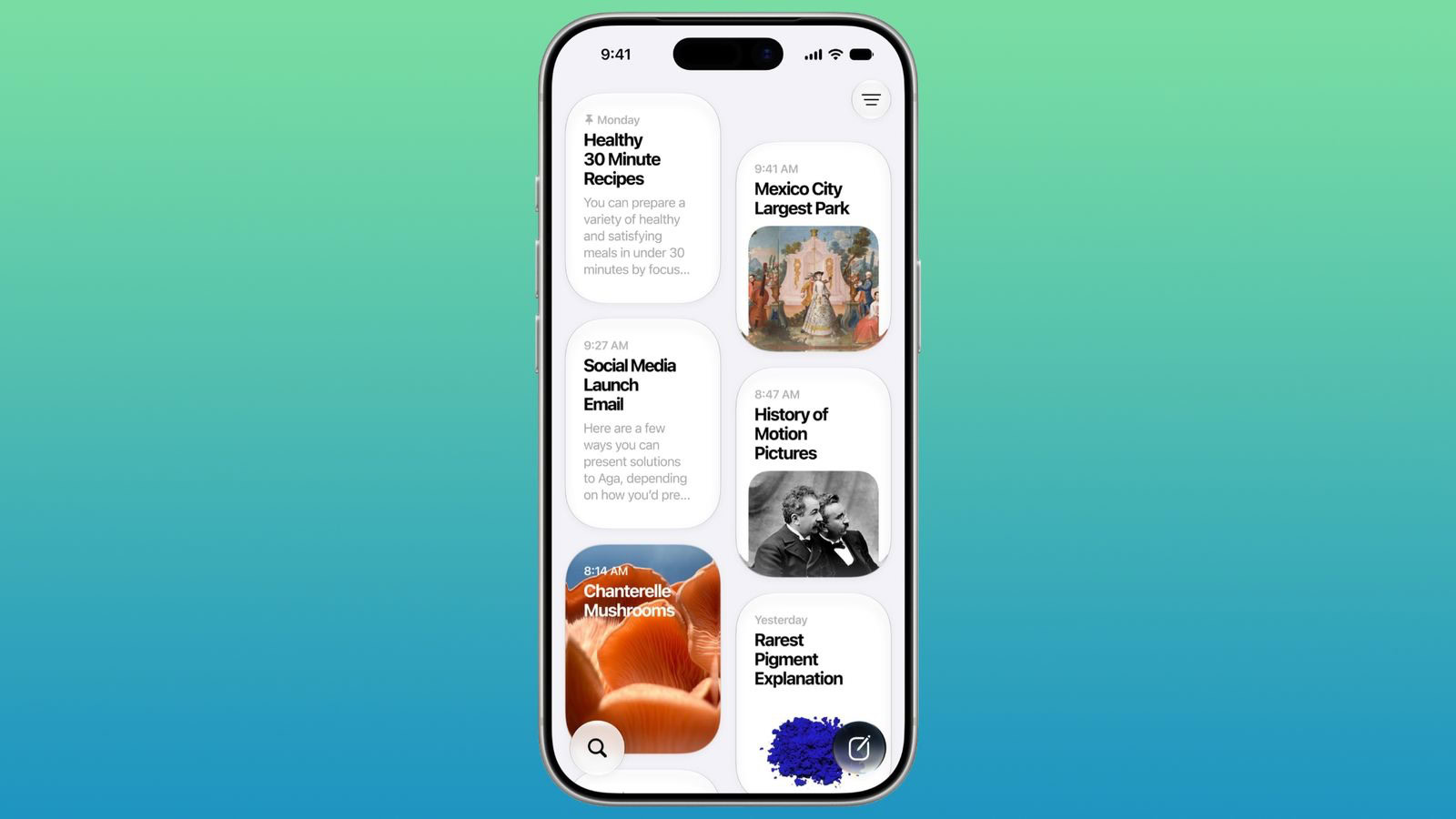
I’ve been using Siri AI for nearly two months in the iOS 27 beta. And so far, it’s checked all the boxes I was hoping for.
- How to Setup new Siri AI
- Make sure your Apple Device is compatible with Siri AI
- Switch region, if necessary
- Switch language, if necessary
- Install OS 27 software update
- Opt into the Siri AI waitlist after installation
- Customize Siri Expressive Voices
- How to use Siri AI
- 1. Start a conversation with Siri AI
- 2. Change Siri’s Voice or Accent
- 3. Customize How Siri Responds
- 4. Help Siri Pronounce Names
- 5. Find Photos
- 6. Get help with the current screen
- 7. Use Siri for Visual Intelligence in the Camera App
- 8. Smart Calendar Invites
- 9. Get Help With Writing
- 10. Create an Image With Image Playground
- 11. Choose How Long Your Siri Conversations Are Stored
- 12. Tweak Your Conversation View
- 13. Review and Manage Your Conversations
- 14. Turn on Accessibility Options
- 15. Use Siri App to Revisit Conversations
- Conclusion
The new Siri is far more capable than its predecessor, delivering on the original promise of being a truly capable assistant on Apple devices. In this article, I’ll show you how to set up and use Siri AI on your iPhone, iPad, Mac, Apple Watch and Vision Pro, step-by-step.
You’ll get access to the smarter, conversational and agentic Siri. It really does seem to be everything Apple promised.
You’ll also get the other Apple Intelligence features: generating Shortcuts and Safari extensions, extensive photo editing tools, realistic generation in Image Playground, systemwide proofreading and much more.
How to Setup new Siri AI
Apple Intelligence is how Apple brands its AI features. It focuses on models that run on-device as much as possible. For heavier tasks, the secure Private Cloud Compute maintains user data privacy.
The first Apple Intelligence features rolled out in 2024. But the powerful, advanced Siri was nowhere to be found — until now. After many delays, the next round of Apple Intelligence features coming in the OS 27 updates include the Siri originally promised.
The broad feature set is compatible with the iPhone 15 Pro, the new iPhone 16 and later. The iPhone Air and iPhone 17 Pro enjoy a more advanced and customizable Siri voice, as well as larger on-device models. Unfortunately, the requirements for the Apple Watch are quite strict — the Series 9, Ultra 2, SE 3 and later.
Make sure your Apple Device is compatible with Siri AI
To set up Siri AI on your iPhone, iPad, Mac, or Apple Vision Pro, you must have one of the supported devices. Because Siri AI runs using an on-device Foundation model that requires a lot of memory and neural processing power, the feature are only available on the latest devices. Apple’s OS 27 releases with Siri AI run on:
- iPhone
- iPhone 17
- iPhone Air
- iPhone 17 Pro
- iPhone 17 Pro Max
- iPhone 17e
- iPhone 16
- iPhone 16 Plus
- iPhone 16 Pro
- iPhone 16 Pro Max
- iPhone 16e
- iPhone 15 Pro
- iPhone 15 Pro Max
- iPad
- iPad Air (M4)
- iPad Air (M3)
- iPad Air (M2)
- iPad Air (5th generation)
- iPad Pro (M5)
- iPad Pro (M4)
- iPad Pro 12.9-inch (6th generation)
- iPad Pro 11-inch (4th generation)
- iPad mini (A17 Pro)
- Apple Watch
- Series 10
- Series 9
- Ultra 3
- Ultra 2
- SE (3rd generation)
- MacBook Neo
- MacBook Air
- MacBook Air (M5, 2026)
- MacBook Air (M4, 2025)
- MacBook Air (M3, 2024)
- MacBook Air (M2, 2022)
- MacBook Air (M1, 2020)
- MacBook Pro
- MacBook Pro (14-inch and 16-inch, M5, 2026)
- MacBook Pro (M5, 2025)
- MacBook Pro (14-inch and 16-inch, M4, 2024)
- MacBook Pro (M4, 2024)
- MacBook Pro (14-inch and 16-inch, M3, 2024)
- MacBook Pro (M3, 2023)
- MacBook Pro (14- and 16-inch, M2, 2023)
- MacBook Pro (M2, 2022)
- MacBook Pro (14- and 16-inch, M1, 2021)
- MacBook Pro (M1, 2020)
- iMac
- iMac (M4, 2024)
- iMac (M3, 2023)
- iMac (M1, 2021)
- Mac mini
- Mac mini (M4, 2024)
- Mac mini (M2, 2023)
- Mac mini (M1, 2020)
- Mac Studio (all models)
- Mac Pro (2023)
- Vision Pro (all models)
Switch region, if necessary
Due to the Digital Markets Act (DMA) in the European Union, Siri AI isn’t officially launching in EU member countries. The DMA would require users to be able to choose which AI assistant powers Apple Intelligence, beyond Apple’s built-in Foundation model. Apple claims that allowing third-party AI tools would introduce significant security risks.
However, as a user, this can be easily circumvented. In Settings > General, scroll down and tap Language & Region. Tap Region and set it to United States.
Bear in mind that switching your region will also remove some features that are only available in the EU, like alternative app marketplaces. You have a thirty-day grace period to keep using third-party apps you’ve downloaded from AltStore PAL, but you’ll have to decide whether you want Siri AI or Fortnite.
See also: Why You Still Have Old Siri After Installing iOS 27
Switch language, if necessary
While Apple Intelligence supports a wide array of languages, the new Siri AI only supports English.
If you need to add a language, go to Settings > General > Language & Region, tap Add Language… to add a variant of English, then set it as your primary language. It should work with any of the regional variations of English, should you prefer Australian, Indian, Philippine or the King’s English.
If you still want to type in a different native language, go back to Settings > General > Keyboard > Keyboards and make sure your preferred keyboard is on the top of the list.
Install OS 27 software update
If you haven’t updated your device yet, you’ll need to do that before you can setup Siri AI.
On an iPhone and iPad, go to Settings > General > Software Update. After it checks for updates, tap Update Now to download iOS 27 and Install Now when it’s ready.
After you update your iPhone, you can update your Apple Watch. Open the Watch app, then tap **General > Software Update. Tap Update Now. Make sure your watch’s battery is charged over 50% and put it on a charger before you tap Install Now.
On a Mac, you can install macOS Golden Gate 27 from System Settings. Open System Settings > General > Software Update. Click Update Now download and install the update.
On a Vision Pro, the process is very similar. Open Settings > General > Software Update > Beta Updates and tap Update Now.
Opt into the Siri AI waitlist after installation
After the update is installed and your device reboots, you’ll want to join the Siri AI waitlist. Open Settings > Siri and tap Try New Siri. You’ll see a splash screen explaining the new features; tap Join Waitlist, then Continue.
I was fortunate enough to be accepted fast — but I also joined the waitlist within an hour of the update release. People are now waiting over a week to join.
Customize Siri Expressive Voices
One of Siri AI’s new features is the ability to customize the assistant’s pace and expressivity with sliders, in addition to choosing its accent from a drop-down menu.
However, voice customization is not be available to everyone with access to the new Siri. According to Apple, these are the minimum system requirements for Siri’s voice customization feature:
Available on iPhone 17 Pro, iPhone 17 Pro Max, iPhone Air, iPad models with M4 and later and at least 12GB of unified memory, Mac models with M3 and later and at least 12GB of unified memory, and Apple Vision Pro (M5).
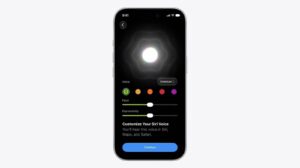
In other words, even if your device can run iOS 27, iPadOS 27, macOS 27 Golden Gate, or visionOS 27 and the new Siri AI, that doesn’t necessarily mean you’ll have access to Siri’s voice customization feature. For now, Apple is reserving that specific feature for some of its most advanced and recent devices.
On an iPhone, you can go to Settings > Siri > Voice to customize the expressiveness and pace of Siri’s voice so it’s just right for you.
How to use Siri AI
1. Start a conversation with Siri AI
First, make sure Siri is set up to listen to your voice requests. Go to Settings > Siri and select Requests. Change the option to “Siri” or “Hey Siri,” whichever you prefer. You can then activate Siri using your chosen wake phrase. I prefer to just say “Siri.” You can also set up manual access to Siri. Turn on Press Side Button for Siri, and you’ll be able to press the side button on your phone to invoke Siri. If you’re switching from Off to one of the other two options, you’ll be prompted to train Siri on the sound of your voice by speaking five different commands.

On iPhone, you can swipe down from the Dynamic Island to start a conversation with Siri AI and get an in-depth answer. A card appears to explain the “All-New Siri” the first time you pull down to access the new Siri Search or Ask interface.

You can take advantage of the new version of Siri from anywhere across the system. In addition to saying "Hey Siri," on an iPhone you can invoke Siri with the side button, or swipe down from the Dynamic Island to start a conversation and get an in-depth answer. On iPad and Mac, Siri AI is integrated into Spotlight so you can search for answers to almost any question. It is also integrated into systemwide context menus, allowing you to control-click to ask about images, files, or text on your screen. On Apple Vision Pro, Siri AI leverages spatial computing with a 3D visualization that you can place anywhere in your space, and you can invoke Siri by simply looking at it and starting to speak.
You can also tap into Siri AI across your Apple products when you’re on the go with iPhone, Apple Watch, CarPlay, and AirPods. On an Apple Watch, you can conveniently start a conversation with Siri right from the wrist, or a new Smart Stack suggestion can automatically appear to help you continue a recent conversation.
On an Apple Watch, you can take advantage of Siri AI on the go, starting a conversation right from the wrist or through a new Smart Stack suggestion.
2. Change Siri’s Voice or Accent
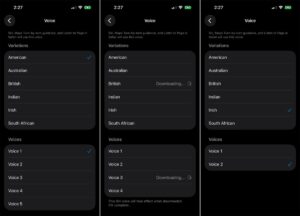
Don’t like Siri’s current voice? You can easily change it. Go to Settings > Siri and select Voice. In the Voices section, tap each voice to hear how it sounds. Tap the one you like best and then wait for it to fully download. To add some spice to the voice, you can select one of the accents in the Variations field. However, not all voices will be available with all accents, so you may need to change the voice as well.
3. Customize How Siri Responds
Next, you’re able to decide how Siri responds to your voice. At the Siri Settings screen, select Responses and choose Speak Back for Voice Input to make sure that Siri responds to you by voice. If you plan to ask Siri to send text messages and don’t need to confirm each request, turn on Automatically Send Messages to speed up the process. You can also turn this option on when you’re connected to headphones or Apple CarPlay.
4. Help Siri Pronounce Names
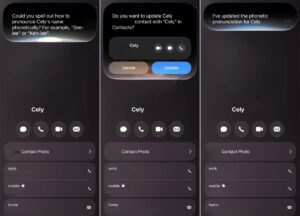
Siri can mispronounce certain names, especially ones with unusual spelling variations. With old Siri, you could correct this, but you had to do so manually by selecting the person’s name in the Contacts app and adding a phonetic spelling. Now that Siri is more conversational, you can simply ask the AI to do it for you. If you hear Siri mispronounce a name, just say that it mispronounced the person’s name. Siri should then offer to incorporate the correct pronunciation by automatically adding the phonetic spelling to the person’s Contacts card.
5. Find Photos
Siri AI can find specific photos on your Photo library. To try this, summon Siri and describe the exact scene you are looking for.
For example, you can say “Siri, pull up pictures of me on a cruise ship” and the AI will parse the visual details of your library to isolate those specific images. If you have a hefty photo library, this is an absolute time-saver.

6. Get help with the current screen
Since Siri AI has on-screen awareness, it can help you with your current screen. For example, when you are looking at a social media post and want to save the text, simply activate Siri and say “Copy the caption underneath this post.”
It will read the screen context, isolate the text block from an app like Instagram, and copy it directly to your clipboard.

7. Use Siri for Visual Intelligence in the Camera App
With iOS 27, the Camera app adds a new Siri mode. Here, you can ask Siri to describe or answer questions about whatever subject or object you see through the camera using the Visual Intelligence feature introduced in iOS 18.2. In the past, you had to trigger Visual Intelligence separately, even if you were already using the camera. Now you can access it more conveniently without leaving the Camera app.
Open the Camera app, switch to Siri mode, and aim the phone at an item you want described. Tap the shutter button to tell Siri to explain what you’re seeing. Tap the dialog balloon icon to open the Siri app, where you can continue a conversation about the item. You can also tap the photo icon to run a Google search on the item.

8. Smart Calendar Invites
Managing a chaotic schedule becomes significantly easier when Siri can bridge the gap between your inbox and your planner automatically. When you receive a message containing appointment information, open the email and say “Copy this to my calendar.”
Siri will copy the text, extract the precise date, time, and event title, and generate a calendar event without requiring you to type out a single detail. It has become my favorite shortcut, making my days feel just a little bit more seamless whenever an invite hits my inbox.
9. Get Help With Writing
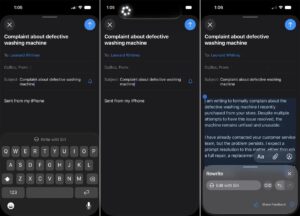
Need help composing an email, message, or other bit of text? You can call Siri AI for that type of assistance. Tap in the field where you want to write your text, then select the Write with Siri option that should appear just above the keyboard. Tell Siri the type of text you need, either by typing or speaking it. Tap the arrow key to submit your request, and Siri should display a draft of what you want. To revise the draft, select the Edit with Siri field and provide further instructions. When finished, you can save, share, or send your text.
10. Create an Image With Image Playground
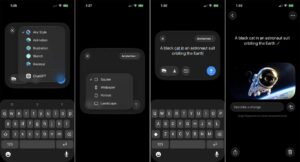
Introduced in iOS 18.2, the Image Playground app generates images based on your descriptions. In iOS 27, the tool relies on Apple Intelligence and Siri AI to work its magic. To try this, open the Playground app and tap the Any Style menu to choose your preferred style—Animation, Illustration, Sketch, Genmoji, or any style. At the bottom, tap the Photo icon to base the image on an existing or new photo. Tap the People icon to select a specific person from your photo library. Tap the icon with the squares to choose the layout—square, wallpaper, portrait, or landscape.
Now, type or speak a description of the image you’d like generated and submit it at the prompt. The app creates an image for you. From there, you can revise the image by typing new instructions. When done, save or share the image by tapping the iOS Share icon.
11. Choose How Long Your Siri Conversations Are Stored
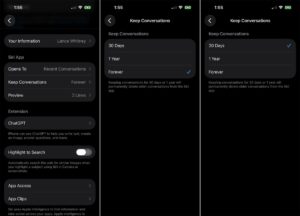
The new Siri app stores every conversation and request you make with Siri AI, whether you type or speak them. Though Apple promises that your chats are associated with a random identifier rather than your user ID, you may still not want your conversations stored indefinitely. To control this, open Settings on your iPhone, tap Siri and select Keep Conversations. From here you can change the setting from Forever to either 30 Days or 1 Year.
Once selected, iOS 27 will automatically purge any Siri conversations older than your chosen timeframe.
12. Tweak Your Conversation View
You can customize how your past conversations appear in the Siri app. At the Siri App section on the Siri settings screen, tap Opens to. Here, you can set what you want to see each time you open the app—Recent Conversations or a New Conversation. If you mostly talk to Siri by voice without launching the app, you’ll probably want to see your recent conversations. If you use the app to speak or type to Siri, you may prefer to see the New Conversation window instead.
Go back to the previous screen and select Preview. Here, you set how many lines of each conversation you’d see at the Recent Conversations screen. To see fewer lines and more conversations, keep the number to none, 1, or 2. To see more lines and fewer conversations, set it to 3, 4, or 5.
13. Review and Manage Your Conversations
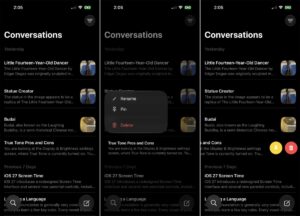
You can review and manage individual conversations with Siri from the Siri app. To rename, pin, or delete a conversation, long-press on it and choose the command you want to run from the menu. If renaming a conversation, type the new name in the text field. Pinning places it at the top of the screen for quick access. If you delete a conversation, you’ll be asked to confirm the action. Tap Delete to continue. You can also swipe a conversation to the left to pin or delete it.
14. Turn on Accessibility Options
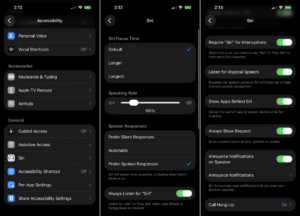
If you’re looking to further customize how Siri AI responds to your requests, head over to Settings > Accessibility > Siri to tweak a few accessibility options:
- Siri Pause Time lets you set how long Siri should wait for you to stop speaking—Default, Longer, or Longest.
- Speaking Rate allows you to adjust a slider to determine how fast or slow Siri speaks.
- Spoken Responses will let you choose how you want Siri to respond.
- Always Listen for “Hey Siri” will make sure Siri is listening even if your phone is face down or covered.
- Require “Siri” for Interruptions sets whether you need to say the word “Siri” to interrupt the AI when it’s speaking.
- Listen for Atypical Speech allows Siri to respond even if your speech patterns are unusual.
- Show Apps Behind Siri keeps your current app visible even when you call on Siri.
- Always Show Request lets you see a transcription of your speech on the screen.
- Announce Notifications on Speaker tells Siri to announce notifications over the speaker on your iPhone or iPad.
- Turning on Call Hang Up allows you to say “Siri, hang up” to end a phone or FaceTime call.
15. Use Siri App to Revisit Conversations
When you want to revisit a past conversation or kick off a new one, you can open the Siri app. The Siri app uses iCloud to privately sync conversational history across your Apple products, so you can start chatting with Siri on Mac and continue the conversation on iPhone, iPad, Apple Watch, or Apple Vision Pro.

Conclusion
I hope you’ve been able to set up Siri AI on your Apple devices. After using Siri AI and comparing it to the third-party tools, I’ve noticed a key difference where I greatly favor Siri.
Unlike other AI chatbots, Siri doesn’t pretend to be human.
It’s not overly verbose, mimicking a human-like personality that might lull you into forming a personal relationship with it.
Siri is helpful, intelligent, and does what you ask it to do. But the way it responds makes clear that it’s a tool, not a person. It reminds you regularly that it’s an AI, so it can make mistakes. And it won’t faux date you.
Did you set up Siri AI on your device? Let us know in the comments.