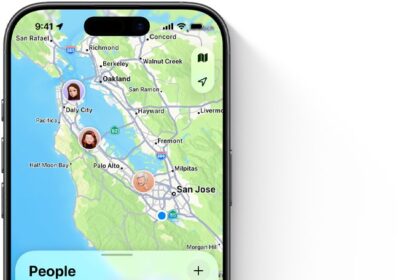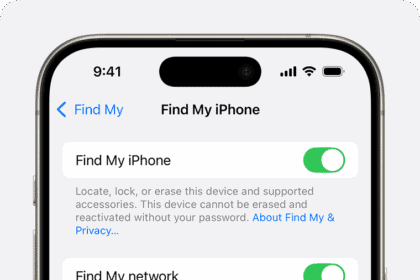
Disclosing your location is a two-edged sword—or maybe a multi-bladed throwing star. It can be incredibly handy to let other people know where you are for travel, safety, timing, and even accountability. However, letting others know where you are means they know where you are, which even for close friends, family, and partners can feel like too much knowledge and the expectation of you sharing your position can feel invasive. (You also may feel it’s excessive that, when you launch Find My, you can see the precise location of everyone who has shared with you, even though they did so willingly!)
Apple tries to strike a balance with location sharing just as it does with nearly all other aspects of digital privacy that they mediate and let you choose your comfort level with.
Find My is the interface through which the location you share from an iPhone, iPad, Mac, or Apple Watch gets viewed, but it’s only partly the way in which you choose what is shared! That split is left over from when Apple introduced the previous standalone app, Find My Friends, and relied on preferences buried in Settings to manage all the details.
When you share your location, the other person cannot see your devices, but only your presence: the device marked as showing where you are. Only people in a Family Sharing group can see each other’s devices, and only if the person is sharing their location with them. Items don’t pick up Family Sharing settings. You can share them with up to five people.
Location has two interrelated components: how you share your location and how you choose to accept seeing other people’s locations. Let’s start with you.
You can use the native Find My app to view and change personal settings, even if you’re part of a Family Sharing group:
- On an iPhone/iPad, watchOS 27, and macOS 27: Go to the Find My app > Me button.
- In macOS 26 and earlier: In the Find My app’s People view, click Me and click the Info button.
- In watchOS 26 and earlier: In the Find People app, tap the Me entry.
Here is what appears in the My Location section on all these devices:
- Share My Location: A single tap, and you let yourself be seen by those you’ve shared with; another tap, and you run silent—your location isn’t sent again until it’s re-enabled.
- Sharing From: Often called presence, this defines which devices are shared in Find My as being your location as a human if you own multiple devices. My Location reads This Device if you’re on the one defining your location; otherwise, it shows the name of that device. (See how Find My works.)
- Location Label: At the top of the Me view, you see the current inferred address. However, Find My tries to offer something more descriptive. If you’ve defined your home or work location in Contacts or Phone, it should show Home or Work as the label. You can also create your own names for other addresses; see how to see someone’s location in Find My.
Share with someone
You can share your location in more than one way, and the interface is essentially the same with slight differences.
Here’s how to share in various ways across your Apple devices, from most universal to most specific; how to set the duration option is discussed after these instructions:
- On an iPhone or iPad, or in macOS 26 or later:
— Find My app: Click or tap the add button at the upper-right corner of the list in whatever view you’re in. Enter names or select people. Click the checkmark button. Now choose a duration.
— Messages: In any conversation in Messages, tap or click the avatar or avatars. On an iPhone or iPad, tap the Plus button, choose Location, tap Share, choose the duration (see below), and tap the Send button. On a Mac, click Share My Location, choose a duration, and press Return to send.
Tip: If your recipient or group isn’t all Apple users, you can still send an image that embeds a link to a map; instead of Send or Share, the button reads Send Pin.
- In macOS Sequoia or earlier:
— Find My app: In the Find My app, click the People button, then click Share My Location. Enter names or select people. Click Send, and choose a duration.
— Messages: In any conversation in Messages, click the Info button in the upper-right corner. Click Share My Location and choose a duration. Press Return to send the location message.
- On an Apple Watch:
— Find My app (watchOS 27) or Find People app (watchOS 26 or earlier): In watchOS 27 only, first tap People. Scroll to find Share My Location. Tap it to either dictate a name, choose a contact, or enter a contact’s phone number.
— Messages app: In the Messages app in watchOS 26 or later, choose a conversation, tap the add button, choose Location, tap Share, and choose a duration.
Note: When someone requests your location, as explained ahead in If You’re Asked to Reciprocate, you can’t use a single tap from an Apple Watch. You have to use one of the above methods.
Note: You can’t share your location with others or see their location in the Find Devices app on iCloud.com.
Choose how long it lasts
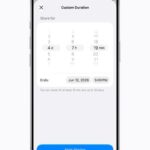
No matter which path, platform, or version you’re using from the above list, you’re asked to pick or set a duration: Always (formerly Indefinitely), End of Day, One Hour, or Custom. (These options are worded slightly differently across apps.) The Custom choice is new in the version 27 releases. Selecting that option lets you set a duration from 15 minutes to 30 days.
If you shared via Messages, you see a note in the conversation that says “You started sharing location with person name.” The recipient sees “Person name started sharing location with you.”
I’m guessing Apple switched in the version 27 releases to the simpler word “always” after years of using “indefinitely” because more people can easily parse “always.” Indefinitely has the ring of “inflammable” about it: does it mean forever or for a period of time? (Inflammable items are just as easy to set on fire as flammable ones.)
If you choose anything but Always/Indefinitely, a countdown clock appears when you view the details for that person’s entry in Find My: it reads “Sharing for X time units” in the version 27 releases and “X time units remaining in previous operating systems. Messages displays a map tile with an inset yellow countdown clock for the remaining time. In Apple Watch’s Find People app, the contact’s avatar is overlaid with a timer; tap the entry to see the remaining time as text.
Family Sharing is a separate switch
For greater flexibility, Apple also lets you use Family Sharing settings to enable to disable location sharing among group members. Go to Settings/System Settings > Family > Location Sharing to see family settings.
In Location Sharing, you see all the other members of your family sharing group and your current sharing status with them and theirs with you—sort of!
If you used this interface to share your location, or used the Automatically Share Location option (enabled by default) for new members, you see sharing enabled next to the group member. However, if you used the Find My app to start sharing your location, it may appear that you are not sharing with them! You’re just not “family” sharing with them! Yes, it’s as straightforward as a bent nail.
Under the Share Your Location With section, you can also see which of the group members are sharing with you. Again, this is dependent on how you shared. In the figure, you see “person name is sharing your location with you,” even though four members of my family group are sharing their locations with me. Oy!
See who can currently find you
Once you start sharing your location with other people, you might lose track of precisely who that is. Fortunately, you can see a list in a few different places:
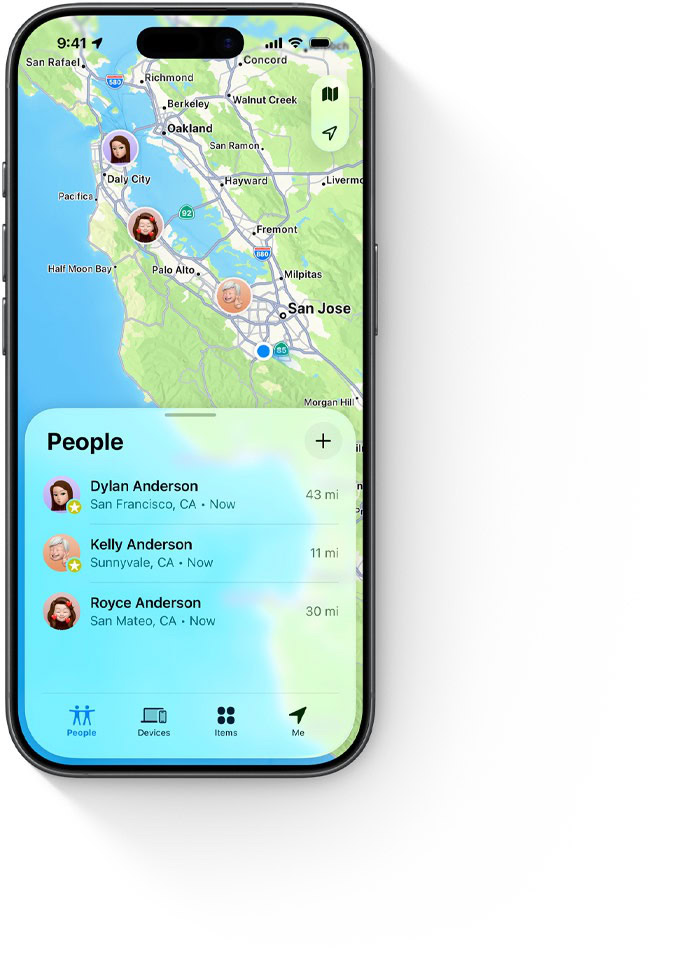
- Native Find My app: Use the Find My app’s People view or the Find People app on an Apple Watch (watchOS 26 or earlier). Everyone in the list who reciprocally follows you appears with location information; everyone else you share with has the label “Can see your location” beneath their name.
- Find My settings: On an iPhone or iPad, go to Settings > Your Name > iCloud > Find My, and you can see Family (if you’re in a Family Sharing group) and Friends. This doesn’t show reciprocal sharing status, however.
- Family settings: If you’re part of a Family Sharing group, Settings/System Settings > Family > Location Sharing reveals any group member with whom you’ve shared using Family Sharing settings. See that befuddling situation above in Share Location with Family.