Apple introduced iPhone Mirroring. Designed to make connecting your iPhone to a Mac seamless, this feature should allow users to mirror their phone’s screen with just a few taps. But sometimes, things don’t go as smoothly as planned.
I recently tried to set up iPhone Mirroring with my Mac and iPhone 18 Pro, both running the latest software versions, expecting a straightforward experience. My Mac was able to detect my iPhone, and vice-versa, so it seemed like everything was ready to go. But each time I attempted to connect, I hit a roadblock—a “Timed Out” error saying, “Timed out starting iPhone Mirroring.”
Determined to make it work, I tried the usual troubleshooting steps. I restarted both my Mac and iPhone, dissociated and re-linked the devices, and even confirmed that both were signed in with my Apple Account, with Bluetooth and Wi-Fi enabled. Unfortunately, none of these steps made a difference, and the error persisted.
In this article, I’ll walk you through several fixes that might help if you’re experiencing the same problem. I recommend trying these in the order listed to give you the best chance of success.
Fix 1: Restart and Reconnect with Specific Steps
Sometimes, getting iPhone Mirroring to work can be as simple as restarting your phone, but with a few extra steps to help the pairing process go smoothly. Here’s what worked for me:
- Restart your iPhone 18 Pro. Power it down and turn it back on.
- Enter your passcode to unlock it initially after the restart.
- Lock your phone using the side button.
- From your Mac’s mirroring app, re-initiate the connection, but don’t unlock your phone while it’s pairing.
Following this sequence, I found the connection process a little smoother, and this step-by-step approach seemed to help avoid the error.
Fix 2: Enable Rotating Private Wi-Fi Address on Both Devices
A possible cause of the mirroring connection timing out can be the Private Wi-Fi Address setting on your devices. Apple uses a rotating private address to help enhance privacy when connecting to Wi-Fi networks, and ensuring this feature is active on both your Mac and iPhone can sometimes resolve connection issues. Here’s how to check:
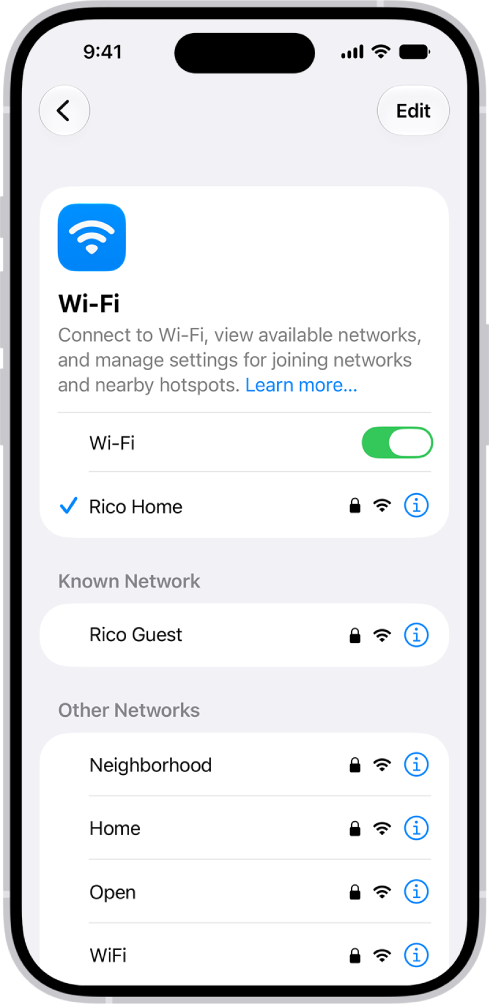
- On your iPhone: Open Settings > Wi-Fi. Tap the info icon next to your connected Wi-Fi network, select Details, and ensure Rotating Private Wi-Fi Address is enabled.
- On your Mac: Go to System Settings > Network. Click on your connected Wi-Fi network, go to Details, and confirm that Rotating Private Wi-Fi Address is selected.
With this setting enabled on both devices, try reconnecting the iPhone Mirroring feature. This adjustment can often prevent this error by stabilizing the Wi-Fi connection during connection.
Fix 3: Reset Network Settings on iPhone
If the previous fixes didn’t work, another option is to reset your iPhone 18 Pro’s network settings. This step can help clear out any underlying network issues that might be causing this error during mirroring. However, keep in mind that resetting network settings will erase all saved Wi-Fi networks, Bluetooth connections, VPN settings, and any other network-related configurations on your iPhone.
To reset your network settings:
- Open Settings on your iPhone 18 Pro.
- Go to General > Transfer or Reset iPhone > Reset.
- Select Reset Network Settings and confirm.
After your iPhone restarts, you’ll need to reconnect to Wi-Fi networks and re-pair Bluetooth devices as needed. Once you’ve done that, try initiating the mirroring connection again.
Fix 4: Turn Off VPN on iPhone and Mac
Using a VPN can sometimes interfere with network-based features like iPhone Mirroring, leading to errors like this. If you have a VPN enabled on either your iPhone or Mac, try disabling it temporarily to see if that resolves the issue.
To turn off VPN:
- On your iPhone: Open Settings, then go to General > VPN & Device Management. If a VPN is active, toggle it off.
- On your Mac: Go to System Settings > Network. Select VPN, then click Disconnect if it’s connected.
With the VPN disabled on both devices, try reconnecting iPhone Mirroring. This can often help establish a more stable connection and prevent this problem.
Fix 5: Delete ScreenContinuity Preferences via Terminal
If the issue persists, resetting the ScreenContinuity preferences on your Mac might do the trick. This involves using the Terminal to delete a specific preference file for the iPhone Mirroring feature. Follow these steps carefully:
- Close the iPhone Mirroring app completely.
- Open Terminal on your Mac (or your preferred terminal app).
- Navigate to the ScreenContinuity user preferences folder by entering:
cd ~/Library/Containers/com.apple.ScreenContinuity/Data/Library/Preferences- Delete the preferences file by entering:
rm com.apple.ScreenContinuity.plist- Reopen the iPhone Mirroring app and attempt to connect your devices again.
This should refresh the ScreenContinuity settings, and, with any luck, it’ll allow the mirroring connection to proceed without the “Timed Out” error.