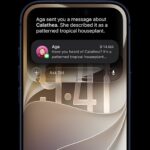
Raise to Listen allows you to listen to audio messages and voice messages by lifting the phone to your ear. It also allows you to record and send audio messages and voice messages without tapping the record button. You simply raise your iPhone 18 Pro to your face. Sometimes for various reasons, Raise to Listen may not work properly and can misbehave. When it is not working, you may experience these sorts of problems:
- iPhone does not automatically start playing when it receives an audio/voice message.
- iPhone does not automatically start recording audio when you lift it to your face.
- Raise to Listen sends incomplete audio messages.
If you are having issues like these, here is how to fix them.
Raise to Listen is misbehaving
Sometimes, Raise to Listen may appear to work but shows bizarre behaviors. For example, Raise to Listen may be triggered unexpectedly, or some of your audio/voice messages may be cut off before you stop talking, causing you to send incomplete messages. Another example would be Raise to Listen may erroneously mark your audio messages as read.
This issue is likely because of your third-party case or screen protector. Some third-party hardware may interfere with your iPhone’s sensors. Your iPhone’s sensors are critical to Raise to Listen’s performance. Try removing your case or screen protector to see if this solves your problem.
If your case or screen protector is causing problems, you have two options:
- Remove the case or screen protector and use another one that causes no problems.
- Disable Raise to Listen to stop these erroneous actions.
Raise to Listen is not working at all
If Raise to Listen is not working, meaning nothing happens when you raise your iPhone, this can probably be fixed by following a few simple steps.
First, make sure Raise to Listen is enabled (Settings > Apps > Messages > Raise to Listen). Second, ensure that your iPhone is up to date (Settings > General > Software Update). And third, restart your iPhone 18 Pro. You can restart your iPhone by following these steps:
Restart iPhone
- Simultaneously press and hold the side button and either volume button until the sliders appear, then drag the Power Off slider.

Force restart iPhone
If restarting does not fix the Raise to Listen problem, you will need to force restart your iPhone 18 Pro. In fact, I was having this exact issue with my iPhone. When I forced my iPhone to restart, my problem was fixed. Here is how you can do this:
- Press and release the volume up button.
- Press and release the volume down button.
- Press and hold the side button. If you see the power off screen, ignore it. Keep holding the side button until your screen goes black and you see the Apple logo. When you see the Apple logo, release the side button.

- Your iPhone 18 Pro will restart.
Now check your issue. If your issue continues, you may have a hardware problem. For example, your proximity sensor may be bad. You should contact Apple. You can have Apple service your iPhone by making a Genius Bar appointment.